

Edit Attributes
To edit attributes, follow these steps:
-
Select the object with the tags to be edited.
-
On the Position and Filter tab, in the Filter group, click
 Edit Attributes.
Note: You can also access the Edit Attributes tool from the property editor. Click Edit... next to Object Attributes.
-
Select the appropriate <Primitive type> Tag from the drop-down list.
Note: The tag types listed will depend on the types of objects that are selected.
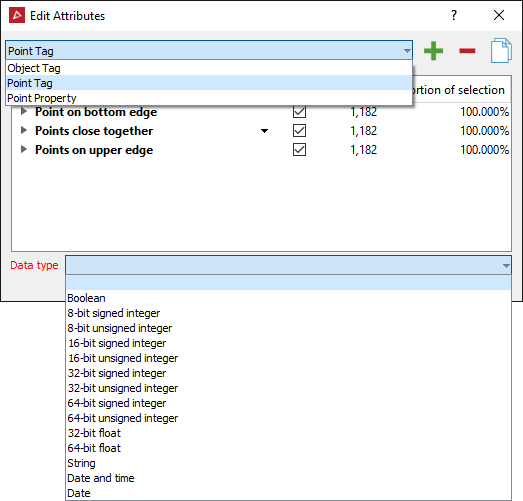
-
Make any necessary changes to the attributes. See Edit Attributes, below for more information.
Tip: Remove a tag from an object or primitive by selecting the tag, then clicking the
 button.
 -
Close the panel when finished.
|
|
|
|
A set of object attributes (left) and point attributes (right) |
|
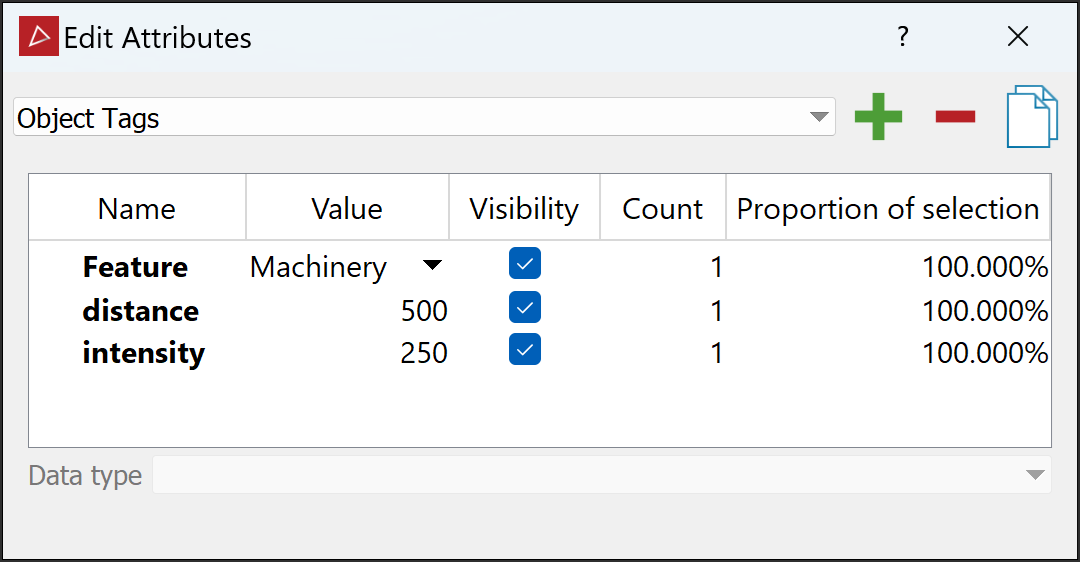
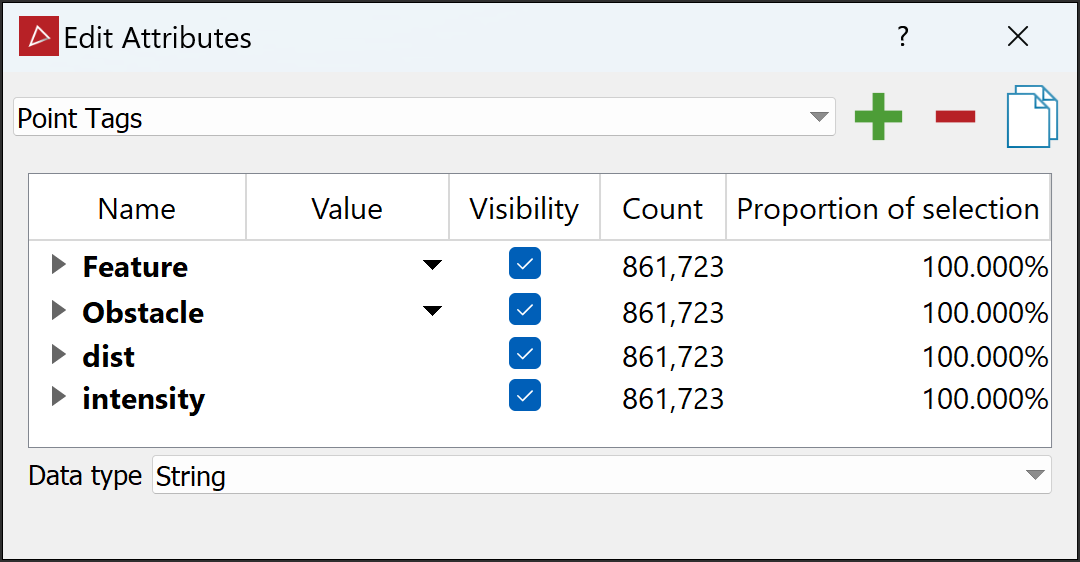
If you select <Primitive type> Properties from the drop-down list, the properties of all points in the selection will be displayed.
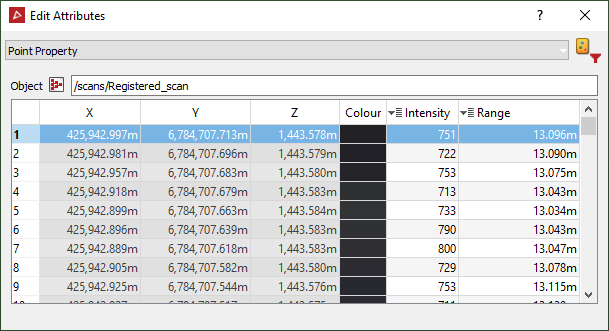
In this case, the  , and
, and  buttons are replaced with the
  button. Click the button to open the Filter by Attribute tool.
See also: Attributes for more details.
