Viewing and Hiding Objects
To work with objects in PointStudio, you must load them into view windows. Sometimes you should hide objects or remove them completely from a view window to make it easier to work with other objects.
Loading and viewing objects in a view window
PointStudio provides several different methods for loading objects into a view window. Once an object is loaded into a view, you can toggle its visibility to show or hide it.
Tip: Any data can be loaded in multiple view windows at the same time.
-
To load objects into a new view window, either:
-
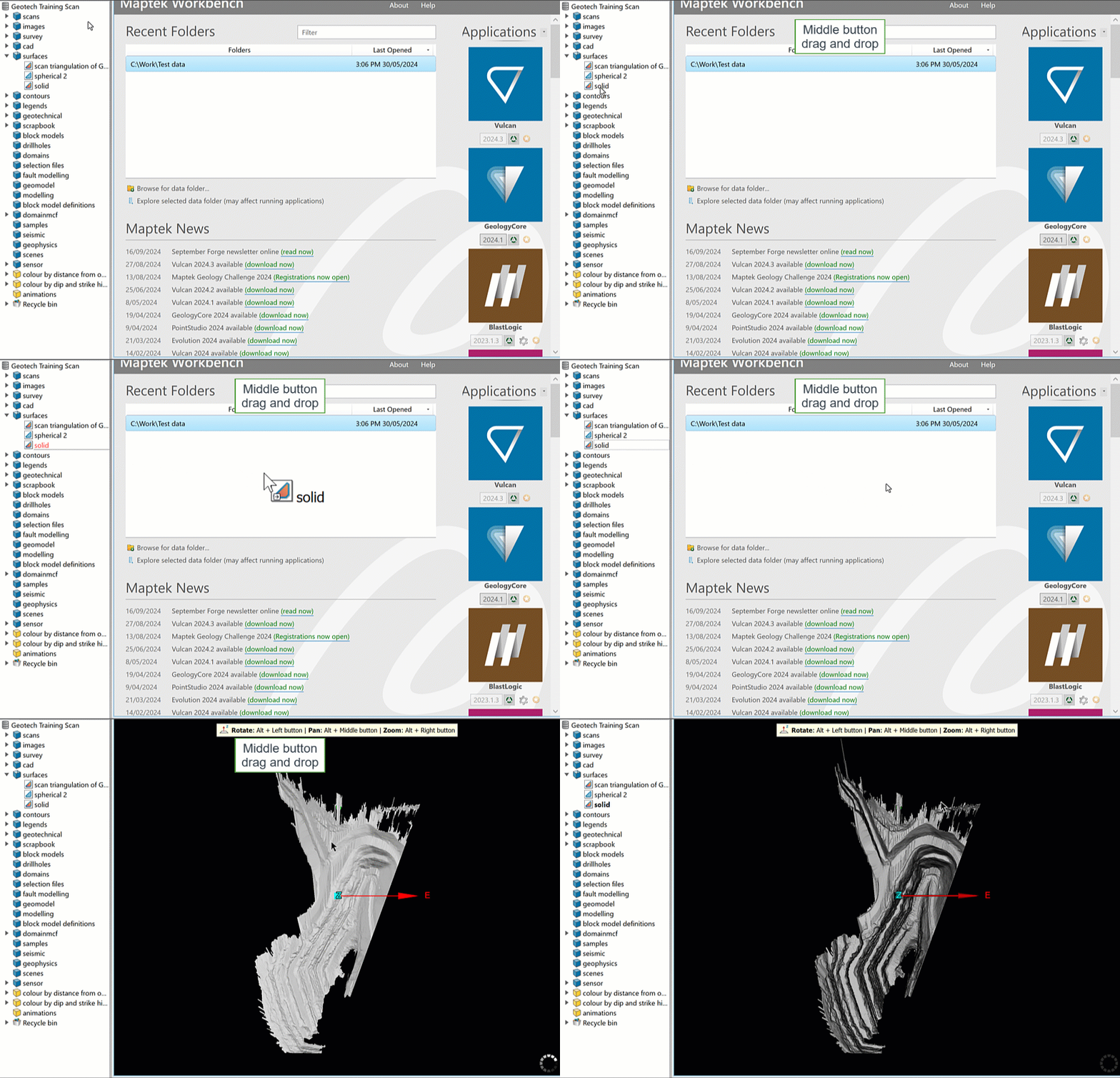
Select the objects in the project explorer and drag them into the Start Page or anywhere in the workspace, except an open view window.
-
Right-click on the object and select View <object name>.
Or
-
-
To load objects into an open view window, do one of the following:
-
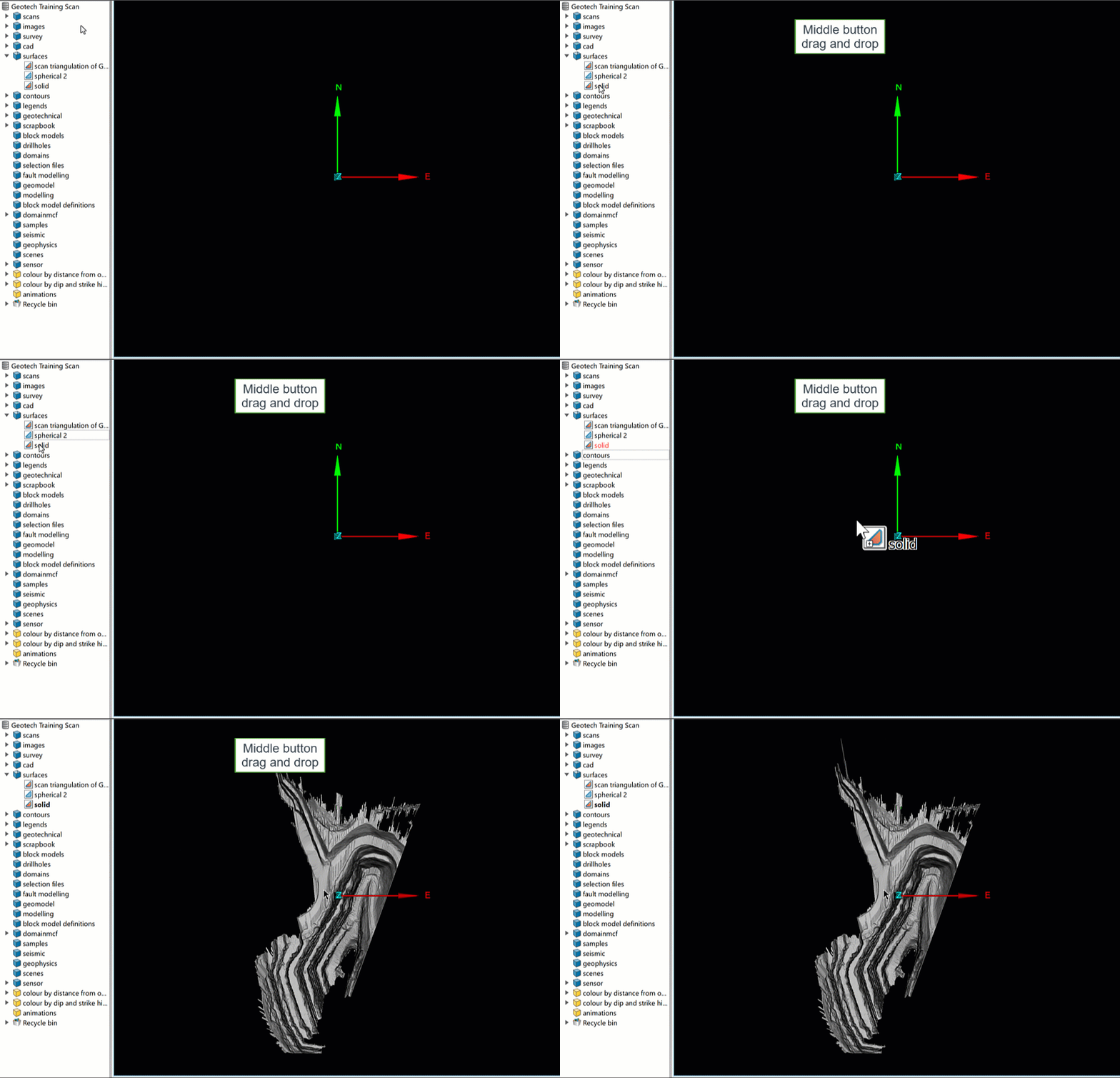
Select the objects in the project explorer and drag them into destination view window.
-
Select the destination view window, then double-click on the objects in the project explorer.
-
Right-click on the object and select View <object name> in Current View or Send <object name> to <view name>.
-
Note: Objects that are loaded in the active view window appear in bold type in the project explorer.
Tip: If a loaded object is not in the view area, select it in the project explorer and press L to bring it into view.
Hiding and showing objects in a view
When you have multiple objects in a view window, they will sometimes obscure each other. You can hide objects without removing them from view.
-
To hide an object, either:
-
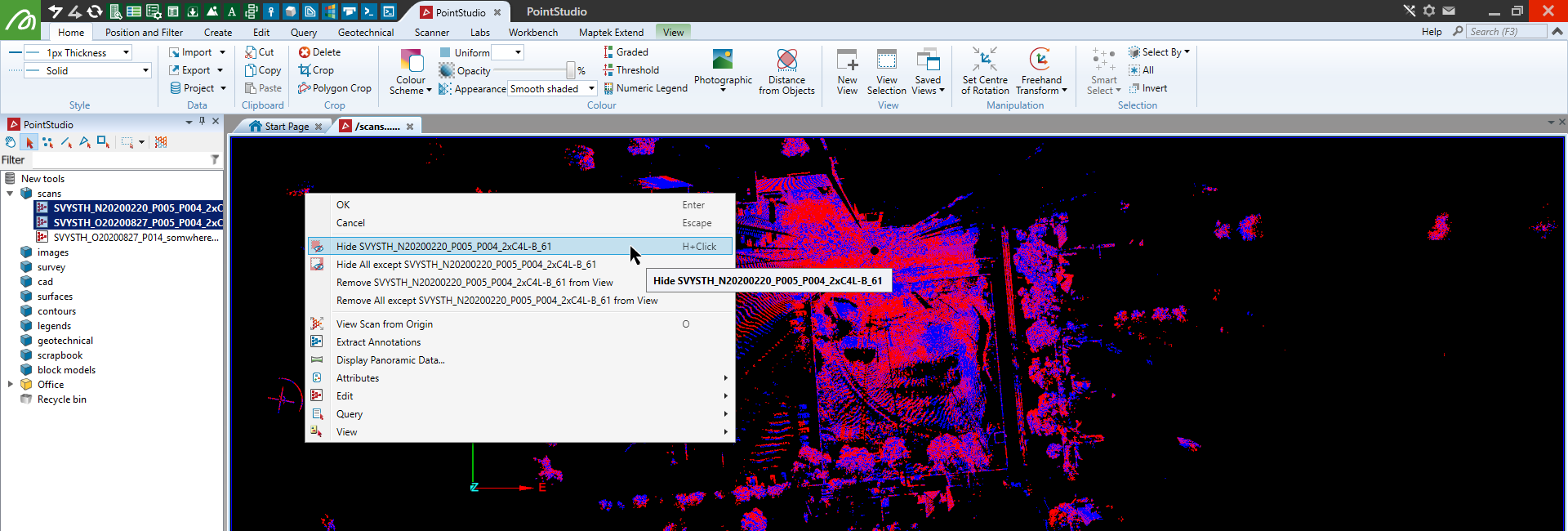
Right-click the object in the view window or project explorer and select Hide <object name>.
-
Clear the object’s checkbox in the visibility editor. See Visibility Editor.
Or
-
-
To show a hidden object again, either:
-
Right-click anywhere in the view window and select Show Last Hidden.
-
Select the object’s checkbox in the visibility editor.
Or
-
Removing objects from view
When you have finished working with an object, remove it from the view window by either of the following methods:
-
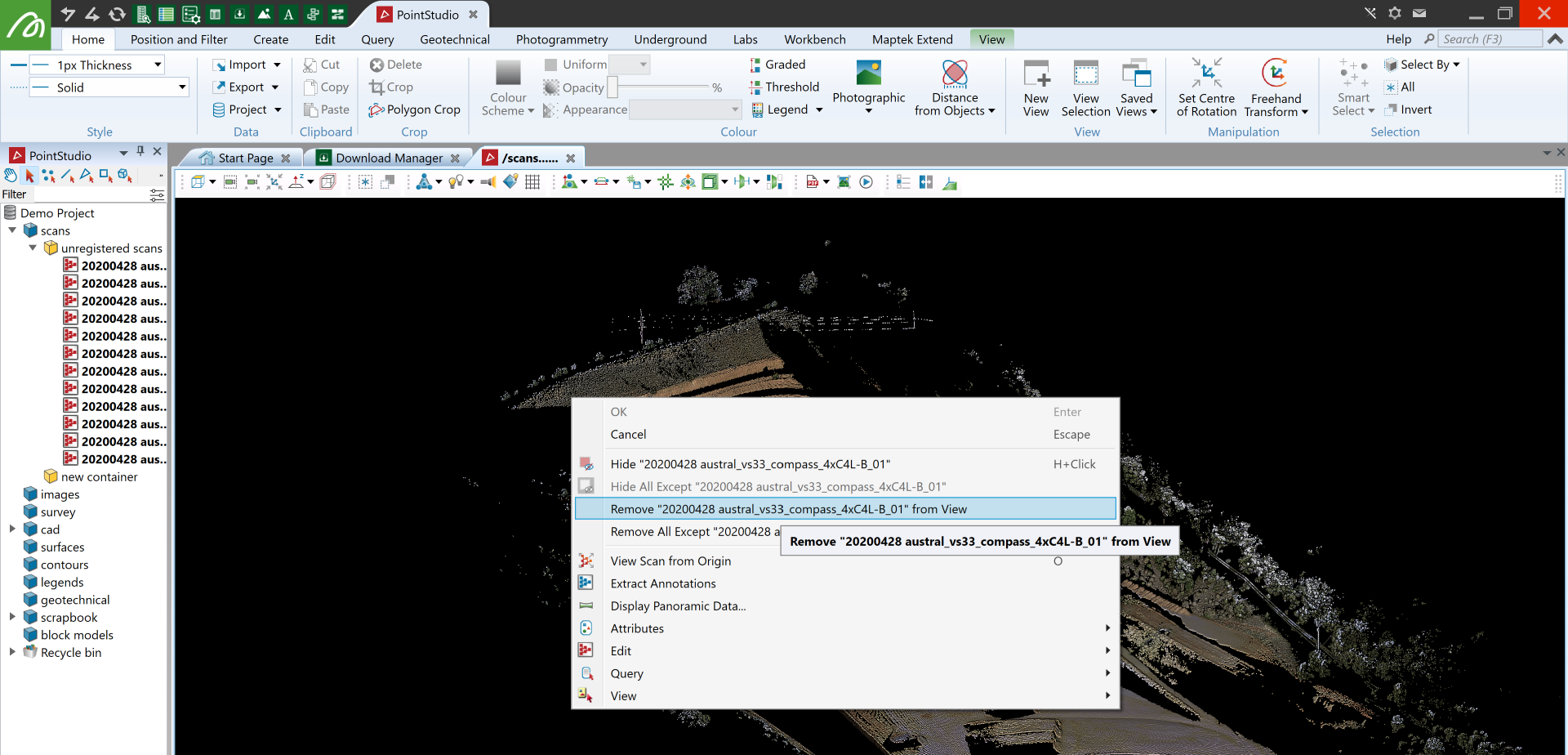
Right-click the object in either the view window or the project explorer and select Remove <object name>.
-
Double-click the object in the project explorer to remove it from view, double-click the object again to enable the view.
Or
Note: Removing an object from a view window does not delete it from the project but leaves it in the project explorer where it is still accessible.
-
To close the view window, Click the
 button in the tab.