Edit
The Edit group tools on the Geotechnical tab that enable you to modify discontinuity objects and annotations.

|
|
Edit a discontinuity annotation. |
|
|
Merge similar discontinuities. |
|
|
Specify the length of a discontinuity from two points. |
|
|
Convert a discontinuity to a surface, polygon to strike line. |
|
|
Extend a tangent plane by adding points. |
|
|
Extend two or three discontinuities until they intersect. |
|
|
Extend selected discontinuities until they intersect a surface. |
Edit Annotations
The Edit Annotations tool
allows you to choose the colour of discontinuity text annotations.
-
In the Geotechnical tab, in the Edit group, click
 Edit Annotation.
 -
Select the discontinuities
 to be edited.
 -
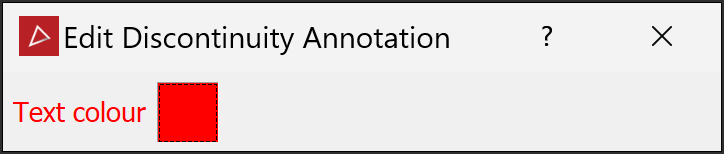
Choose colour by clicking on the colour box to open the colour swatch. Select a colour from the available options.
-
The colour is instantly applied.
|
|
|
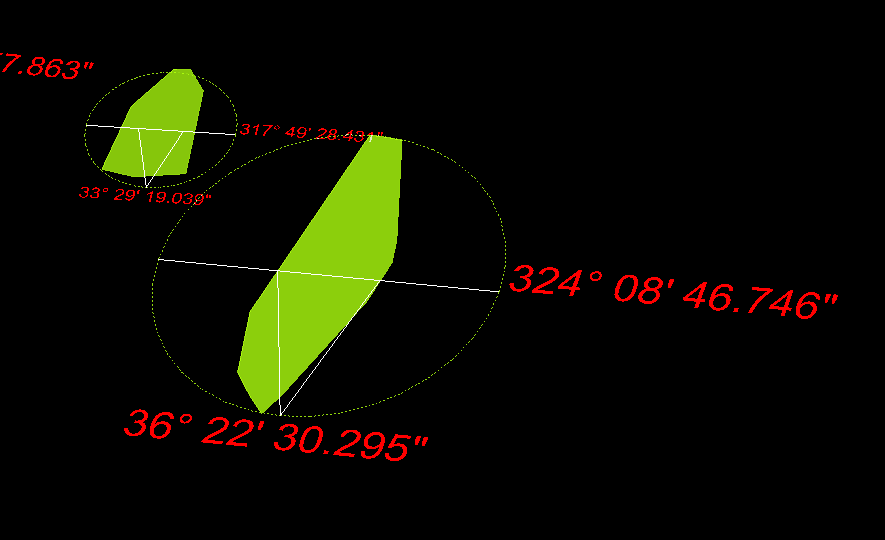
Selected colour (red) applied to discontinuity annotations (text). |
Merge
The Merge tool
enables you to blend overlapping discontinuities that are close
enough to meet the parameters specified in the input fields. The discontinuities
can be the result of the  Extract
discontinuities tool, or gathered from other analyses and observations.
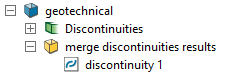
A new container is created to store the merged discontinuities.
Extract
discontinuities tool, or gathered from other analyses and observations.
A new container is created to store the merged discontinuities.
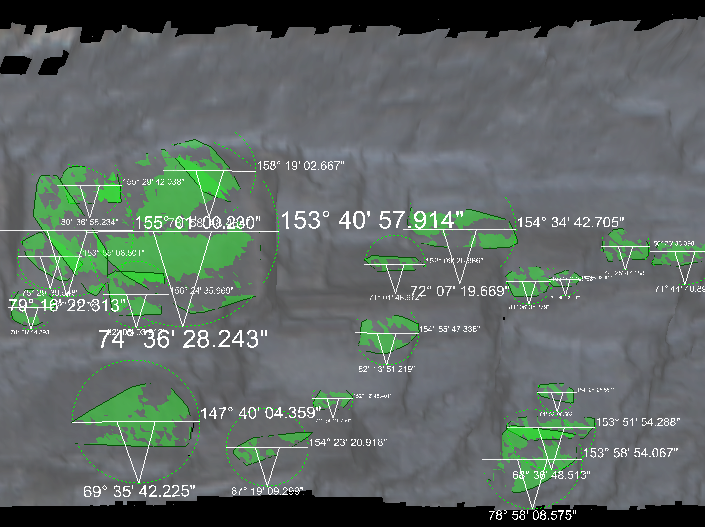
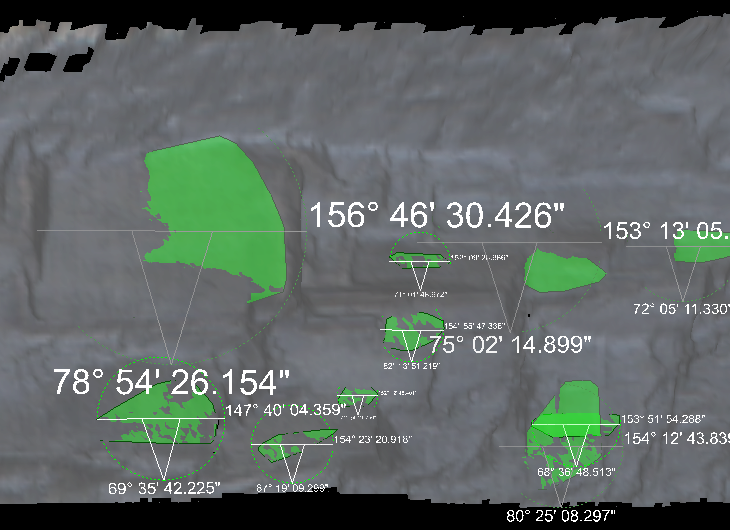
This tool aims to avoid data duplication where discontinuities are so similar that they almost coincide and would be better represented as a single discontinuity. The result is a new single discontinuity that encapsulates the total area of the original overlapping discontinuities. Merging discontinuities avoids incorrect bias in objects such as stereonets, where overlapping, similar discontinuities can incorrectly increase concentration of data points.
To merge discontinuities:
-
On the Geotechnical tab, in the Edit group, click
 Merge.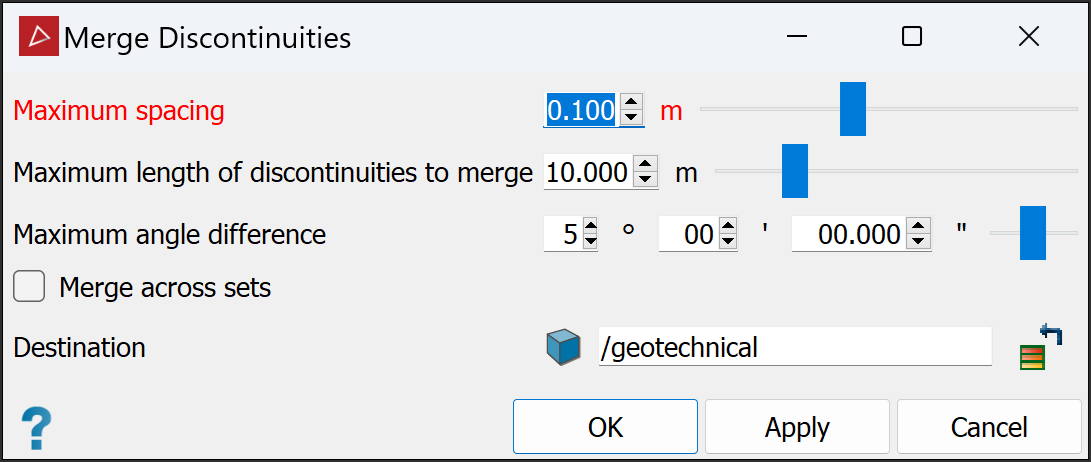
-
Specify the following maximum dimensions:
-
Maximum spacing between the planes of the discontinuities
-
Maximum length of discontinuities to merge
-
Maximum angle difference between the planes of the discontinuities
Discontinuities closer than the spacing setting, shorter than the length, and within the angle difference will be merged.
-
-
(Optional) Select Merge across sets to allow comparisons between different sets of discontinuities.
-
Select appropriate discontinuities
or discontinuity sets  for grouping, then click Apply or
OK.
for grouping, then click Apply or
OK.
The Merge tool cycles through the selected discontinuities, applying
the criteria to two discontinuities at a time and merging them if
appropriate. The results are placed in the 
geotechnical container.
|
|
|
|
Example of merging discontinuities: before (left) and after (right). |
|
Set Length
The Set Length tool enables you to edit the length of a discontinuity. Proceed as follows:
-
Choose a single discontinuity
to alter in the project explorer. -
On the Geotechnical tab, in the Edit group, click
 Set Length.
 -
Pick two points to change the length of the discontinuity.
-
Click
 (Complete),
  (Accept content), or press Enter to complete the process.
-
Click
 (Cancel) or Esc to exit the process.
Convert Discontinuity
The Convert Discontinuity tool enables you to convert discontinuities to surfaces, bounding polygons, strike lines, or normal lines. Proceed as follows:
-
Select the discontinuities
to be converted. -
On the Geotechnical tab, in the Edit group, click
 Convert Discontinuity.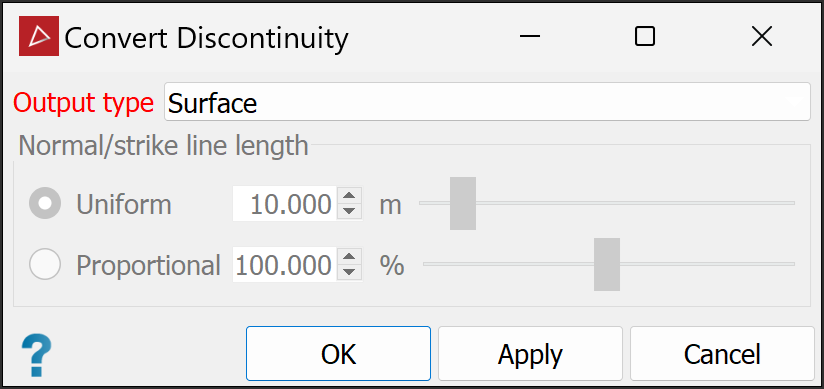
-
Select the Output type needed from the drop-down.
-
Click OK or Apply.
The resulting objects will appear in a secondary container called converted discontinuities in the cad container. They will retain the colours of the original discontinuities.
Add Points
The Add Points tool enables you to add new points to a discontinuity.
Note: This tool is only enabled on the Geotechnical tab if you have selected at least one discontinuity. However, it will only work if only one discontinuity is selected. To add points to another discontinuity, repeat the procedure below.
To add points to a discontinuity:
-
Select the subject discontinuity
. -
On the Geotechnical tab, in the Edit group, click
 Add Points.
The status bar will display the Point to add tool.

-
Pick the location of the new point, or enter coordinates in the digitisation request, then click
(Accept content) or press Enter.The new point will snap to the discontinuity’s tangent plane.
-
Repeat steps 2 and 3 to add more points, as required.
-
To complete the operation and retain the new points, right-click anywhere in the view window, or click
(Complete) in the status bar. -
To exit the tool and discard the new points, press Esc or click
(Cancel) in the status bar.
Extend to Intersection
The Extend to Intersection tool enables you to visualise discontinuities as though they were extended across a pit until they intersect each other.
Note: Extend to Intersection works without a tool panel.
To extend discontinuities to intersection:
-
Select discontinuities
in the project explorer or the view window.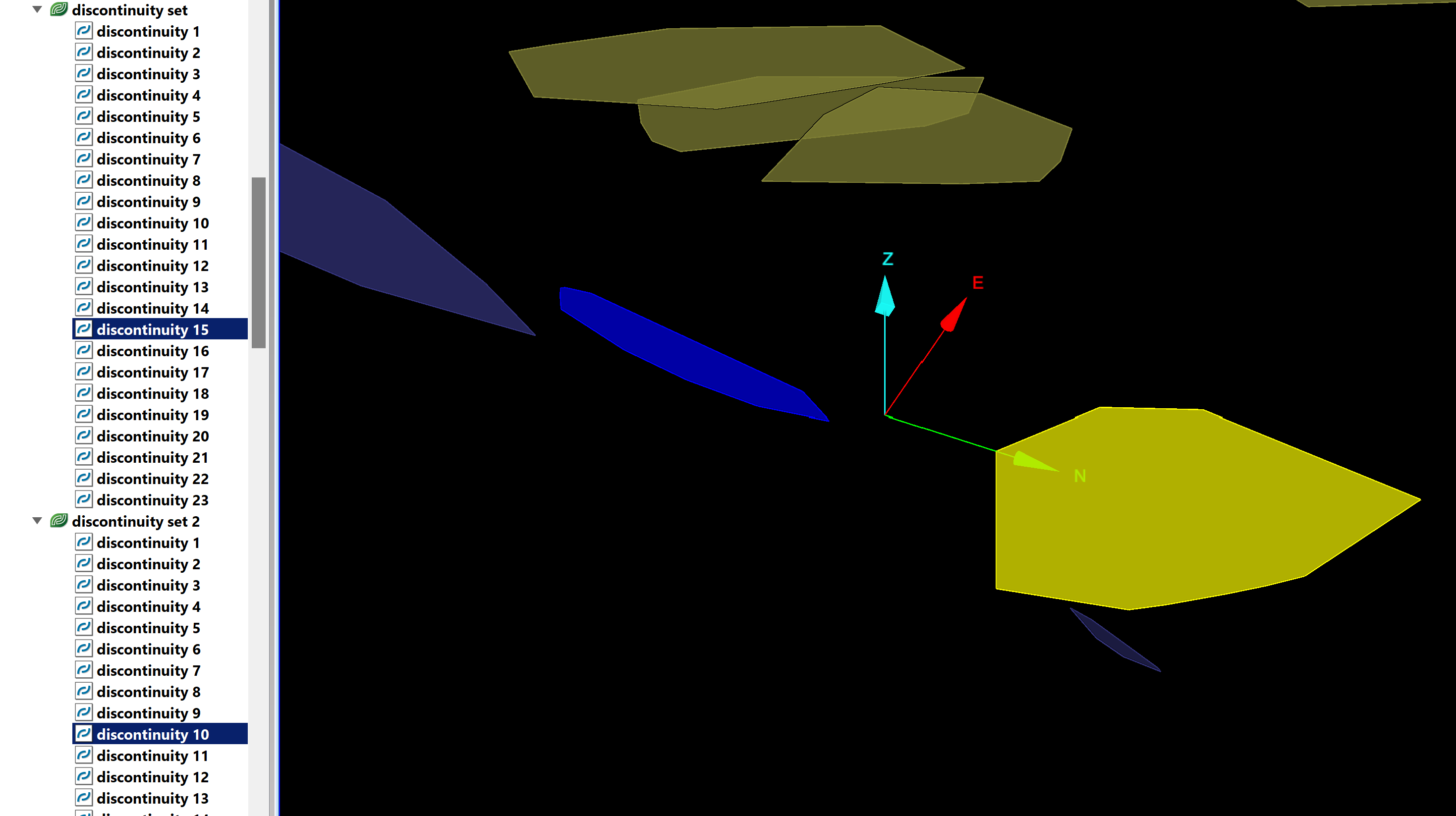
-
On the Geotechnical tab, in the Edit group, click
 Extend to Intersection, or right-click one of the discontinuities in the view window and choose Extend to Intersection from the context menu.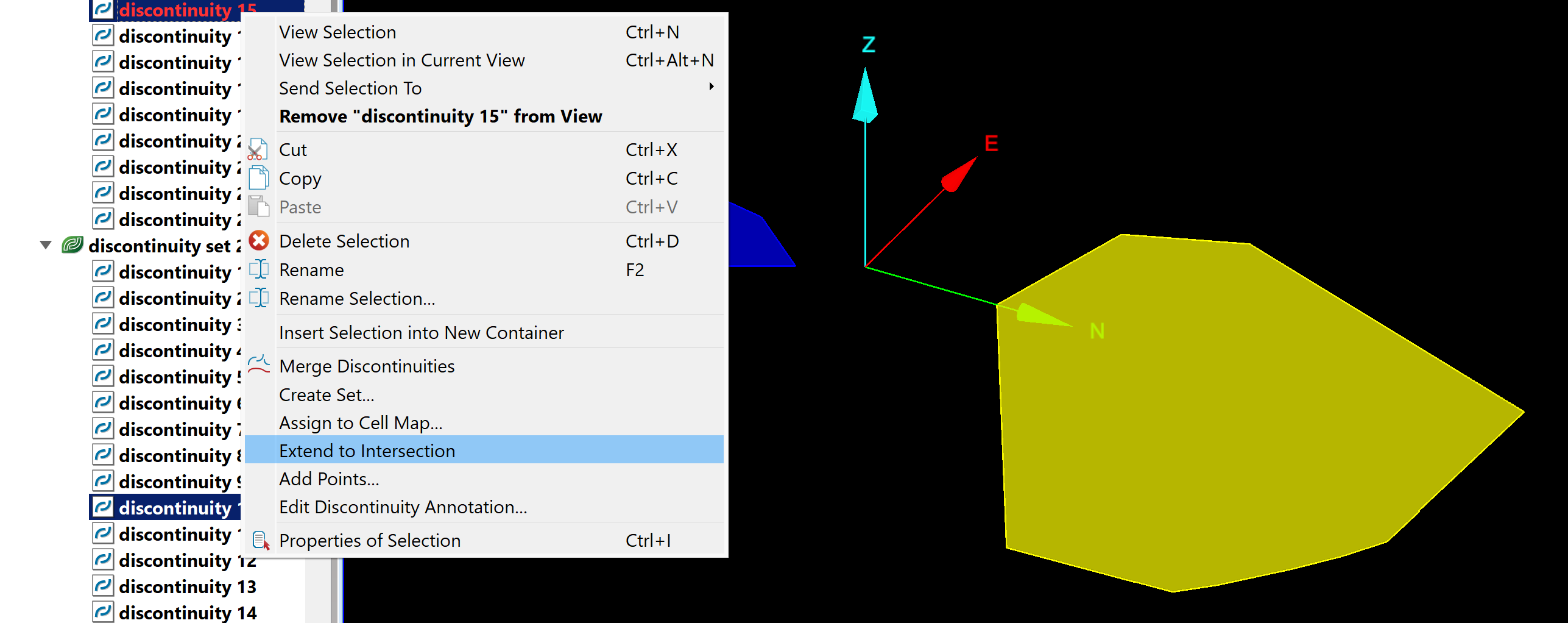
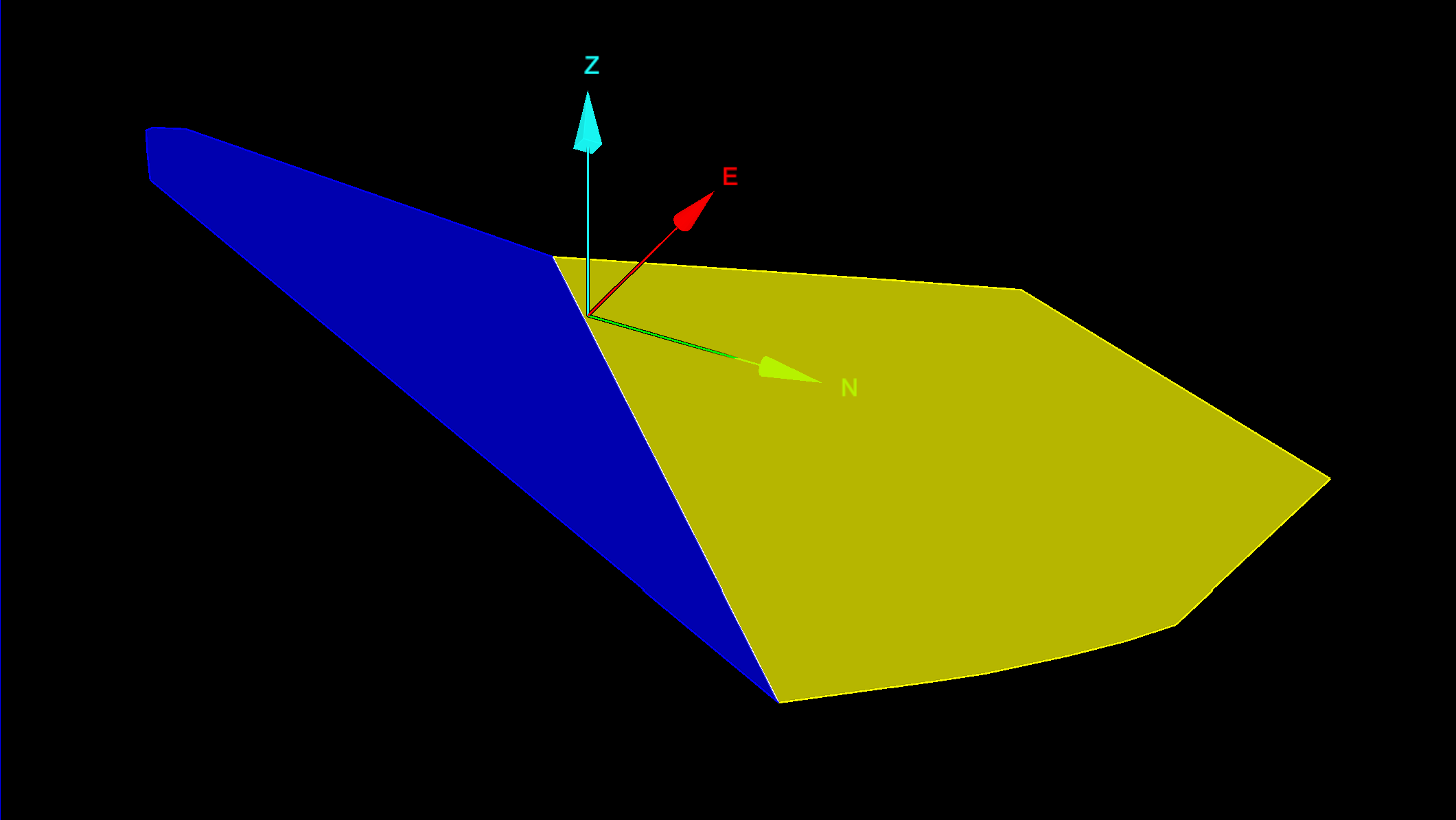
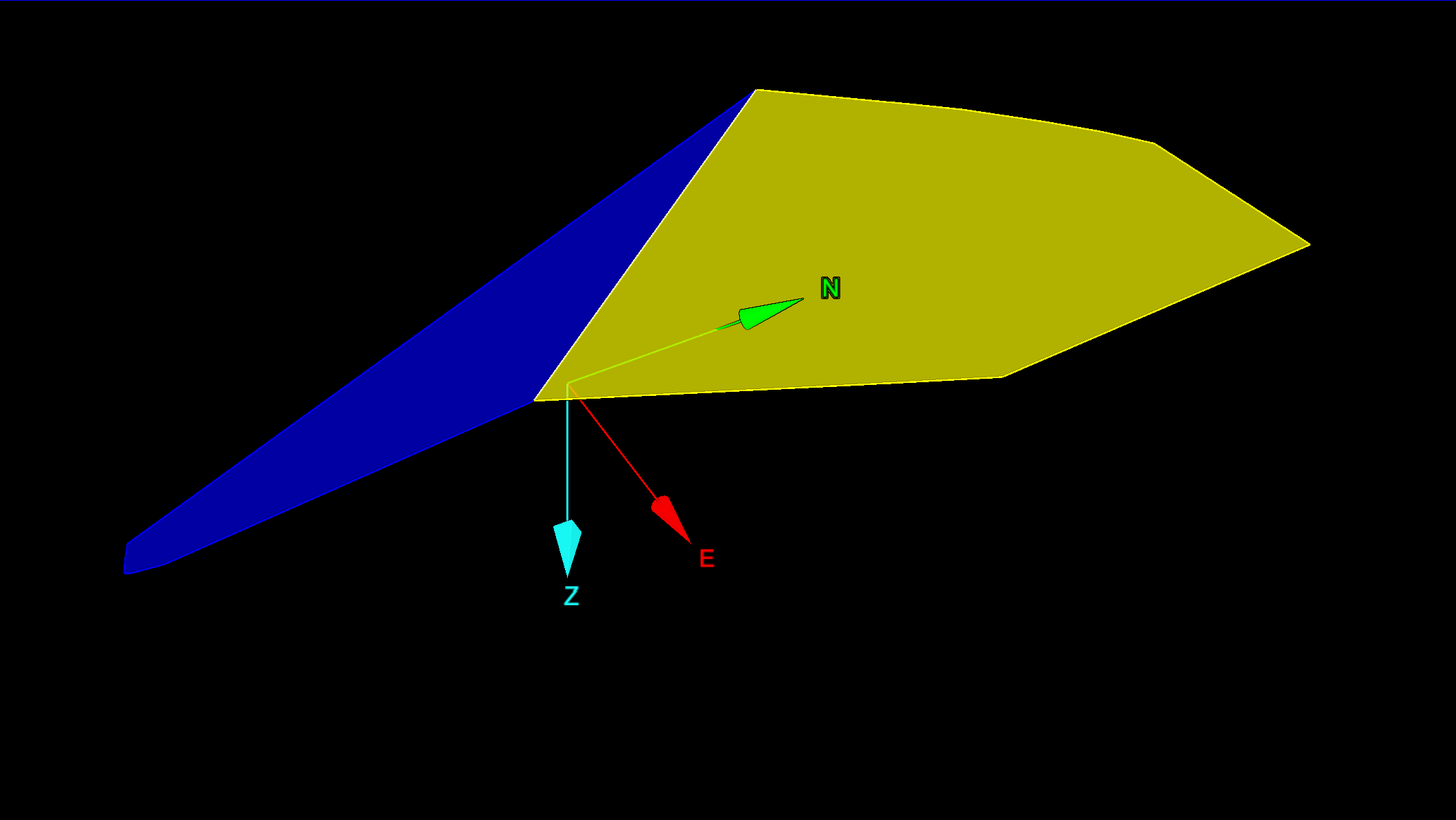
PointStudio will extend the selected discontinuities until they intersect each other.
|
|
|
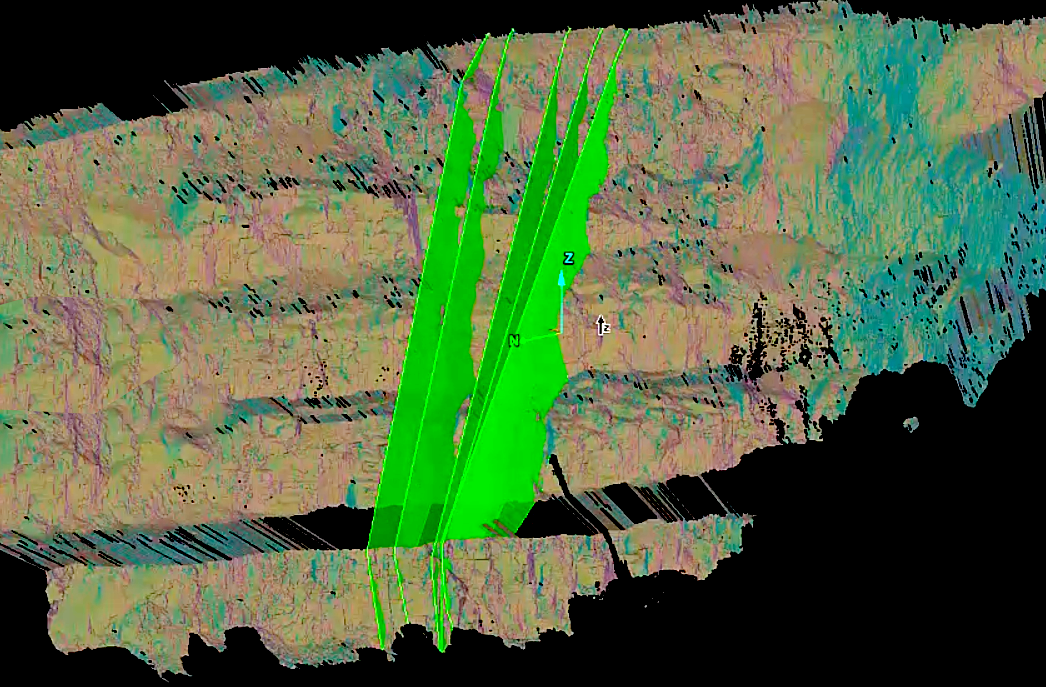
Discontinuities extended to intersection viewed from different angles. |
Extend to Surface
The Extend to Surface tool helps to visualise discontinuities, as though they were spread across an entire pit. It shows where they would appear in other areas of the pit and any effects such as intersections with other discontinuities. It can extend discontinuities across an entire pit, across blast block solids, and across pit advancement solids.
Extend discontinuities to a surface as follows:
-
Select discontinuities
in the project explorer.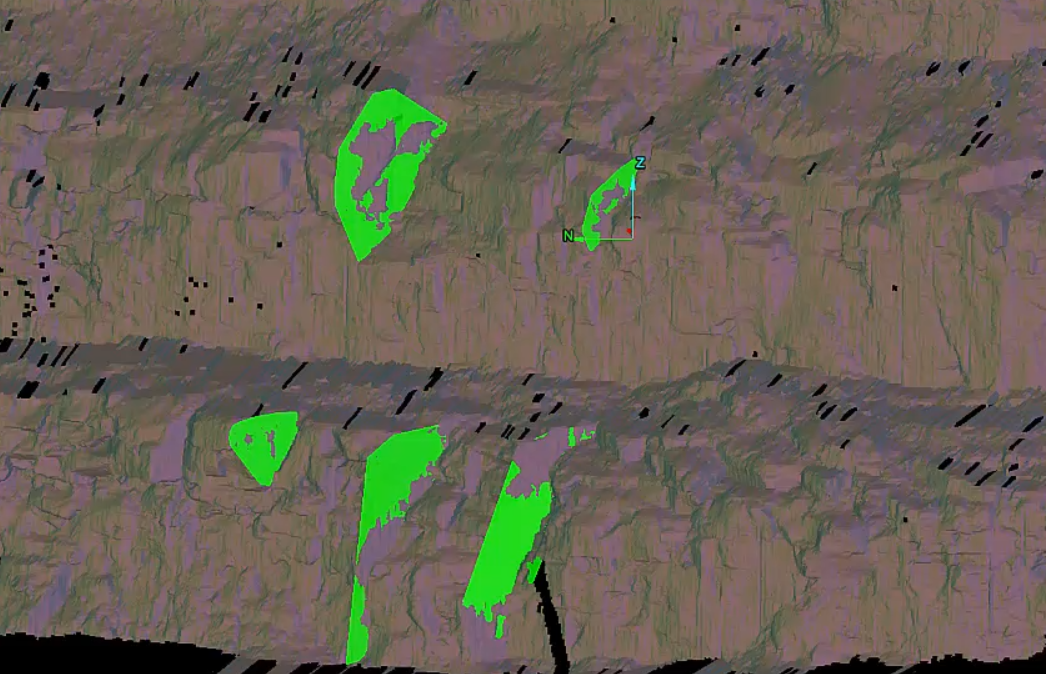
-
Select the surface (pit area) of interest.
-
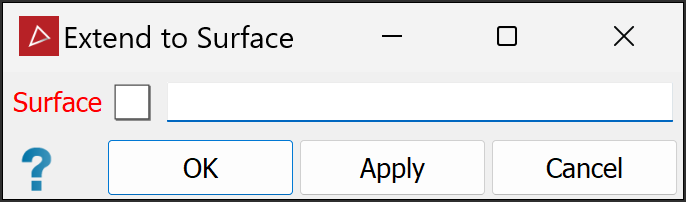
On the Geotechnical tab, in the Edit group, click
 Extend to Surface.
 -
Import the surface into the panel.
-
Click OK or Apply.
PointStudio will draw a large plane through each discontinuity and extended through the volume of the entire selected surface. Thus, you can see where the discontinuities would extend to if they continued through the pit. You will also see any discontinuity intersections and where they would occur around the pit.
|
|
|
Discontinuities extended through the pit. |