

Query
The Query group on the Labs tab provides the analysis tools described below.

|
|
Determine how the centroid of a region of points has moved between scans. |
|
|
Generate a report on recovery of resources. |
Movement of Centroids
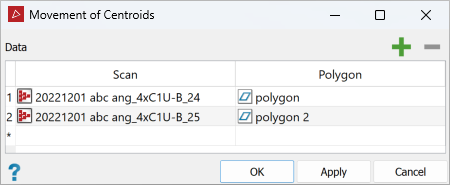
The Movement of Centroids tool determines the movement direction of the centroid of a region of points from one scan to the next. The region is defined by polygons created around the areas of interest.
To calculate movement of centroids, proceed as follows:
-
Load the scans into a view window and draw polygons around areas of interest.
-
On the Labs tab, in the Query group, click
 Movement of Centroids.
 -
Populate the window with scans

 and polygons
  created from the scans.
 -
Click OK or Apply.
PointStudio will crop all the scans around the polygons and indicate any direction of movement.
To create polygons see Lines and Polygons.
Use the same landmarks or objects in each of the scans for creating the polygons.
Resource Recovery
The Resource Recovery report tool compares design (roof and floor) surfaces with surveyed (roof and floor) surfaces for any resource that approximates horizontal, layered zones (e.g. sedimentary material). The report generates conformance data including loss and dilution quantities calculated at the floor and roof boundaries. Loss refers to resource material that is missed by the mining process. Dilution refers to unwanted neighbouring material that is mixed in with the resource material.
Create a resource recovery report as follows:
-
On the Query tab, in the Reporting group, click
 Resource Recovery.
The report tool will open and guide you through the steps required to produce the report. Click Next > when finished each page, click < Back to make further changes.
-
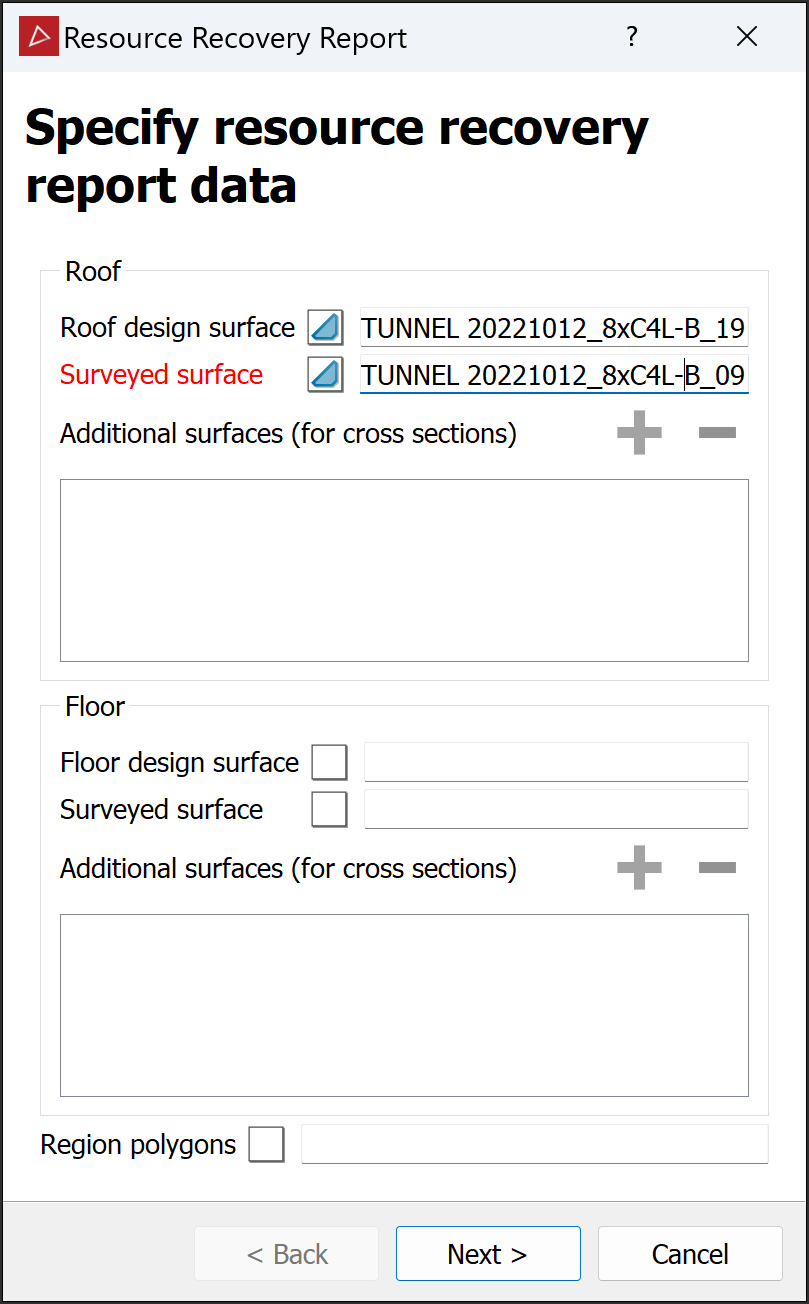
Specify data to include in the report. Select design and as-built surfaces. Include additional surfaces and region polygons if required.
Roof Design surface and surveyed surface Floor Design surface and surveyed surface Region polygons For isolating information about regions within the material zone. Can be a single polygon, container of several polygons, or a container of edges representing block lines. If not specified, regions can be automatically generated in a subsequent step. Additional surfaces (for cross sections) Applying to roof and floor. These will not affect calculations. -
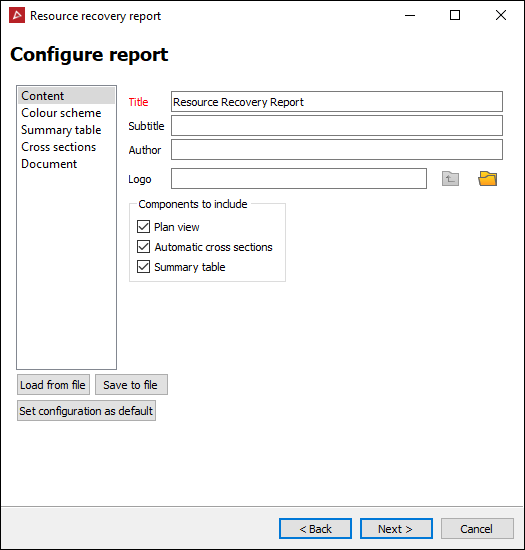
Configure the look of the report and the data that will be displayed in each tab, described below:
-
Content: Enter descriptions and select components to include. Load or save a configuration file.
-
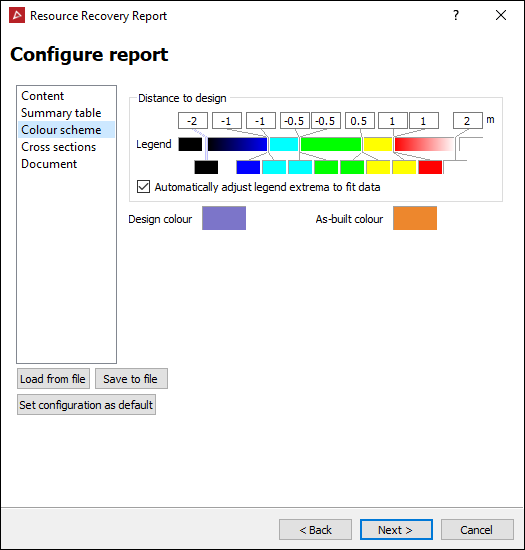
Colour scheme: Configure the colour scheme to display heat maps showing loss and dilution amounts on roof and floor views. See Modifying a Colour Scale for detailed instructions.
-
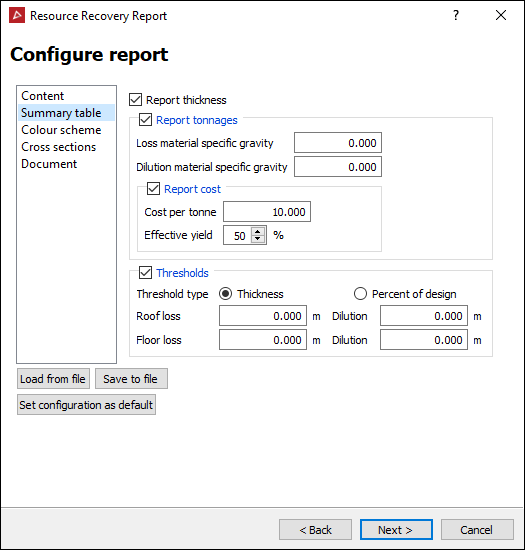
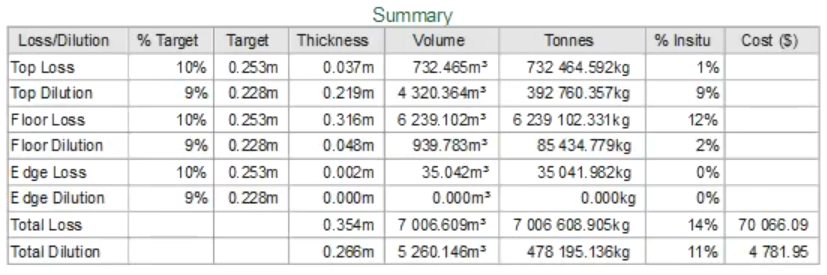
Summary table: Set up a summary table to include information such as material thickness, tonnages, cost and thresholds.
-
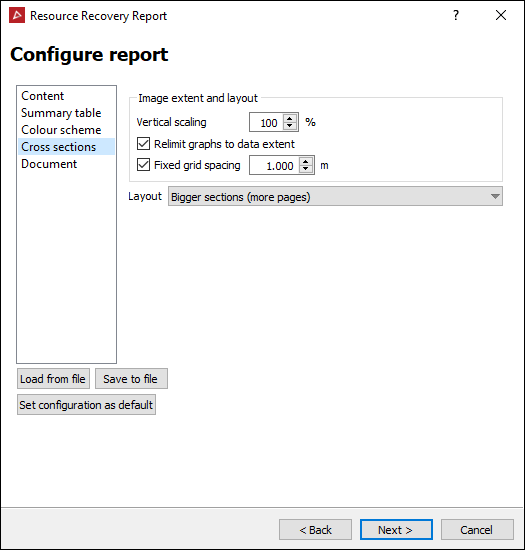
Cross sections: Set up section graphs detailing differences between design and surveyed surfaces.
-
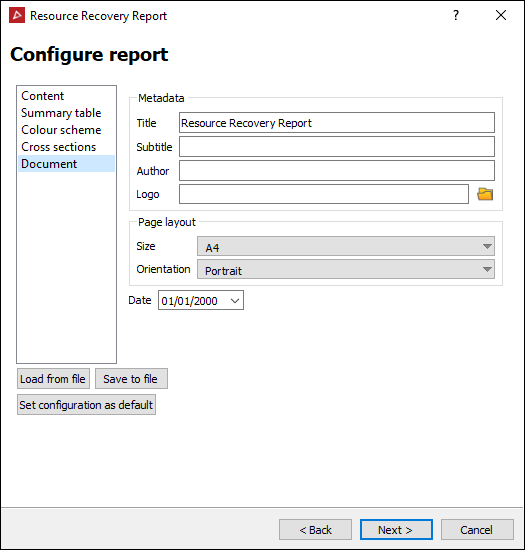
Document: Set up page layout, including size and orientation. Modify the report title and add any other required metadata.
-
-
Review the report images. Examine the layouts and adjust them accordingly.
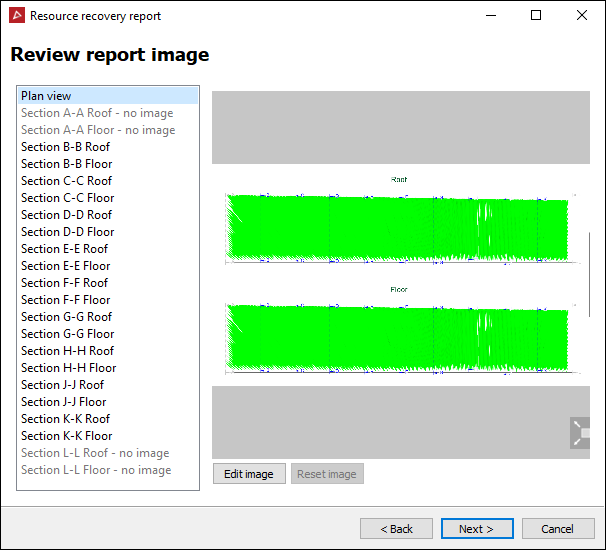
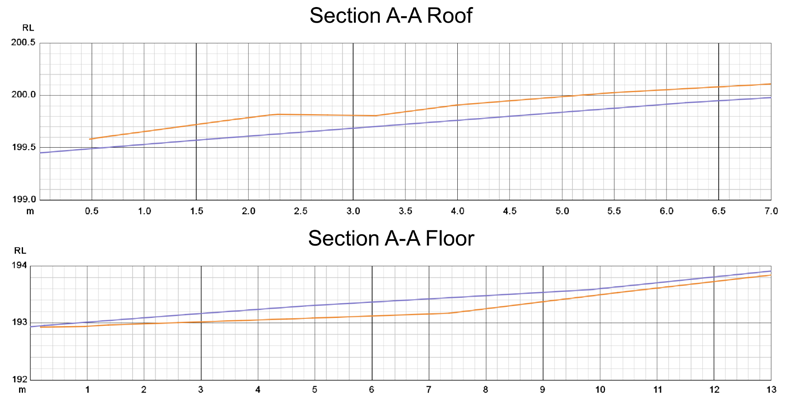
-
Generate the report.
-
Preview the report to examine the final output, then save or print.
-
Click < Back to make any further changes.
-
Click Annotate to add comments to each section of the report before publishing.
-
Click the
 button to print the report.
 -
Click the
 button to save the report as a PDF.
 -
Click the
 button to save the report as a CSV or text file.
-
-
Click Finish to end.
