

Crop
The Crop group tools on the Home tab enable you to delete or hide selected or unselected data from a view.
Cropped data in scans is hidden from view, and may be restored by clicking  Show All (Shift+S) from the Filter group of the Position and Filter tab.
Data cropped from any other data type is deleted, and can only be restored by undoing by clicking the  button or pressing Ctrl+Z.
Tip: To hide data from non-scan objects, use the Filter by Attributes tool. See Filter by Attributes.

|
|
Delete (Alt+D) Hide or delete the selection. |
|
|
Crop (Alt+D) Hide or delete the unselected primitives. |
|
|
Crop a topology to an extruded polygon. See below. |


Delete and Crop
Select the data to hide or keep visible, then click the appropriate button, as follows:
-
Delete hides or deletes the selected data.
-
Crop hides or deletes the unselected data, keeping the selected data visible.
Polygon Crop
The Polygon Crop enables you to crop objects such as lines  , loops
  , point sets
  , edge networks
  ,
and surfaces
,
and surfaces 
 . This will perform 'cookie-cutting' of the selected
objects.
. This will perform 'cookie-cutting' of the selected
objects.
-
Select the objects you wish to crop.
-
On the Home tab, in the Crop group, click
 Polygon Crop.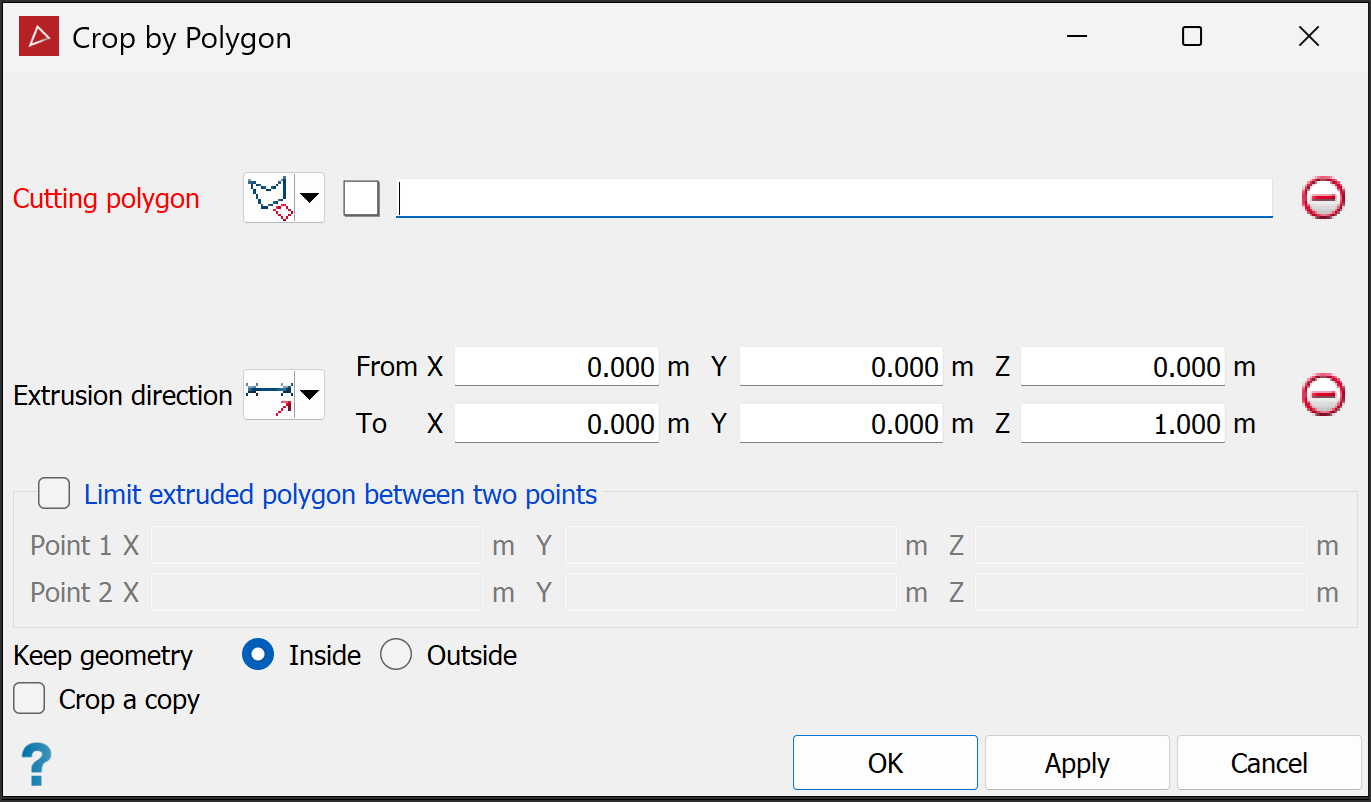
-
Create or select a polygon
to
use as the cropping boundary. See Lines and Polygons.Tip: Alternatively, you can draw the polygon before step 1.
-
Drag the polygon into the Cutting polygon field. The projected polygon boundary is displayed in grey.
-
Select the Extrusion direction of the cropping action using one of the following options:

Two points
Define the direction by specifying two points.

Facet
Make the direction perpendicular to a selected facet.

Axis aligned
Define the direction by an axis of the view window.

Bearing and inclination
Define the direction by a bearing and inclination angles.

Action plane axis
Define the direction by an axis of the action plane.

Polygon best-fit plane normal
Define the direction as the normal to a plane-of-best-fit to a polygon.
An extrusion of the polygon in the direction specified will appear.
-
Limit extruded polygon between two points limits the height and depth of the filter.
-
Choose the required Keep geometry option, whether to retain object fragments Inside or Outside the polygon.
-
Select Crop a copy to keep the original data and crop a copy of the data.
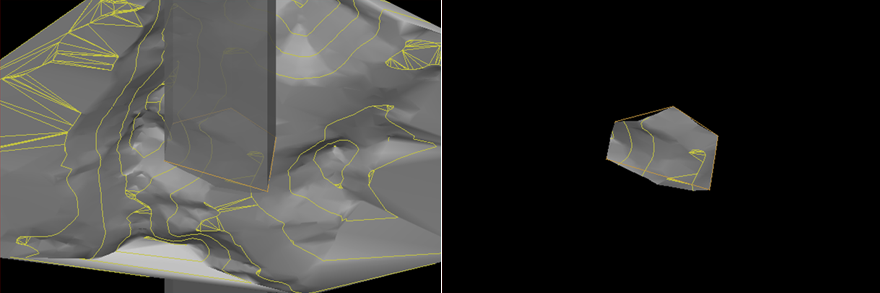
The original objects and extruded cropping polygon (left) and the cropped result, with Keep geometry > Inside selected (right).
