

Scan
The Scan group tools on the Create tab enable you to create rationalised scans by either averaging measurements of multiple scans or reducing point densities.

|
|
Combine multiple scans into a single average. |
|
|
Create a reduced resolution scan from a selected scan region. |
Scan Average
The Scan Average tool enables you to improve the measured distance accuracy of the scans, or to remove foreground objects such as vehicles from a busy road.
Note: Scans must have the same origin, azimuth and elevation to be able to perform an average successfully.
Note: The error reduction has an inverse
square-root relationship to the number of scans. For example, four (4) scans reduce the error to  of a single scan.
Create a scan average as follows:
-
Highlight the scans

 to be averaged in the project explorer.
 -
On the Create tab, in the Scan group, click
 Scan Average.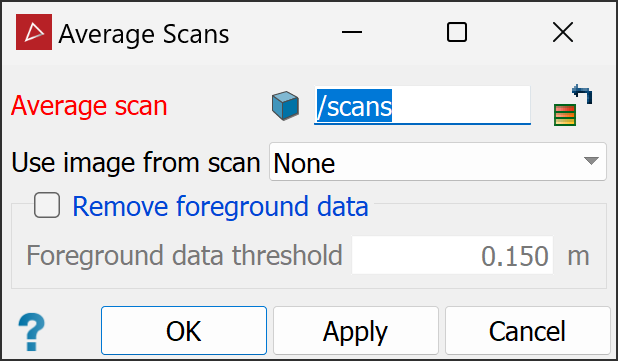
-
Specify the location to save the averaged scan in the Average scan field.
-
Select a scan from the Use image from scan drop-down list to associate an image with the averaged scan. Select None to have no images associated with the averaged scan.
-
(Optional) Select Remove foreground data to remove traffic or pedestrians from the scan data. Set Foreground data threshold as the minimum distance that an object must be from the background to be removed.
-
Click OK or Apply.
The new scan is created from the selected scans by averaging the range data at each grid location. This is equivalent to the averaging process for multiple passes of a Maptek scanner.
Reduced Resolution Scan
The Reduced Resolution Scan tool allows you to decrease the file size of scan data by deleting points.
Create a reduced resolution scan as follows:
-
On the Create tab, in the Scan group, click
 Reduced Resolution Scan.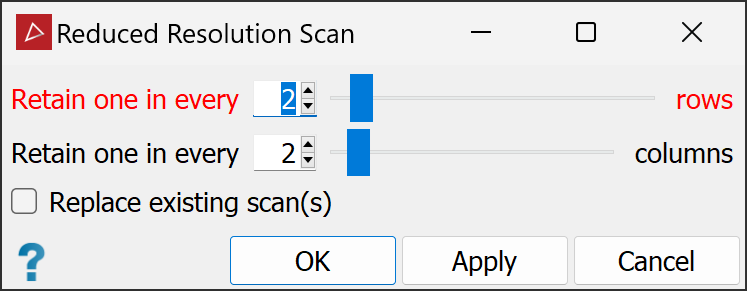
-
Select the proportions of rows and columns to retain.
Tip: For best results, retain columns as rows in proportion.
Note: The resulting scan will only contain the points at the intersections of the rows and columns selected to retain. Thus, retaining 1 in 2 columns and rows will reduce the overall file size to approximately 25% of the original.
-
Select the Replace existing scan(s) checkbox to overwrite the existing scans in the database. Clear this to create and save as new scans in the

scanscontainer. -
Click OK or Apply.
