

Status Bar

The status
bar provides control for coordinate input with various tools. Some tools, such as Create > Draw >  Points,
may only require a single set of coordinates, while others, such as Create > Draw >
Points,
may only require a single set of coordinates, while others, such as Create > Draw >  Rectangle, may require a sequence of coordinates.
Spatial data can be easily specified by picking relevant points in
the view window.
The locations are automatically loaded into the status bar's input fields and accepted
by the tool, ready for the next data input. The  (Accept content) icon
remains grey, signifying that input data is automatically accepted.
(Accept content) icon
remains grey, signifying that input data is automatically accepted.
Manual entry
is possible by clicking directly in the input field and either typing in coordinates,
or subsequently clicking on points in the view
window. The  (Accept content) icon will
turn green, signifying that you must click the button to accept the
input and continue.
(Accept content) icon will
turn green, signifying that you must click the button to accept the
input and continue.

|
Get help Open the help page for the applicable tool. |
|
|
Accept content Accept the inputs and run the operation without closing the tool. Only accessible after clicking in an input field. |

|
Complete (Enter) Finish the operation on the inputs displayed. Some tools reset to start a sequence again, others close and remove the tool from the status bar. |

|
Cancel (Esc) Close the tool and remove it from the status bar display. |
-
Open status bar tools accumulate in a stack. Ensure you click
(Cancel) when finished with
a tool to clear it from the status bar stack. -
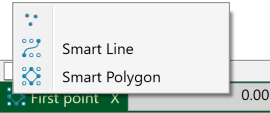
To switch between tools on the stack, click on the left-hand end of the status bar and select the required tool from the list.
Ensure you only click a tool button once to activate it in the status bar. Otherwise multiple instances of the tool will load, stacked on the status bar.
