Loop Surface
The Loop Surface group on the Underground tab contains tools for creating surfaces from underground tunnels and voids.

|
|
Fit Loops (F12) Create a polygon around a point selection. |
|
|
Loop Surface (Alt+Z) Create a surface from a selection of loops. |
Fit Loops
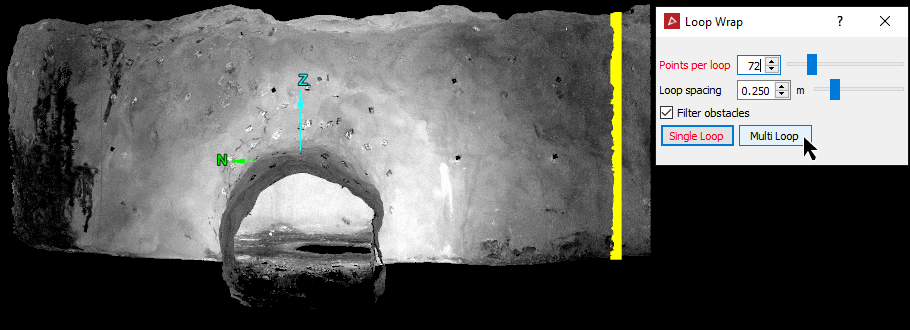
The Loop Wrap tool (F12) allows you to create closed polygons (loops) around the tunnel or void from point data, in a plane of best fit. Create the loops in two stages, as described below.
Creating a single loop
Create a single loop  first, to define the starting point, as follows:
-
Select the tunnel in the project explorer and load it in a new view window.
-
On the Underground tab, in the Loop Surface group, click
 Fit Loops.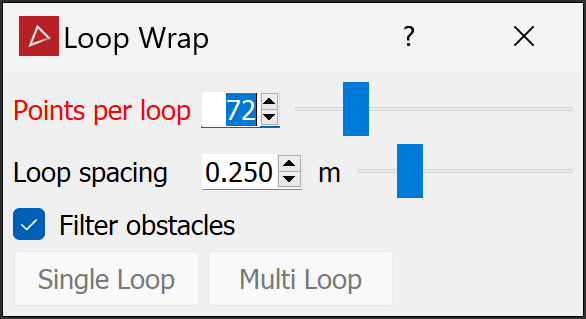
Note: The Loop Wrap tool creates a polygon through a number of points, evenly spaced around the centre of the selection. The number of points is set by the Points per loop field and becomes more accurate as the number of points increases.
-
(Optional) Select Filter obstacles to exclude unwanted points from the loop caused by obstacles in the way of the surface being scanned.
This option compares all points of a selection with a lower resolution loop to determine which points to exclude. Typical objects may include vehicles, machinery, people, pipes, or other services which are present between the surfaces being scanned and the scanner.
Tip: Use the
 Services Filter tool to remove obstacles before creating loops.
 -
Using
 (Select points) type, select
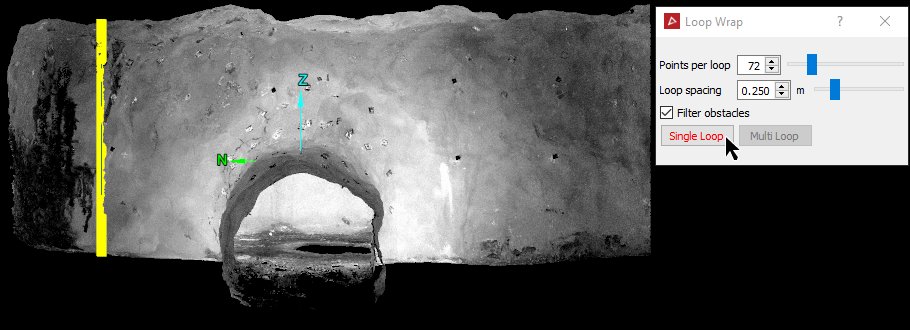
points where the first loop polygon is required.
(Select points) type, select
points where the first loop polygon is required.Tip: Orient the tunnel scan horizontally in the view to simplify point selection.
-
Click Single Loop.
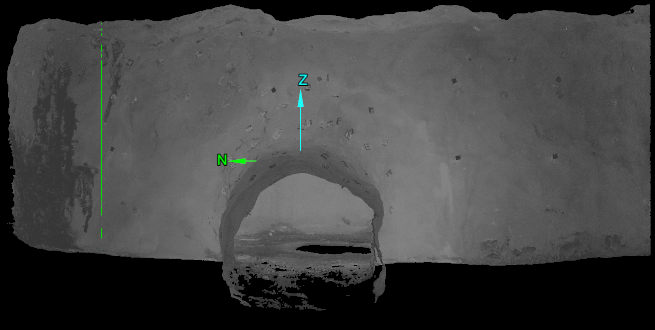
A single loop wrap polygon is created and saved in the

cadcontainer.Important: Do not close the Loop Wrap panel until after the next stage.
Creating multiple loops
After creating a single loop , create multiple loops along the tunnel, as follows:
-
Select points further along the tunnel where the last of the loop wraps or polygons is needed.
-
Click Multi Loop.
Multiple loop wraps or polygons are created, separated by the Loop spacing distance back to the first loop.
Note: You can click Single loop again to create another single loop from this selection.
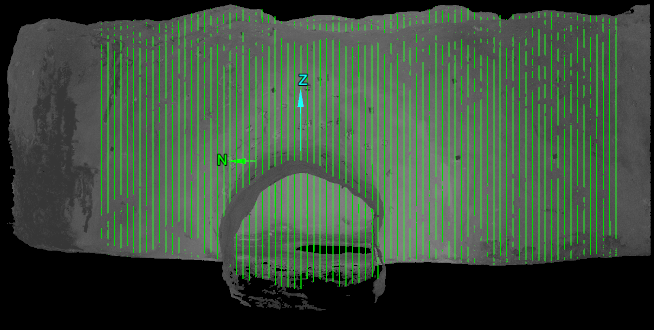
The loop wraps are saved in the cad container. Close the tool when finished.
Loop Surface
The Loop Surface tool (Alt+Z) enables you to create a tubular surface from a selection of loops or surfaces.
To create a surface 
 with loop polygons, proceed as follows:
-
Select the tunnel loops in the project explorer and load them in a new view window.
-
On the Underground tab, in the Loop Surface group, click
 Loop Surface.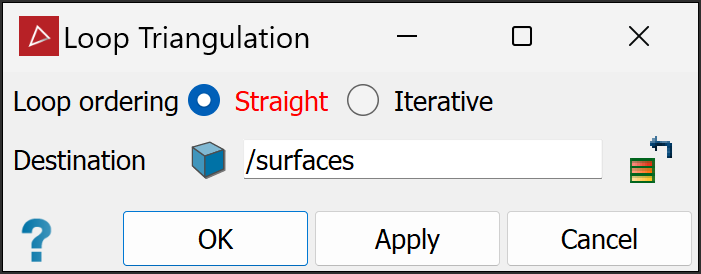
-
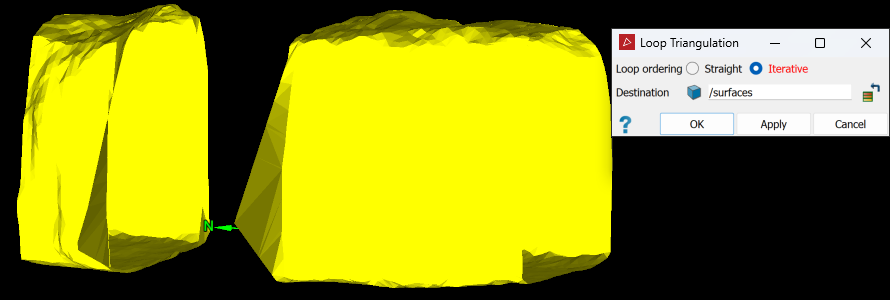
Select the preferred Loop ordering method.
-
Straight: Creates a single surface with the loops ordered along a straight line, based on their orientation.
-
Iterative: Automatically extracts the boundary polygons of the surfaces and intelligently joins nearby loops of similar orientation.
This is helpful where two or more parts of a tunnel are separated by small gaps. This can create multiple surfaces and wrap around corners if needed.Note: This may ignore loops if it cannot find others nearby to join them.
-
-
Click Apply or OK.
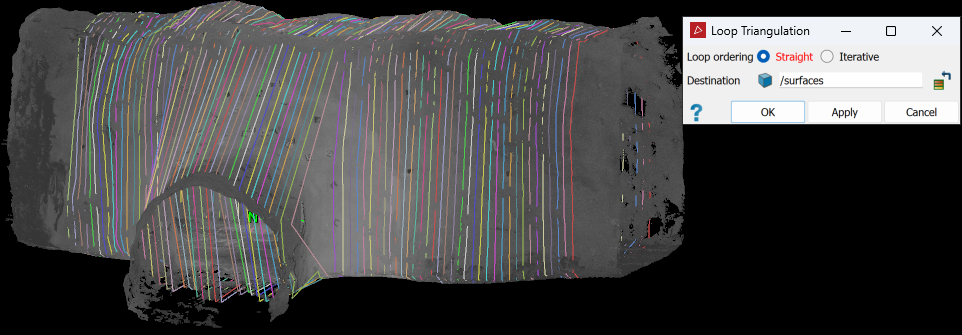
A new surface called loop surface <number> is created and placed in the surfaces container.
|
|
|
|
Data (points) with loops made using |
|
|
|
|
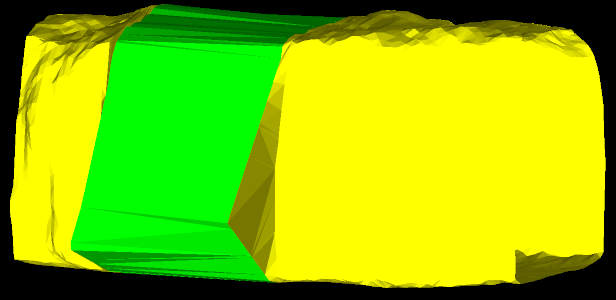
A resultant single ‘tubular’ surface. |

|
|
|
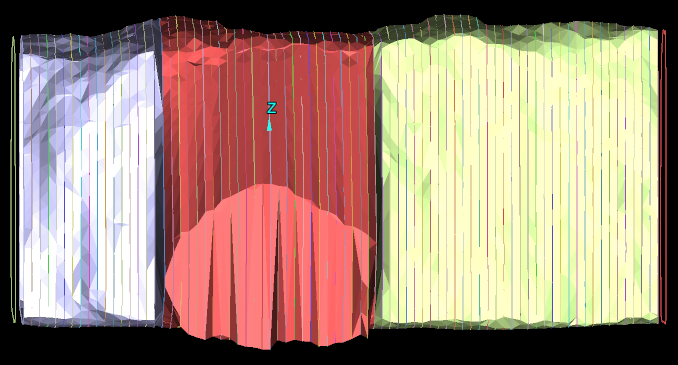
Loop Surface run three times on different selections of polygons. |
|
|
|
Sections hidden with the visibility editor so that displayed surfaces can be examined in closer detail. |

|
|
|
|
Two separate loop surfaces: select both and apply a loop surface to create a new loop surface in the gap. |
|
|
|
|
New loop surface created between the original two surfaces. |