

Editing a Cross Orthogonal Variogram
After generating the charts, the tabs at the top of the Properties column will change, giving you access to multiple parameters.
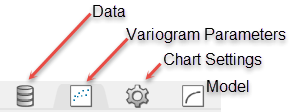
Note: You can set the parameters for your variograms before or after creating the variogram using the following options.
Variogram Parameters tab
Mode
Select the variogram mode from the drop-down list.
 List of Modes
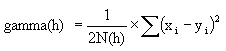
Semivariogram
This is the standard semi variogram.
Covariance

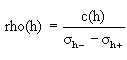
Correlogram
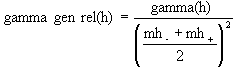
General relative semivariogram
This is like the standard semi variogram, but divided by the mean of the data values.
Pairwise relative semivariogram
This is like the standard semi variogram, but each difference is divided by the mean of the sample values.
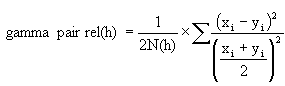
Rodogram

Madogram
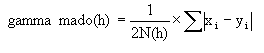
Madogram Ratio
sqrt(Semivariogram) / Madogram
Direction Settings - Plane
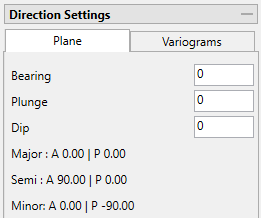
Enter the Bearing, Plunge, and Dip.
Note: The Major, Semi-major, and Minor azimuth and plunge directions are displayed, but cannot be edited from this tab. To edit these settings, click the Variograms tab. Any edits made there will be reflected on this tab.
Direction Settings - Variograms
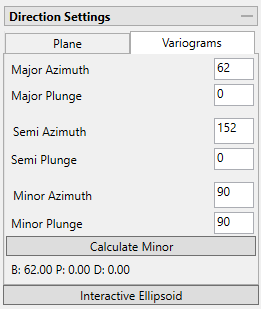
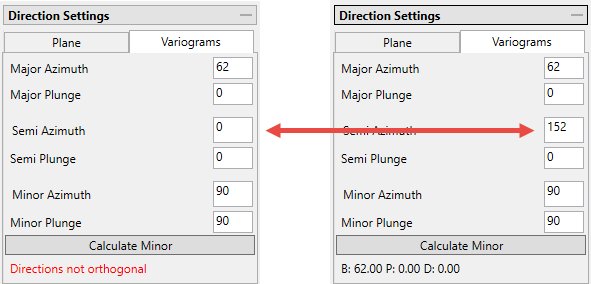
Enter the Major, Semi-major, and Minor Azimuth and Plunge.
Click the Calculate Minor button to automatically fill in the values for the Minor direction.
If entries are made that do not reflect proper orthogonal angles, then a warning message will be highlighted in red.
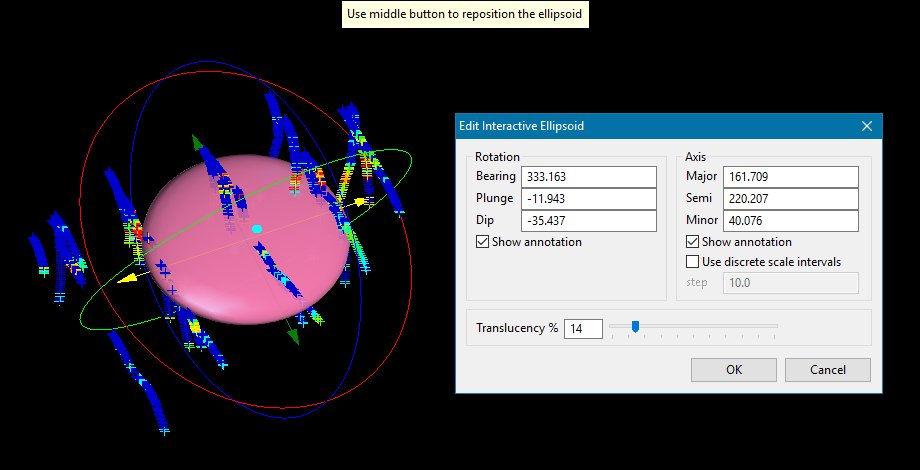
Click the Interactive Ellipsoid button to open an interactive window in the Vulcan 3D viewer. You can use the controls on the ellipsoid to set the direction parameters.
Data Analyser allows you to input the plane orientation and from there obtain the three variogram directions. This can be done before or after the chart has been created. The input plane is the same used in the model for that variable.
The angles for Major, Semi-major, and Minor are automatically calculated from the settings entered in the Plane tab, however, you can edit those settings if you desire. If the Semi-major is not orthogonal (90 degrees) to the Major, then a warning will be given. However, it is not required that the angles be orthogonal to each other. If you want the minor angle to be orthogonal to the Major and Semi-major, then click the Calculate Minor button and the two angles will be automatically filled in.
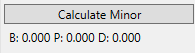
Click the Calculate Minor button to perform the calculation. The results will provide the bearing, plunge and dip based on the Major Azimuth.
Major, Semi-major and minor Settings
The input options for Primary, Secondary, and Cross properties are all the same.

Search radius
The search radius should correspond to approximately half the distance of your data field. if the search radius is greater than the halfway point, then the search will over-extend the edge of the data.
If the distance traversing your sample area is 500 feet, then set the search radius to 250 feet.
Lag size
The lag size is the distance for each step from the origin. Set a lag size that coincides with your data spacing.
If your samples are spaced 50 feet apart, then set your lag size to 50. If you have to err, do so on the side of too small.
Lag tolerance
The lag tolerance is the distance plus or minus the lag size that samples will be captured. This helps capture samples that are not located at the exact distance interval as the lag spacing. Set the distance within which to use samples.
Note: If this is set to 0, then the tolerance is not used.
Samples are rarely located at exact intervals such as every 50 feet throughout the entire domain. There will nearly always be some variance. You can capture the samples that are not at exact intervals by setting the variogram to recognise samples that fall within 25 feet of the lag size, which in our sample case is every 50 feet.
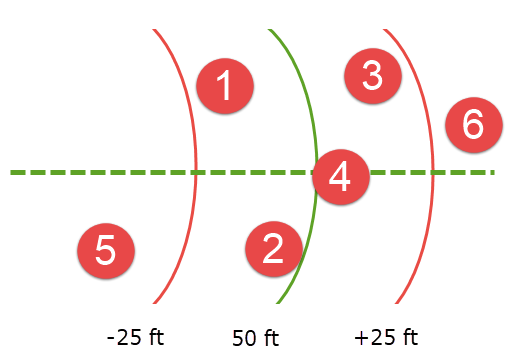
Here, the green line represents a lag size of 50 feet, and the red lines represent a lag tolerance of 25 feet on either side. Samples 1, 2, 3, and 4 would be used in the calculation. However, samples 5 and 6 would be ignored.
Lag tolerance ratio
This corresponds to the percentage of the lag size that is used by the lag tolerance.
A lag size of 50 with a lag tolerance of 25 will result in a lag tolerance ratio of 50%.
Tolerance thresholds
Collectively, the azimuth tolerance, plunge tolerance, horizontal tolerance, and vertical tolerance are known as the Cone of Tolerance. Using too large of a cone can result in excessive mixing of samples from different directions. This can cause the apparent anisotropy to appear smaller than the true anisotropy. Using too small a cone can result in rough variograms that are hard to interpret. The sample cone may be too small if the number of sample pairs for most lags is small compared to the number of sample points.
For an omnidirectional variogram, use 90 for the azimuth tolerance and 90 for the cone angle tolerance.
Note: At a great enough distance, the horizontal distance tolerance and vertical distance tolerance will clip the sides of the search cone.
Azimuth tolerance
Enter the limit on the angle between two samples as measured in the plane of the plunge of the variogram.
Plunge tolerance
Enter the limit on the angle between two samples as measured in a vertical plane in the direction of the azimuth.
Note: A combination of cone, azimuth and plunge tolerances is used if the azimuth angle tolerance and plunge angle tolerance are set to less than the cone angle tolerance.
Horizontal tolerance
Enter the horizontal distance limit on sample pairs. Any acceptable sample must be within this horizontal distance of the centre of the variogram cone.
Tip: Set this value to a typical spacing (or larger) between your data, for example, if your data is on a 100 × 100 × 10 grid, set a horizontal distance of 100 and a vertical tolerance of 10. If you receive too few sample pairs, try increasing the tolerances to capture more data otherwise artifacts such as "hole effects" may occur.
Vertical tolerance
Enter the vertical distance limit on sample pairs. Any acceptable sample must be within this vertical distance from the centre of the variogram cone. The vertical distance is measured from the plane of the plunge of the variogram cone.
Unfolding

The unfolding option is used in the case of deformed strata bound deposits. This can be applied to deposits where mineralisation is controlled by a structural surface that can be modelled. The specification file from a Grid Model is used.
View Cones in Vulcan
You can visualise the search ellipses by enabling the option to View Cones in Vulcan, or by clicking Display Cones from the Connectivity tab in the ribbon. The cones are interactive, therefore, any changes made in the variogram parameters will be automatically reflected in the cones seen in Vulcan.
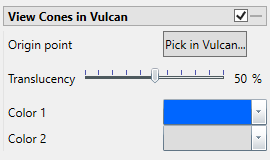
Steps
-
Begin by clicking the button labelled Pick in Vulcan.
-
In the Envisage workspace, click where you want the origin of the cones to be displayed.
-
Use the slider to adjust the Translucency of the cones.
-
Set the colours for the cone by clicking on Colour 1 and Colour 2, then selecting a colour from the palette.
-
To remove a the cone from the screen, disable the View Cones in Vulcan checkbox.
After you have set the parameters for a cone, it can be displayed using the buttons found on the Connectivity tab on the ribbon.
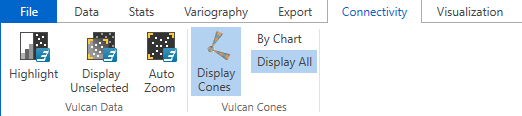
Click Display Cones, then select either By Chart or Display All.
By Chart - Only the charts that have the View Cones in Vulcan option enabled will be displayed.
Display All - All cones will be displayed regardless of whether or not the View Cones in Vulcan option has been enabled.
Create lag scatter
Each variogram point is the average of a collection of points that have a distance (h) from the origin point. Therefore, each variogram point can generate a correlation between the origin point and the others inside the indicated neighbourhood.
-
Select a point from the variogram.
-
Click the Create lag scatter button to create the chart. The Properties column will display new parameters input options.
Properties for scatter display
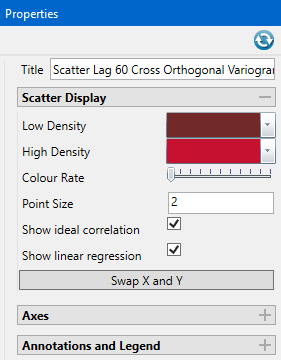
Title
By default, the title is filled in using teh format 'Scatter Lag <distance> Cross Orthogonal Variogram <variable 1> <variable 2>'. However, you may enter your own title by replacing the default entry, or remove the title completely by deleting the text.
Low Density
Select a colour for scatter points that are located in low density areas of the chart.
High Density
Select a colour for scatter points that are located in high density areas of the chart.
Colour Rate
This controls the density threshold that is needed to pass from high density colour to the low density colour. If the slider is all the way to the left, then the sensitivity will be high, meaning that most of the data points will be displayed as high density points. As the slider is moved to the right, the sensitivity will be lowered and more and more points will be displayed as low density points.
Point Size
This controls the size of the points.
You can adjust the axis on the right side of the chart by editing the Auto Interval setting, then clicking the
 button at the top of the Properties panel.
Axes
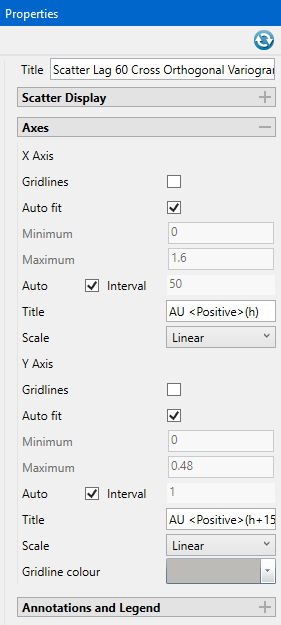
Gridlines
Select this option to display the gridlines at major intervals on the chart. You can elect to display gridlines for both axes or just one, depending on your needs.
Auto fit
By default, Vulcan Data Analyser will auto fit the axes based on the values calculated from the dataset. However, you can customise the axes to highlight your particular study and needs. This can be done in two ways:
Method One
-
Deselect Auto fit.
-
Set a Minimum and Maximum range.
-
Let Vulcan Data Analyser adjust the intervals automatically by leaving the Auto Interval option selected.
Method Two
-
Deselect Auto fit.
-
Set a Minimum and Maximum range.
-
Deselect Auto Interval, then enter an interval of your choice.
Title
By default, the axes are provided with the format <variable>(h) for the X axis, and <variable>(h+15) for the Y axis. However, if you wish to change these you may do so by replacing the text in each of the textboxes.
Scale
Select one of three scales from the drop-down menu: Linear, Logarithmic, or Gaussian.
Gridline Colour
Click the arrow to display the colour palette, then select a colour for the gridlines.
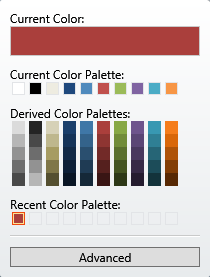
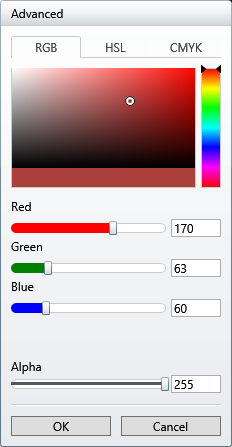
Clicking the Advanced button will bring up a dialog which will allow you to customise the colour to you exact specifications.
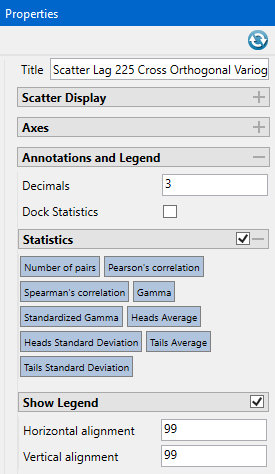
Annotations and Legend
Decimals
Enter the number of decimals you wish to use in the statistical displays.
Statistics
Enable the Show Statistics checkbox to display the statistics in the chart. You can select the specific statistics you want displayed by clicking on the various options.
Show Legend
By default, the legend is automatically displayed. If you do not want to see the legend simply uncheck the checkbox in the upper right corner.
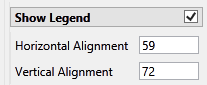
Horizontal and Vertical Alignment
Position the chart legend by left-clicking on it with your mouse and dragging it to the desired location. It is also possible to position the legends by typing in a number between 0 and 100 into the textbox. If you do not want to see the legend simply uncheck the checkbox in the upper right corner.
-
Tip: To select multiple points and create more than one chart at once, hold down the Ctrl key while selecting the points.
Model tab
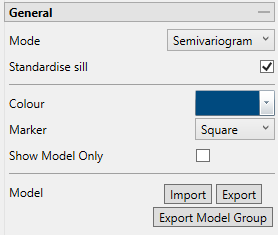
Mode
Note: The list of modes available for use depends on the type of variogram you are modelling. Depending on what type of variogram you are modelling, some of these modes might not be available.
Semivariogram
This is the standard semi variogram.
General relative semivariogram
This is like the standard semi variogram, but divided by the mean of the data values.
Pairwise relative semivariogram
This is like the standard semi variogram, but each difference is divided by the mean of the sample values.
Madogram Ratio
sqrt(Semivariogram) / Madogram
 Indicator semivariogram
Transform data as 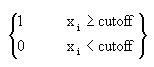 and compute the semivariogram
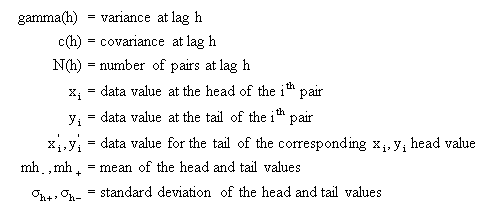
where:
Standardize sill
This option is disabled. You cannot set a standardised sill in a cross variogram.
Colour and Marker
Use the drop-down menus to select the colours and markers to customise the charts.
Show Model Only
Select this option to show only the model and hide the experimental variogram data.
Model Import / Export / Export Model Group
A model can be imported in or exported out. The files are stored as <filename>.vrg. The models that are exported out can be used in block model estimations.
Model Configuration
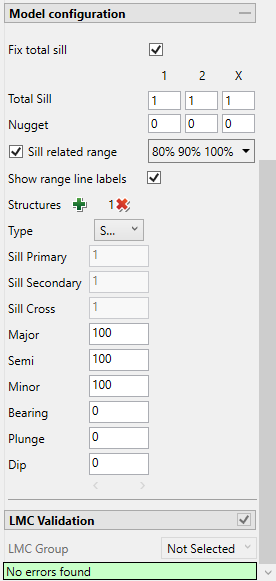
Fix total sill
Enabling this option prevents the sill from being changed when setting up the structure(s).
Total Sill
If you do not know the exact sill, enter a number that is close. Start with a whole number or a number rounded to 0.5 and work from there. The sill you choose will not affect the model calculations. It will only affect how you are able to see it on the chart.
The total sill is equal to the nugget plus all the structures such that
Total Sill = Nugget + Structure 1 + Structure 2 +... + Structure n
Nugget
You can enter the nugget obtained from the down hole variogram or enter another nugget. The default nugget is 0.
The nugget is the variance at an infinitely small separation distance.
Sill related range
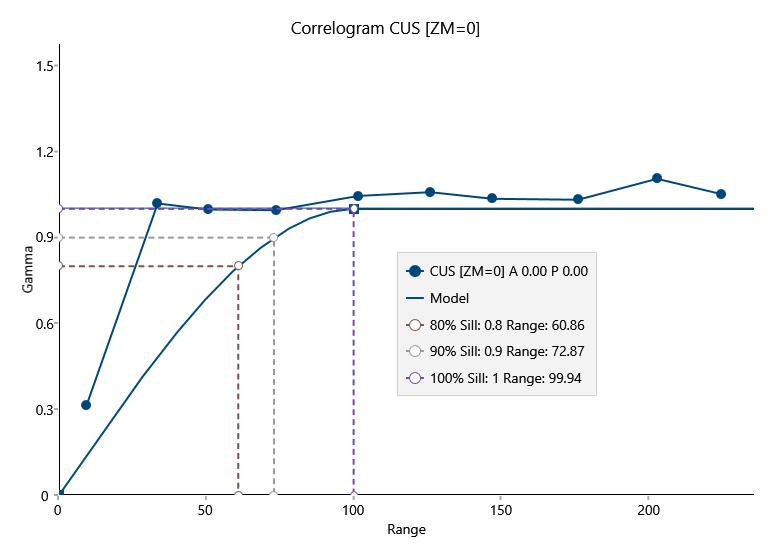
Use this option to add up to three vertical lines showing where the range would intersect the sill.
Show range line labels
Use this to display the legend for the range lines.
Types
A variogram is a statistically-based, quantitative, description of the spatial correlation of sample points.
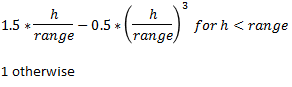
For each model the correlation function is described.
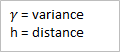
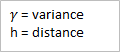
Note: On variography plots, the variance function, or maximum sill - correlation is plotted.
The representations below are in a single direction; however, in practice, models are always 3D and have shapes in any direction.
The 3D shape is controlled by a rotation (bearing, plunge, dip) and three ranges (major, semi, minor).
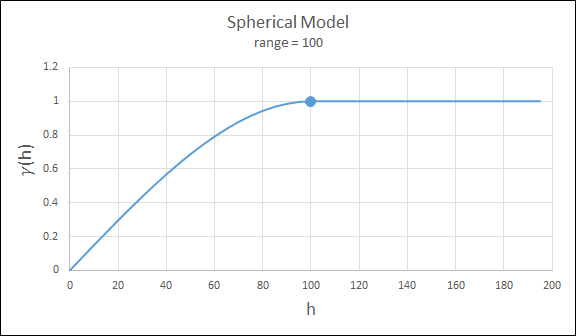
Spherical
This type is the most commonly used for ore deposits. They exhibit linear behaviour at and near the origin then rise rapidly and gradually curve off.
Exponential
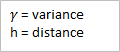
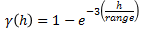
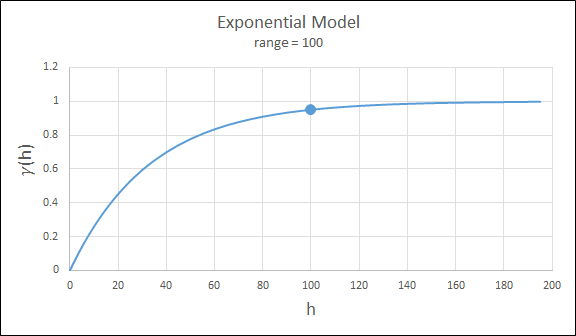
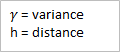
This type is associated with an infinite range of influence. The sill is reached at the specified range parameter. Here the range parameter is found at 1/3 of the effective range.
For backward compatibility, see the Exponential3 Model.
Gaussian
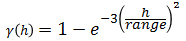
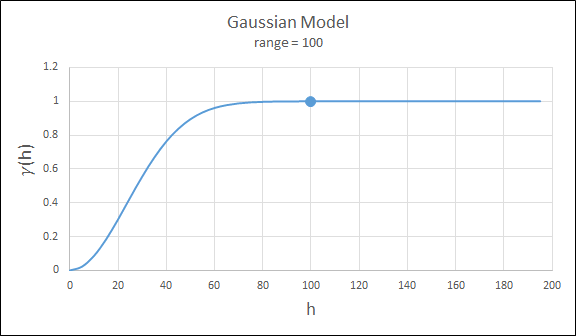
This type exhibits parabolic behaviour at the origin and, like the spherical model, rises rapidly. The Gaussian type reaches its sill smoothly, which is different from the spherical model, which reaches the sill with a definite break. The Gaussian model is rarely used in mineral deposits of any kind. It is used most often for values that exhibit high continuity.
To use this model, enter the effective range of the sill.
For backward compatibility, see the Gaussian3 Model.
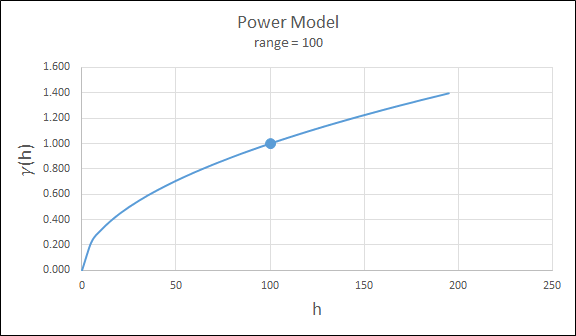
Power
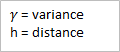
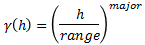
For this model the major axis serves as the range parameter. The semi-major and minor axis distances must be adjusted in a corresponding ratio to preserve the anisotropy.
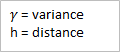
DeWijsian
This type is a representation of a linear semi-variogram versus its logarithmic distance.

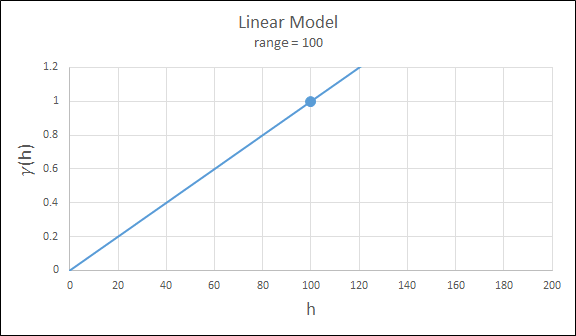
Linear
This type is a straight line with a slope angle defining the degree of continuity.
Note: that this model does not reach a sill.

Periodic
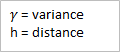
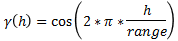
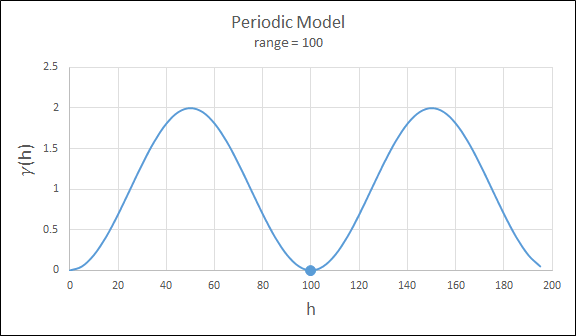
This is a sine wave with one complete period over the effective range. This model is not commonly used because it can cause samples at greater distances to have higher correlation.
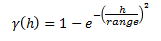
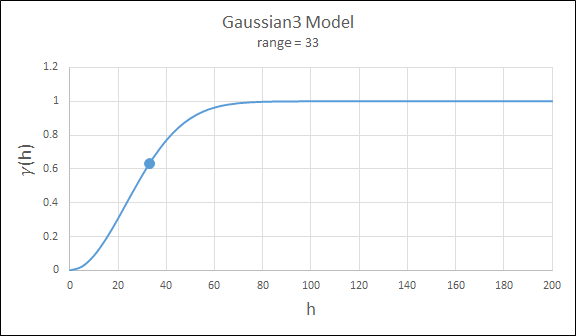
Gaussian3
This is just like the Gaussian model, but 3 times the effective range must be entered. This is for compatibility with previous releases.
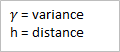
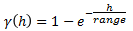
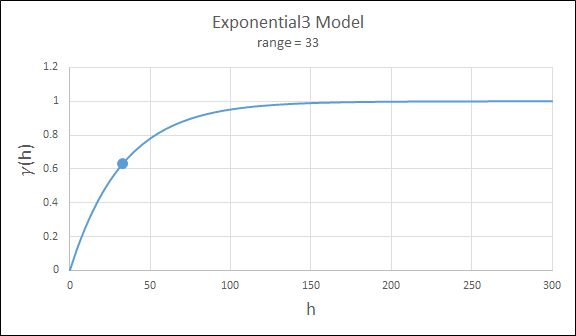
Exponential3
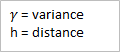
This is just like the exponential model, but three times the effective range must be entered. This is for compatibility with previous releases.
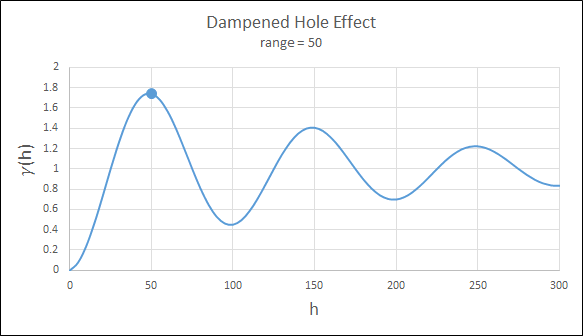
Hole Effect
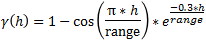
Hole effect is achieved by multiplying the covariance function by an exponential covariance, that acts as a dampening function.
LMC Validation
LMC Validation (Linear Model of Correlation) is required to use cokriging in non collocated data.
You can group variogram models to meet the LMC conditions by selecting the single variable models from the drop-down list.
LMC Validation requires that the single variable variograms are standardized and the cross variogram is not standardized.
Grouping models will synchronize the following model parameters:
-
Major, semi-major, and minor
-
Bearing. Plunge, and Dip
Therefore, changing these values in one of the models will update it in the whole group.
Note: The nugget and structure sill are not synchronized.
Messages indicating any errors will be displayed.
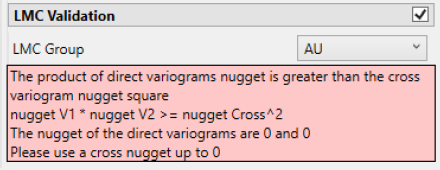
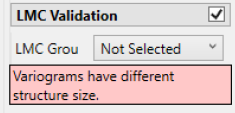
Important: For the nugget and the structure sill, the cross variogram value square must be lower or equal to the product of the direct variograms.

