

Import Datamine Triangulations
Instructions
On the File menu, click Import to display the Import panel.
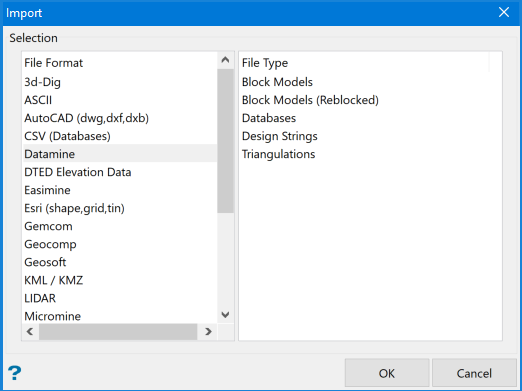
Click Datamine in the File Format column on the left.
Select Triangulations from the File Type field on the right side of the panel.
Click OK to display the Import Datamine Triangulation panel.
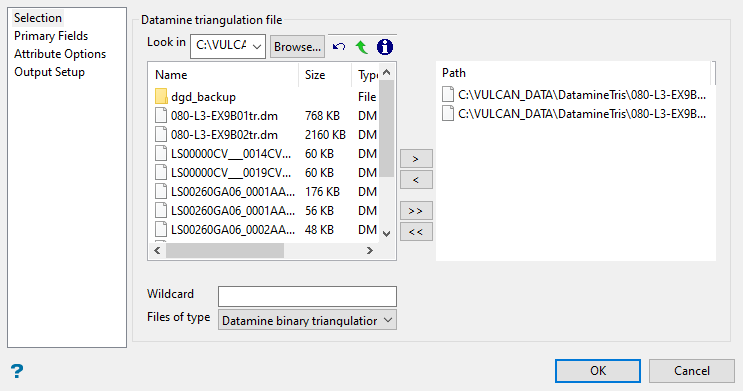
File Selection
Browse for files using the Browse... button, or use the interface showing the available grid files in the current working directory.
Click on the names of the files you want to select. Use the  buttons to go to the last folder visited, go up one level, or change the way details are viewed in the window.
-
To highlight multiple consecutive files in the list, hold down the Shift key and click the first and last file names in that section of the list.
-
To highlight multiple non-consecutive files, hold down the Ctrl key while clicking the file names.
Move the items to the selection list on the right side of the panel.
-
Click the
 button to move the highlighted items to the selection list on the right.
 -
Click the
 button to remove the highlighted items from the selection list on the right.
 -
Click the
 button to move all items to the selection list on the right.
 -
Click the
 button to remove all items from the selection list on the right.
Wildcard
Enter the text to use as a filter, then press Enter. Use * for multiple characters or % to replace a single character.
Example: For example, with topo_* used as a wildcard, the result might be topo _area2_aerial, topo _min, or topo _with_pit.
Files of type
Use this to filter the file types that display in the search list.
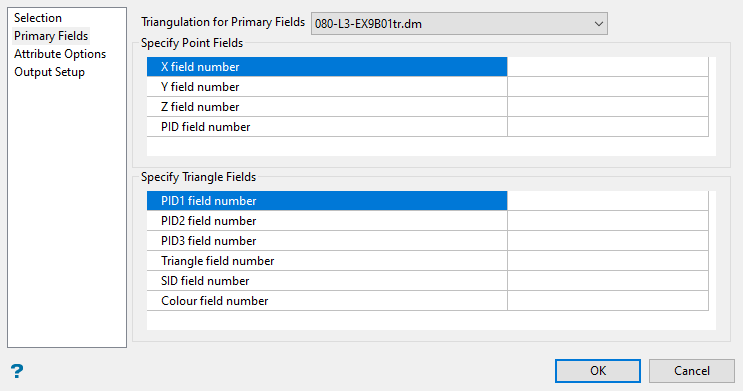
Specify point fields
This section lists all of the fields found in Datamine points file. Use this section to determine the field numbers enter default field numbers into the fields based on the information in the Datamine file header.
Specify triangle fields
This section lists all of the fields found in Datamine triangles file. Use this section to determine the field numbers for the (PID1...PID3, Triangle, SID and Colour) on the information in the Datamine file header.
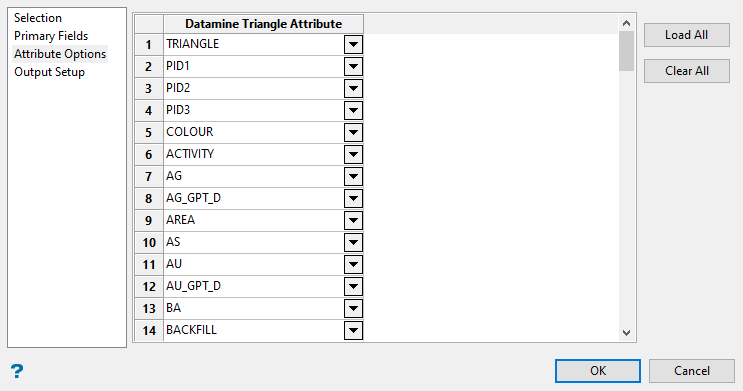
Datamine Triangle Attribute
Select attributes by selecting them from drop-down lists.
Load All button
Use this to load all available attributes at once instead of selecting them one at a time.
Clear All button
Use this to clear all attributes from the list.
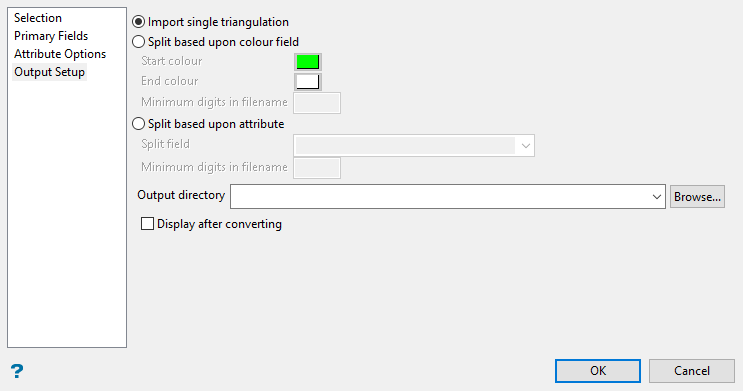
Split based upon colour field
Select this checkbox to split the nominated Datamine triangulation. If this checkbox is not selected, then the current digitising colour will be used to colour the newly imported triangulation.
Selecting the Split based upon colour field checkbox will allow you to use the colour field in the Datamine of colours that you want to apply to the resulting triangulations.
Minimum digits in filename
Enter the number of digits (between 0-9) that will be used when naming the resulting triangulations. The specified value will be used to naming the triangulations in the following format:
<Datamine>_<digits><Colour>dm.00t
where
<Datamine> |
Refers to the name of the imported Datamine triangulation. |
<digits> |
The number of zeros used to name the resulting triangulation. |
<Colour> |
Refers to the Datamine Colour field value. |
dm |
Indicates that the triangulation was created from a Datamine triangulation. |
Datamine triangulation name: TEST
 Colour field values: 1, 13, 17 and 20
 Minimum number of digits: 3
Split based on attribute
Select this checkbox to split the nominated Datamine triangulation.
If this checkbox is not selected, then all attributes will be applied to the newly imported triangulation.
If this checkbox is selected, then you can select the attribute that you want to apply to the resulting triangulations.
Minimum digits in filename
Enter the number of digits (between 0-9) that will be used when naming the resulting triangulations.
Display after converting
Select this checkbox if you want the display the triangulation once it has been imported.
Selecting this checkbox will also allow you to name the resulting triangulation, as well as nominate the directory in which to store the file. If this checkbox is not selected, then the resulting triangulation file will inherit the name of the original Datamine file and will be placed in your current working directory.

