

Expand
Use this option to expand one or more solids by a set distance.
Instructions
On the Model menu, point to Triangle Utility, and then click Expand.
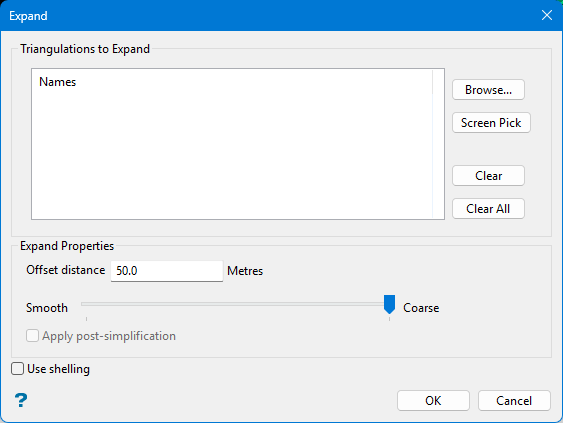
Triangulations to Expand
Names
Shows the list of triangulation solids that will be expanded.
Browse
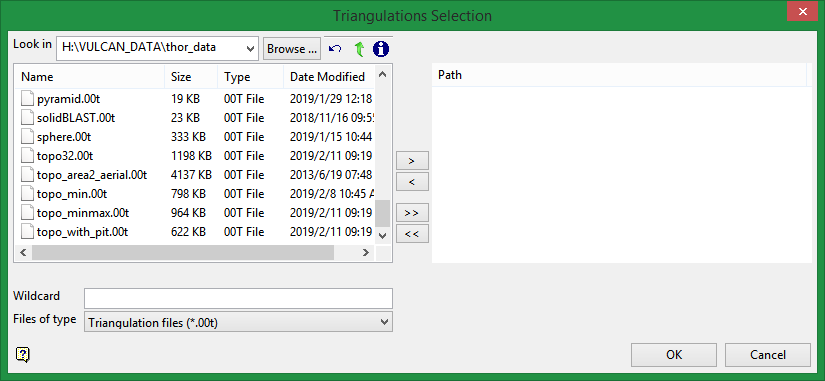
Browse for files using the Browse... button, or use the interface showing the available grid files in the current working directory.
Click on the names of the files you want to select. Use the  buttons to go to the last folder visited, go up one level, or change the way details are viewed in the window.
-
To highlight multiple consecutive files in the list, hold down the Shift key and click the first and last file names in that section of the list.
-
To highlight multiple non-consecutive files, hold down the Ctrl key while clicking the file names.
Move the items to the selection list on the right side of the panel.
-
Click the
 button to move the highlighted items to the selection list on the right.
 -
Click the
 button to remove the highlighted items from the selection list on the right.
 -
Click the
 button to move all items to the selection list on the right.
 -
Click the
 button to remove all items from the selection list on the right.
Wildcard
Enter the text to use as a filter, then press Enter. Use * for multiple characters or % to replace a single character.
Example: For example, with topo_* used as a wildcard, the result might be topo _area2_aerial, topo _min, or topo _with_pit.
Click OK to return to the main panel when your selection is complete.
Screen Pick
In order to use the Screen Pick button, you will need to load the triangulation prior to selecting the Expand option.
Clear
Highlight a selection, or hold down Ctrl while selecting multiple files, then click Clear to remove them from the list.
Clear All
Removes all files from the list.
Expand Properties
Offset distance
Enter the distance from the current surface that you want to expand the solid(s).
Smooth / Course
Use the slider to set the resolution of the finished solid(s).
Apply post-simplification
Solids are created with a mesh draped over the framework to enhance the detail. At times however, this can cause some solids to become large regarding memory usage. If you do not want to utilise this feature, click this option to Apply post-simplification and mesh will not be created.
Use Shelling
Enable this to split the input solid into multiple shells. Expanding the shells simplifies the result to roughly the same number of triangles as the original shell. It then merges the expanded shell into a single solid, ensuring a reasonable number of triangles in the expanded solid.
Note: This method ignores the smoothness parameter and post-simplification option.

