

Import KML Design Strings
Use this option to read point, polygon, and string KML objects. Each coordinate on these objects creates a point. If a point is missing the Z-coordinate, it is imported as 0. Coordinates are transformed as WGS-84, and are converted to UTM on the same Datum. All information imported will be stored in the same layer.
Tip: Besides importing the layers using the standard method, you can also drag and drop the KML files from the Window's Explorer to the Envisage screen. The newly imported layers will appear in the design database.
Instructions
On the File menu, click Import to display the Import panel.
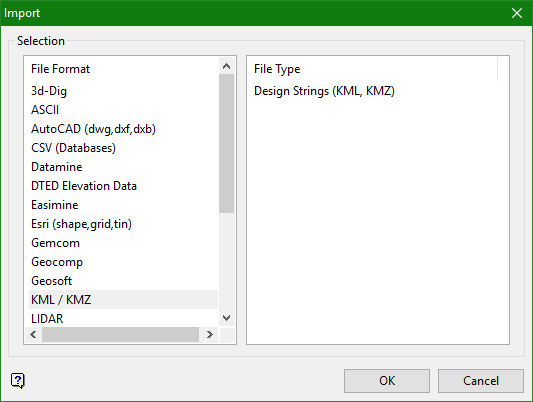
Click KML/KMZ in the File Format column on the left, then select Design Strings (KML/KMZ) from the File Type field on the right side of the panel.
Click OK to display the Import KML/KMZ panel.
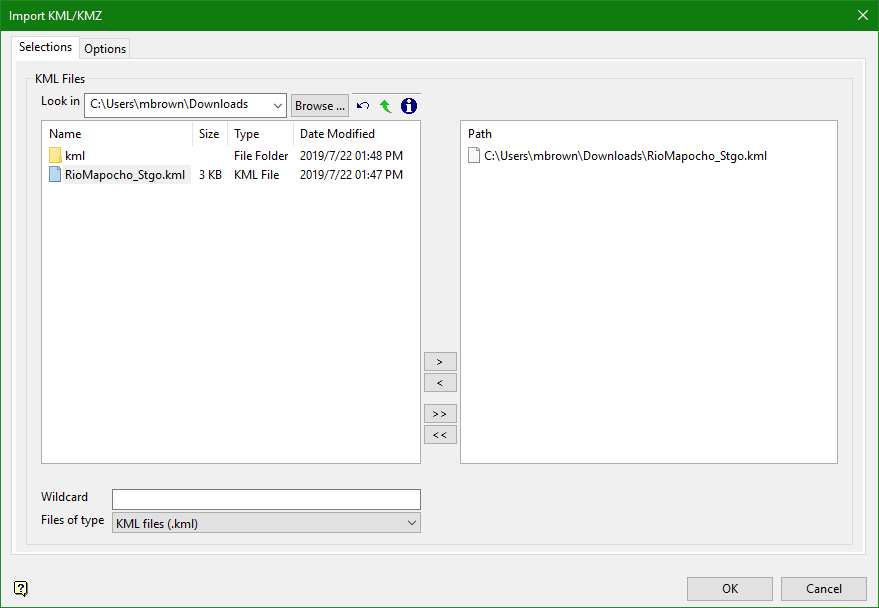
File Selection
Browse for files using the Browse... button, or use the interface showing the available grid files in the current working directory.
Click on the names of the files you want to select. Use the  buttons to go to the last folder visited, go up one level, or change the way details are viewed in the window.
-
To highlight multiple consecutive files in the list, hold down the Shift key and click the first and last file names in that section of the list.
-
To highlight multiple non-consecutive files, hold down the Ctrl key while clicking the file names.
Move the items to the selection list on the right side of the panel.
-
Click the
 button to move the highlighted items to the selection list on the right.
 -
Click the
 button to remove the highlighted items from the selection list on the right.
 -
Click the
 button to move all items to the selection list on the right.
 -
Click the
 button to remove all items from the selection list on the right.
Wildcard
Enter the text to use as a filter, then press Enter. Use * for multiple characters or % to replace a single character.
Example: For example, with topo_* used as a wildcard, the result might be topo _area2_aerial, topo _min, or topo _with_pit.
Files of type
Use this to filter the file types that display in the search list.
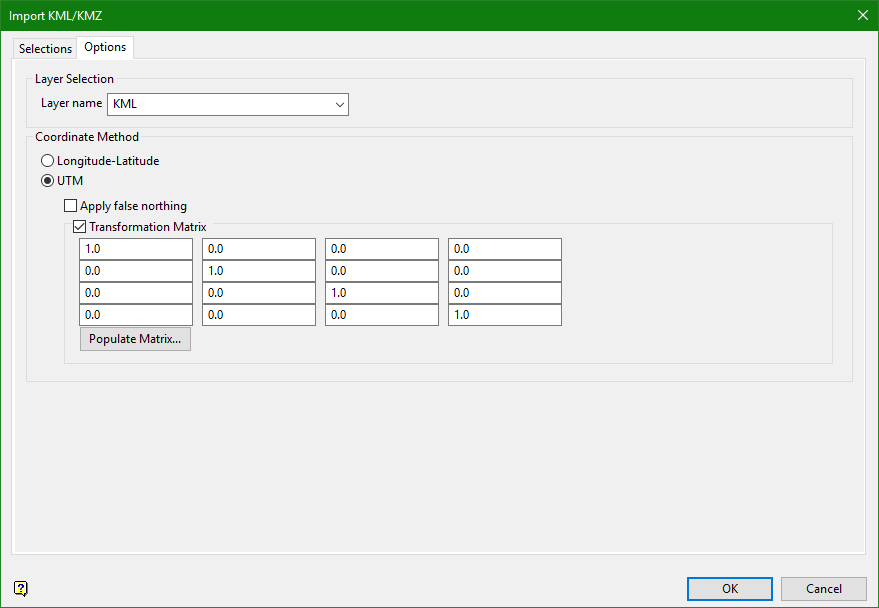
Layer Selection
Layer Name
Enter the name of the layer that will be used to store the imported data. The drop-down list contains the names of all layers found in the currently open design database. If you select an existing layer, then the resulting data will be appended to the nominated layer. If you enter the name of an existing layer that is not currently loaded, then you will need to confirm whether you want to load the layer or replace it, that is overwrite its contents.
- may contain up to 40 characters,
- must begin with an alphanumeric character [
0-9] or [a-z/A-Z], - cannot include spaces,
- can include hyphens [
-], plus signs [+], underscores [_], periods/dots [.], - can include the special characters of
ÁÂÃÀÇÉÊÍÓÔÕÚÜÑthat are used in the Spanish and Portuguese languages.
Coordinate Method
Longitude-Latitude / UTM
Select whether the coordinates are in Latitude-Longitude or UTM datum.
Apply false northing
The false northing is used in the southern hemisphere mostly so northing grid coordinates are positive.
Transformation matrix
Select this option to apply the transformation matrix to input file, converting its coordinate datum.
Populate matrix
Click this button to import a selected (evn_tran) file to automatically populate the transformation matrix table.

