Using the Identify Tool in Vulcan
The Identify tool in Vulcan allows users to inspect design objects, access spatial coordinates of specific points, and review the object's associated layer or underlay.
Instructions
On the Design menu, point to Object connection pointUse point picked on object as connection pointSelect this option to select the point you chose on the object when creating the macro to be the connection point. Connection line(s), if applicable, will be drawn between the image and this point.Use point picked at inquiry as connection pointSelect this option to use the point picked at the Inquiry stage as the connection point. Connection line(s), if applicable, will be drawn between the image and this point.Pick a new point on object as connection pointSelect this option to pick a new point on the object to use as the connection point. Connection line(s), if applicable, will be drawn between the image and this point.Make this point the default picked point for other commandsSelect this checkbox to have the selected point used as the default point for other macro commands.Edit, then click Identify.
-
Select an Object. Click on the object you'd like to inspect. If not in an underlay, the object will be highlighted and its details shown in the Report Window.
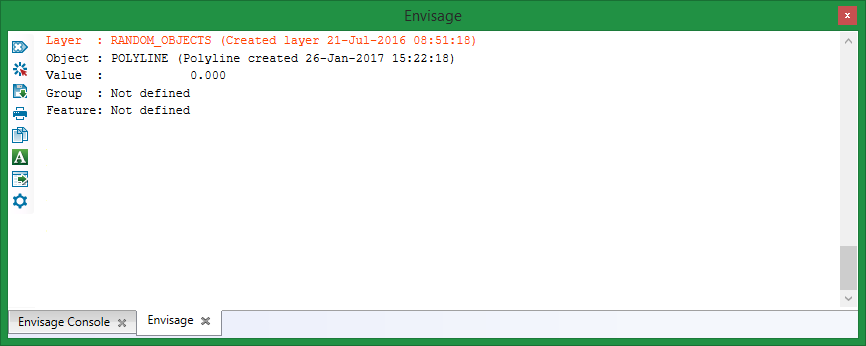
Details may include:
- Layer name
- Layer description
- Object name
- Object description
- Object value
- Group name
- Feature name
-
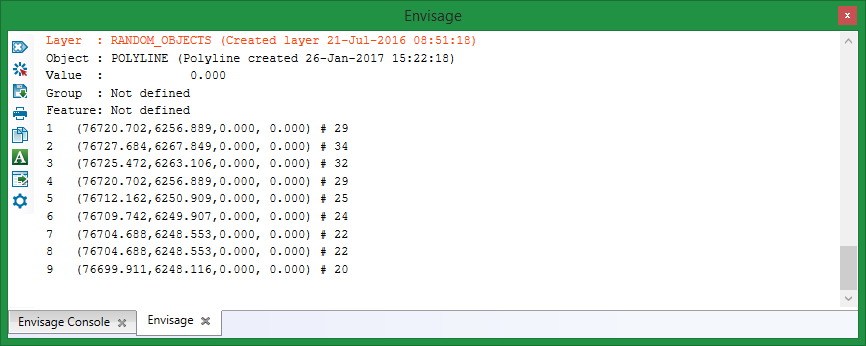
Inspect Specific Points. After selecting the object, click on individual point to gather location data. Each point's data will be added to the Report Window and include:
- Point number
- Point sequence
- X, Y, Z coordinates
- W value
The first selected point will be labelled
1, and each subsequent point will increment by one.