

Grid Properties
This panel is used to load a coordinate grid and to alter the grid settings on a displayed grid.
Use either method to open the Grid Properties panel:
- Right-click the Toggle Grid Display icon on the Graphics toolbar.
- On the Analyse menu, point to Grid, then click Properties.
Axis tab
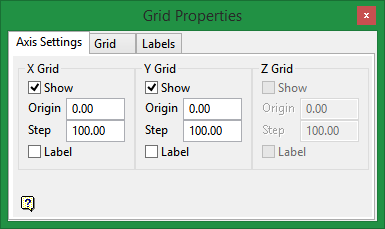
Enter the setting for the axes on the Axis tab. Your choice of grid under the Grid tab will affect which of the X, Y, and Z grid sections is shadowed.
|
Show |
Select this checkbox to display the grid line. |
|
Origin |
Enter a value for the origin of the grid lines. The default is 0.00. |
|
Step |
Enter a value for the step. This is the interval between grid lines. If the screen display would be dominated by grid lines, then the grid lines are displayed at multiples of the interval. |
|
Label |
Select this checkbox to label the grid lines. Use the Labels tab to control the labelling parameters. The information that you entered in the X, Y, and Z grid fields is used to determine the origin and step size of the annotations.
|
Example: If you selected an origin of '1', and a step size of '100', then the annotations will occur at 1, 101, 201, etc.
Grid tab
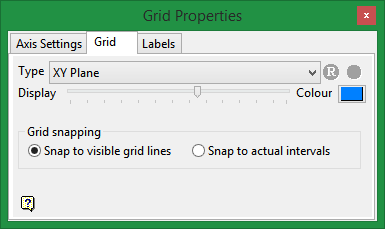
Use the Grid tab to define the grid type, grid colour, grid display, and whether to snap to visible grid lines or actual intervals.
|
Type |
Select the type of grid you want to display. There are 6 types available:
|
||
|
Display |
Defines the intensity of t grid's graphical representation. If the slider value is set as '0', then no grid is displayed. If the slider value is set to full, then the grid will appear to be solid. |
||
|
Colour |
Select the colour for the grid. The overlay colour, which is defined through the Graphics > Colours section of the Tools > Preferences option, is used by default. |
||
|
Grid Snapping |
Select the method for grid snapping:
Important: It is not possible to use grid snapping when a 3D grid is enabled or if zero (0), one (1), or three (3) aces are displayed for Screen Plane or Primary Plane grids. When digitising using Indicate mode and XY, YZ or YZ plane grids are enabled, the object is snapped to the grid. |
 and Zoom Data Extents
  icons are activated. The Zoom Data Extents icon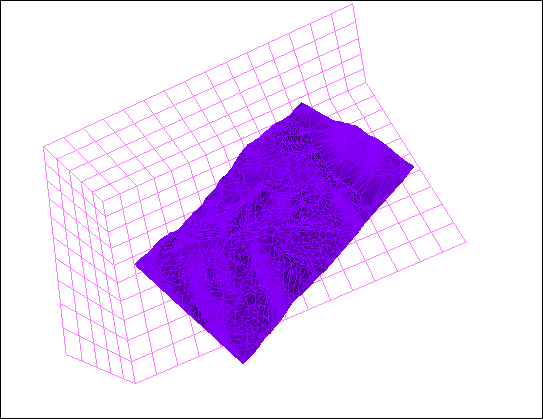
Labels tab
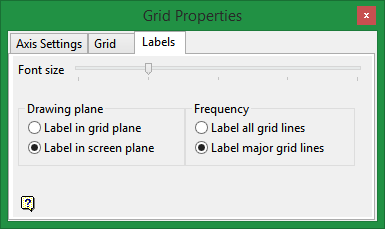
Use this tab to control the appearance and placement of the axes labels.
|
Font size |
Use the slider to select a value for the size of the font. |
|
Drawing plane |
Choose the plane in which to place the labels. You can choose to display the labels in the screen plane, in which case they will always be visible regardless of the rotation of the grid, or in the grid plane. |
|
Frequency |
Select the frequency of the grid line labelling. You can choose to label all of the grid lines or only the major grid lines. As you enter values into the panel, the grid display will be updated dynamically. To close the Grid Properties panel, click on the Close Window icon The grid settings will be saved to the vulcan.prefs file (for the Primary window) and the file (proj.>wnd file (for sub windows). Use the Remove option to remove the grids form the screen. |
 . To redisplay the Grid Properties panel, right-click on the Grid Properties icon
  .
.
