

CSV to Model
Use the CSV to Model option to create a block model from a comma-separated values (CSV) file (.csv) containing the block model parameters. You can generate CSV files used to create block models with the Block > Transfer > Model to CSV option.
The format of the CSV file must be as follows:
|
Line 1 |
This line contains the field names of the data in the CSV file. These names consist of seven standard field names (X, Y and Z coordinates of the block centre, X, Y and Z lengths of the block and block volume), and the variable names (there is no limit to the number of variables). |
|
Lines 2, 3, 4 |
These lines contain information about the variable fields. Line 2 contains the variable description, line 3 the type and line 4 the default value. No data is contained in the first seven fields. The first field of each line does, however, contain the name. For example, field 1 of line 2 contains variable description. |
|
Lines 5 – end |
These lines contain the block data (one line per block). The block centroids are in real world coordinates. |
|
|
|
Figure 1: Figure 1 - Extract from a CSV file |

As long as the X, Y and Z coordinates of the block centroids and the X, Y and Z lengths of the blocks are in the first seven fields and the variable data starts from the eighth field, the order is not important. The volume, which appears in the seventh field in an exported CSV file, is not used in the importing process.
Vertical corner offsets, if they exist in the CSV file, will also be imported into the nominated block model file.
Important: Field names in the CSV file must be in lower case. If field names contain upper case characters, then the block model creation will be aborted.
To use this option, you need a block model definition file (.bdf), which is used to define the blocking schemes. The variable structure is determined by the CSV file.
Tip: You can also use the external program BCSVTO to create a block model.
Create a block model from a CSV file as follows:
-
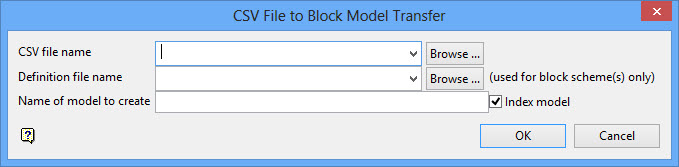
On the Block menu, point to Transfer, and then click CSV to Model.
-
If the required CSV file is in the current working directory, select it from the CSV file name drop-down. Otherwise, click Browse... to select a file from another location.
-
Select the definition file (.bdf) from the drop-down list. Click Browse to select a file from another location.
Note: The definition file is only used to obtain the block schemes. Any variables listed in the definition file will be ignored.
-
Enter a model name in the Name of model to create field. The project code is not automatically added to the block model name. However, the file extension .bmf is added.
-
When Index model is selected, CSV to Model will create a spatial index of the block model.
Note: Index model will already be enabled since all block models are indexed by default.
-
Click OK.
The CSV file is imported and, if applicable, the block model is indexed. The import progress will also be displayed in a report window.

