

Using the Find Functionality
To use the find functionality through an external database you will need to use the Intelligent Objects Editor.
Applying Conditional Attributes
Saving the Settings
Removing Conditional Attributes
Exercise
Applying Conditional Attributes
-
Load the
HAUL_ROUTElayer, which should have been created through the Getting Started tutorial. If this layer has not been created, then you will need to complete the Getting Started tutorial before continuing. -
Select Tools > Preferences.
-
Under the Vulcan : Graphics section of the Preferences interface, ensure that the Update Intelligent Objects checkbox has not been selected.

Figure 1: The Update Intelligent Objects preference
-
Select Design > Intelligent Objects > Intelligent Objects Editor.
-
Go to the Database section of the Intelligent Objects Editor interface.
-
Select ‘
Intelligent_Objects’ from the Data source drop-down list. If you cannot select this, then an ODBC data source does not exist. Refer to the ODBC Interface documentation for steps on how to set up an ODBC link.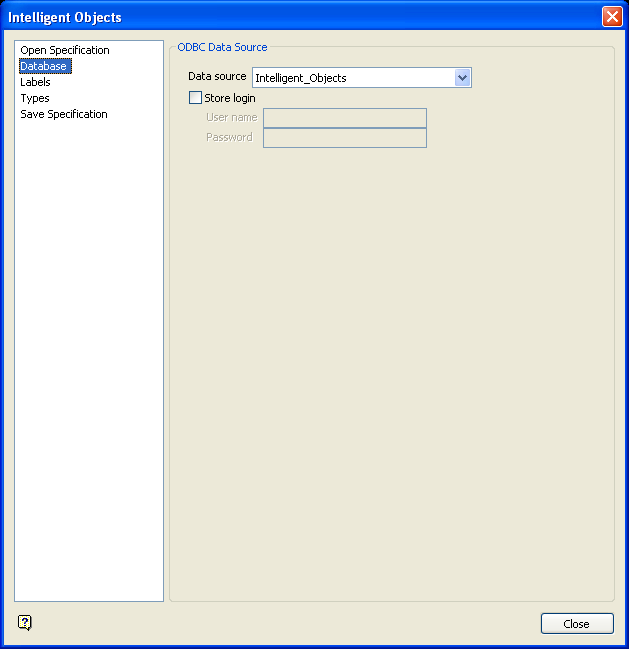
Figure 2: Specifying the Data Source
-
Go to the Types section of the Intelligent Objects Editor interface and select the Apply Conditional Attributes option.
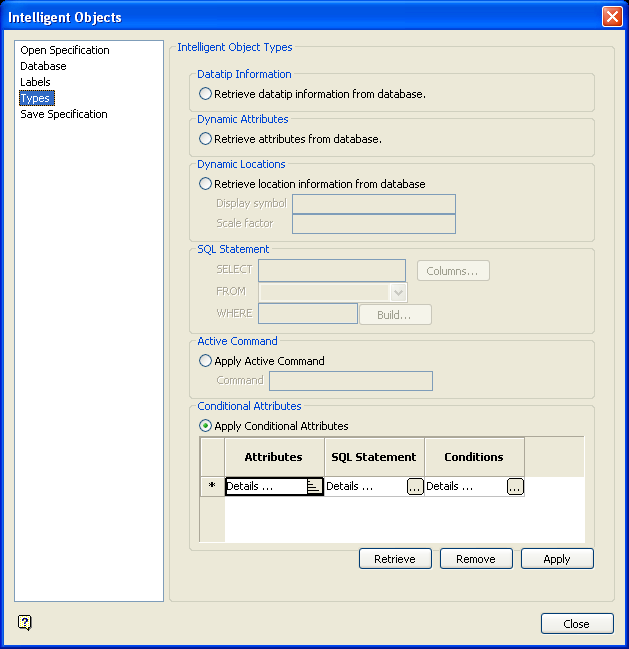
Figure 3: Applying Conditional Attributes
-
Select the
 button in the SQL Statement column. Through the displayed panel, construct the following statement:The statement is saying select all fields of a record (*) from the
 Haulage_Informationtable where the value in the fieldhaulage_routeis equal to an object’s name.
Select * from Haulage_Information where haulage_route = ‘$NAME’
To construct the statement;
-
Click Columns. From the displayed panel, enter an asterisk ( * ) in the first field of the first row.
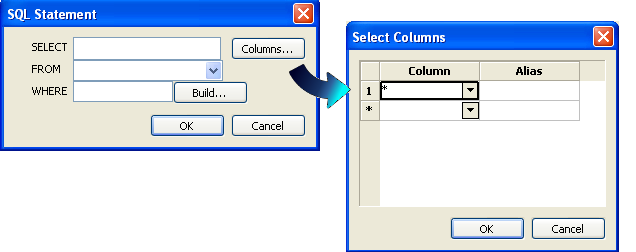
-
Select
Haulage_Informationfrom the drop-down list.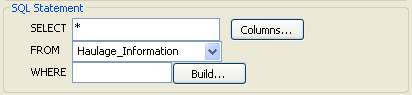
-
Click Build to construct the remainder of the statement.
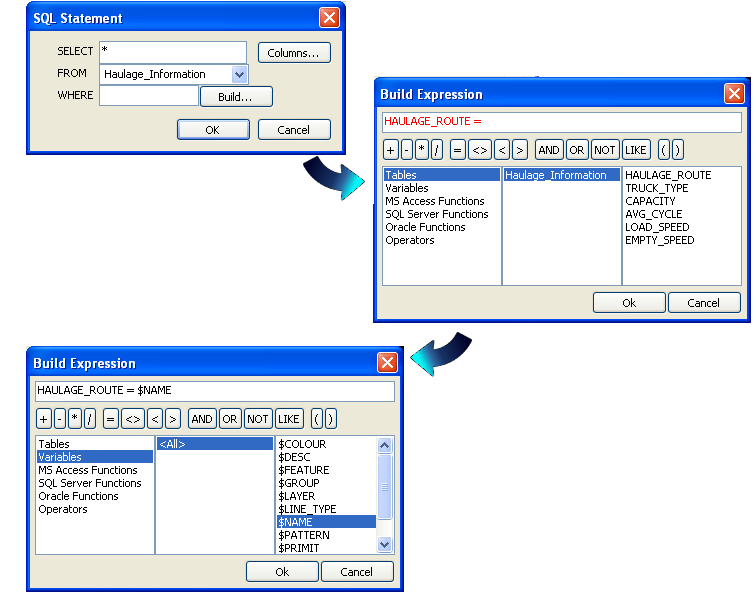
Once the SQL statement has been entered, click OK.
-
-
Select the
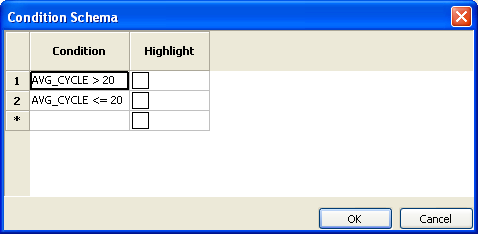
button in the Conditions column. From the displayed panel, select the following.This condition highlights all objects where the AVG_CYCLEfield in theHaulage_Informationtable is greater than20.Figure 4:
-
Click Apply and select Polygon from the displayed dialog box.
-
From the Multiple Selection box, select the Layer selection method followed by one of the design objects contained in the
HAUL_ROUTElayer. -
Right-click twice to return to the Intelligent Objects Editor interface. This will initiate the update of the conditional attributes tool and the
ROUTE_2object will be highlighted, as it is the only object that passes the condition.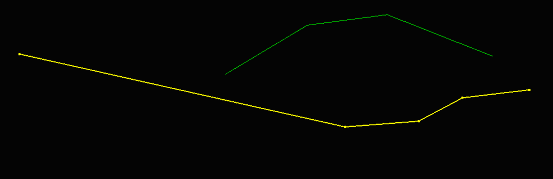
Figure 5: Object selected in Vulcan based on condition
Saving the Settings
- Go to the Save Specification section of the Intelligent Objects Editor interface and enter
Findin the Specification file field.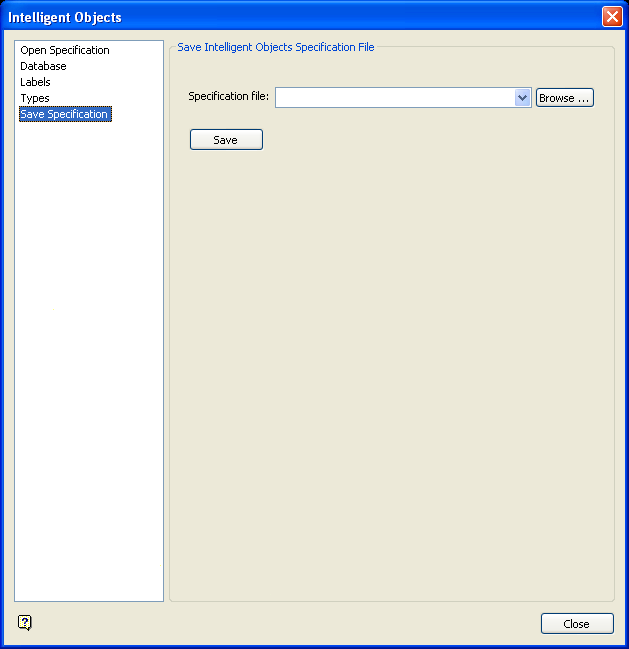
Figure 6: Saving your Settings to a Specification File
- Click Save and close the Intelligent Objects Editor interface.

