

Import Georeferenced Image
Use the Import Georeferenced Image option to create a Vulcan triangulation and Image Registration file (which registers the image to the triangulation) from either a Siro DXF and its associated image, ArcGIS and its associated World File, Siro Tiff, GeoTiff files, or WMS (Web Mapping Services).
The DXF file should be generated from the SIRO (CSIRO Mine Environment Imaging Software) package and specifically linked to the image. Only JPEG (.jpg, .jpeg) and Tagged Image Format (.tif, .tiff) images can be used.
The WMS server must have the images available in Tagged Image File Format (.tif, .tiff) or Geospatial Tagged Image File Format (.geotiff) to be able to be imported into Vulcan.
The resulting image registration file will use a different format to standard Vulcan image registration file (.ireg) files and, once created, cannot be edited. You can, however, use this registration on other triangulations.
Instructions
On the Model menu, point to Image Registration, and then click Import Georeferenced Image to open the Import Image Data panel, then follow the instructions below.
-
Complete the Image Inputs details as follows:
-
Select the type of image file to use from the Image type drop-down.
The subsequent input options will change, according to the selected image type.
-
Expand below for instructions applicable to the selected input image type and complete the options as instructed.
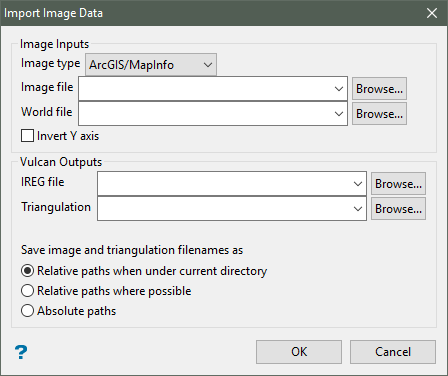
 ArcGIS/MapInfo
-
Select the required Image file. The drop-down list displays all
.jpeg,.jpgand.tiffiles found in your current working directory. Click Browse... to select a file from another location. -
Select the World file associated with the ArcGIS image. Click Browse... to select a file from another location. This field is only displayed when the ArcGIS/MapInfo image type has been selected.
Note: The world file must follow this naming convention. If the image file name has a 3-character extension, for example
image1.tif, then the world file has the same name followed by an extension containing the first and last letters of the image file extension and ending with aw, for exampleimage1.tfw. If the extension has more or less than 3 characters, or no extension at all, then the world file name is formed by appending awto the image file name. -
(Optional) Select the Invert Y-axis checkbox if you need to invert the nominated image file. This checkbox is only enabled when the ArcGIS/MapInfo image type has been selected.
GeoTIFF
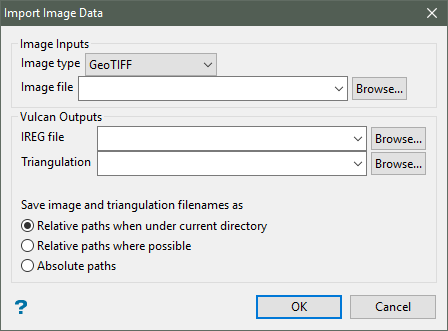
Select the required Image file. The drop-down list displays all
.jpeg,.jpgand.tiffiles found in your current working directory. Click Browse... to select a file from another location.ECW
-
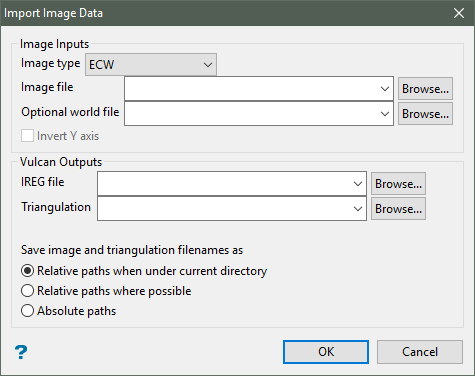
Select the required Image file. The drop-down list displays all
.jpeg,.jpgand.tiffiles found in your current working directory. Click Browse... to select a file from another location. -
Select the Optional world file associated with the ArcGIS image. Click Browse... to select a file from another location.
Note: The world file must follow this naming convention. If the image file name has a 3-character extension, for example
image1.tif, then the world file has the same name followed by an extension containing the first and last letters of the image file extension and ending with aw, for exampleimage1.tfw. If the extension has more or less than 3 characters, or no extension at all, then the world file name is formed by appending awto the image file name.Note: Though it is visible, the Invert Y checkbox is only enabled when the ArcGIS/MapInfo image type has been selected.
JPEG2000
-
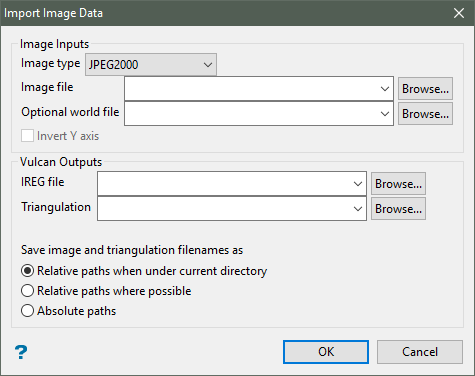
Select the required Image file. The drop-down list displays all
.jpeg,.jpgand.tiffiles found in your current working directory. Click Browse... to select a file from another location. -
Select the Optional world file associated with the ArcGIS image. Click Browse... to select a file from another location.
Note: The world file must follow this naming convention. If the image file name has a 3-character extension, for example
image1.tif, then the world file has the same name followed by an extension containing the first and last letters of the image file extension and ending with aw, for exampleimage1.tfw. If the extension has more or less than 3 characters, or no extension at all, then the world file name is formed by appending awto the image file name.Note: Though it is visible, the Invert Y checkbox is only enabled when the ArcGIS/MapInfo image type has been selected.
WMS
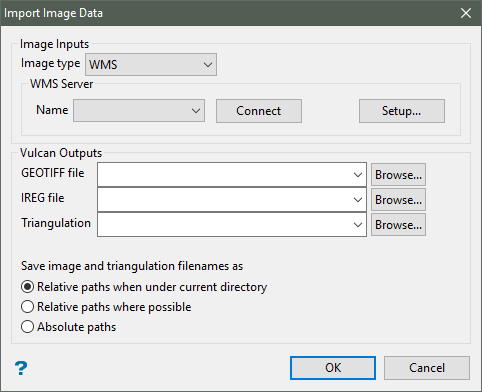
Web Mapping Service (WMS) is an Open Geospatial Consortium (OGC) standard for providing georeferenced map images over the internet. This service displays georegistered aerial and satellite imagery, hillshade or terrain images, and boundaries as straightforward images overlaid on the earth. WMS transactions are made via HTTP, and contain request information—bounding box, projection, image format and width/height in pixels—and responses containing the geo-registered pictures that serve as a base map for mapping applications.
WMS provides an image base map of your project area of interest, and can handle image requests that are only limited in size by the WMS server capability.
WMS does not provide any identifiable or queryable information with the images. Even though you will be able to see a hillshade or DEM overlay as an image, you will not be able to pull out elevation information or identify pixel values.
Note: The WMS section is only available if a successful connection with the sever is complete.
-
Select a Name to idenfify a WMS server.
-
Click Connect after selecting a WMS server to connect with the server and retrieve the available maps.
-
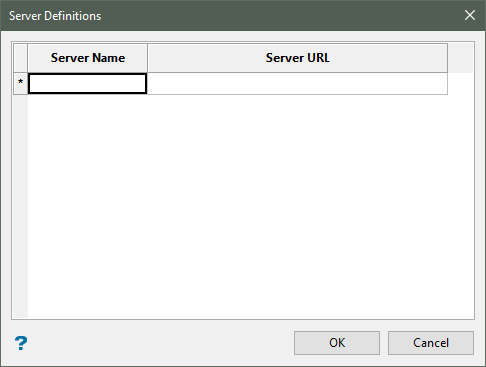
Click Setup... to define the WMS server.
-
Under Server Name, enter a name to identify a WMS server.
-
Under Server URL, enter the internet address of the server.
-
Click OK.
-
Siro DXF/Image
-
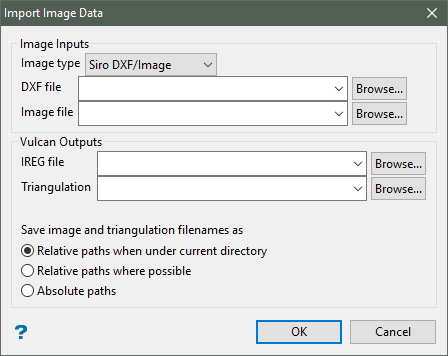
Select the DXF file. The drop-down list displays all
.dxffiles found in your current working directory. Click Browse... to select a file from another location. -
Select the required Image file. The drop-down list displays all
.jpeg,.jpgand.tiffiles found in your current working directory. Click Browse... to select a file from another location.
SiroTiff
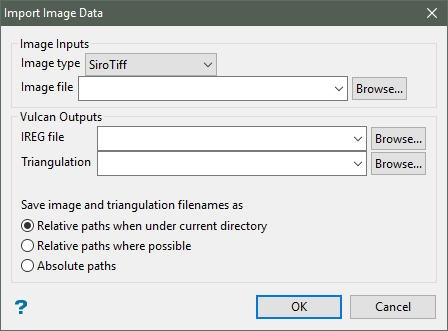
Select the required Image file. The drop-down list displays all
.jpeg,.jpgand.tiffiles found in your current working directory. Click Browse... to select a file from another location. -
-
-
Complete the Vulcan Outputs section as follows.
-
If you selected WMS as the input image type, select (from the GEOTIFF file drop-down) the Geospatial file downloaded from the server. Click Browse... to select a file from another location.
-
Select an image registration file (
.ireg) from the IREG file drop-down. The available drop-down list contains all.iregfiles found in your current working directory. Click Browse... to select a file from another location. -
Select the Triangulation onto which the image file will be imported. The list contains all triangulations in the current working directory. Click Browse... to select a file from another location.
-
To create a new file, enter the file name and extension in the field.
-
Note: If the image is stored in a directory other than your current working directory, then the registration file contains the full path and the image should not be moved.
-
-
Click OK.
The progress of the import displays onscreen. To stop the import, click Cancel.
Once the data has been imported, the standard Triangulation Attributes panel displays.
-
Specify display parameters, such as colour and shading, for the triangulation, then click OK.
The triangulation, with the image registered, will be loaded and displayed onscreen once the display attributes have been specified.
See also: Attributes under Model > Triangle Attributes for more information.

