

List
Use the List option to list all available layers. The layers may be in a design database in your current working directory or in another data area. The layers can then be loaded by selecting them from the list.
Tip: If you want to save the layer list in a text file, select the Run Command option (under the Files menu) and enter dguldx in the Command field. Once the Run command panel has been completed, you will be required to specify the project code and database identifier. The resulting text file (.rxl) will be named after the chosen design database.
Requirements
A design database must be open to use this option.
Instructions
On the File menu, point to Layers, and then click List to display the Design file selection panel.
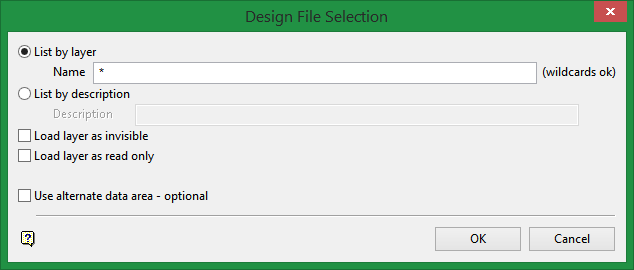
List by layer
Select this option to list layers by name. All or part of the name needs to be entered.
Note: Wildcards such as % (single character wildcard) and * (multiple character wildcard) can be used.
If you try to load a layer from a design database other then the open database and it has the same name as a layer in the open database, then you will be warned of this fact and asked whether you want to replace the layer in the open database, append to the layer in the open database or to exit the option.
Selecting from the currently open design database
To select layers from the currently open design database, enter the layer name.
| Layer name | Explanation |
|---|---|
| * |
Lists all layers. |
| ROAD* |
Lists all layers that start with |
| ROAD%a |
Lists all layers that start with |
Selecting from other design databases that are stored in the current directory and have the same project code as the open design database
To select layers from another design file in your current working directory, precede the layer name with the spatial database identifier and a : (colon). If you don't know the spatial database identifier, then you can use * as the spatial database identifier.
| Layer name | Explanation |
|---|---|
| SURVEY:ROAD* |
Lists all layers that start with |
| *:* |
Lists all design databases together with the number of layers in each database. Selection of a database will list these layers. |
| *:ROAD4* |
Lists all design databases together with the number of layers in each database that start with ROAD4. Selection of a database will list these layers. |
Selecting from database in current directory (different project code)
To select layers from a design database in your current working directory that has a different project code than the currently open design database, prefix the layer name with an _ (underscore), project code, spatial database identifier and a : (colon), i.e. _<proj><sdi>:<layer name>.
For example,
_ABCTOTAL:ROAD*
where
ABC
|
= project code |
TOTAL
|
= spatial database identifier |
ROAD*
|
= all layers that start with 'ROAD' |
You can also nominate your current working directory as the alternate data area instead of using : (colon) or _ (underscore). See Use alternate data area option described below.
List by description
Select this option to list layers by description. All or part of the description needs to be entered. Any layer that has the entered characters in their description will then be listed. Colons, underscores or wildcards cannot be used when listing by description.
Load layer as invisible
Select this checkbox if you do not want any objects in the selected layers to be visible. This is useful when only certain objects in a layer are to be displayed on the screen (use the tools on the Visibility toolbar to make the objects visible). Loading a layer as invisible will also speed up the loading process, this is especially noticeable when the layer contains many objects.
Tip: If you don't want all layers to be loaded as invisible, then load each layer individually.
Load layer as read only
Select this checkbox if you intend to use the layer as a design template. A read-only layer can be copied, deselected and used in options, such as Splice, this would not be possible if the layer was loaded as an underlay. Changes to read-only layers are not saved.
Use alternate data area
Select this checkbox if you want to list layers from a nominated data area (usually different from your current working directory, although you can select the current working directory). The alternate data area can be used in conjunction with the : (colon) entered in the Layer name field. The colon indicates that another design file is required than the open one, ticking this option indicates that another data area is required. The panel where the data area can be specified, is displayed upon completion of the current panel. Refer to List Files option for information on the Select Data Area panel.
Only list BLAST layers
Select this checkbox if you only want to list the Drill and Blast layers that match the specified criteria. If this checkbox is not selected, then all layers matching the specified criteria will be displayed.
Click OK.
The layers are then listed. Depending on your panel entries you may need to select a design database before the layers are listed and, once selected, the layer list will be displayed.
In the list of the layers the first column shows the layer name (loaded layers are indicated by an arrow), the second column shows the window in which the layer is loaded (blank if it is the Primary Window), the third column shows the description of the layer. If no description has been specified when the layer was created, the date and time of creation are used. The fourth and fifth column show, respectively, the date and time that the layer was last modified. For more information on using the layer list box refer to List Boxes.
The list of design databases shows the number of layers, in each file, that match the entered layer name criteria. An arrow indicates the open design database. Selection of a design database will list the layers.
To load a single layer, click on the layer name and click OK. To load multiple layers, use the left mouse button in combination with the Shift key to highlight the layers (this is for layers that are adjacent in the list, for non-adjacent layers use the Ctrl key and the left mouse button) and select OK. To cancel the loading of multiple layers, press Esc.
It is also possible to use the Pattern field, the Apply Pattern button and wildcards(* multi-character and ? single character) to highlight the layers that begin or end with certain characters.
If you wanted to highlight all layers that begin with A and have one other character, type A? into the Pattern field and then select the Apply Pattern button. Click the OK button to select the highlighted layers.
Note: Layers selected from design databases other than the open one, will be saved in the open database when you exit Envisage whether or not they have been edited. If you don't want these layers saved in the open database, then load them as underlays (using the File > Underlays > Load Layer option) or clear them before saving (using the Remove option).

