

Set Up
Set Up a Specifications File for External Data Enquiries
Use the Set Up option to create a specification file (external_query.spec) that will link a Vulcan object and an executable, which can access data that has been named using some combination of the selected object's attributes. The link is activated through the Inquire option.
Example: You can display drillhole core tray pictures based on the selected position in a selected object. One picture may cover a depth of 0-25.4m, another from 25.4-75.2 and a third from 75.2-104.4m. This option informs Vulcan of the location of the external data, how to construct the file name from the object and the command to be executed.
Instructions
On the Analyse menu, point to External Data, and then click Set Up to display the External Command Query panel.
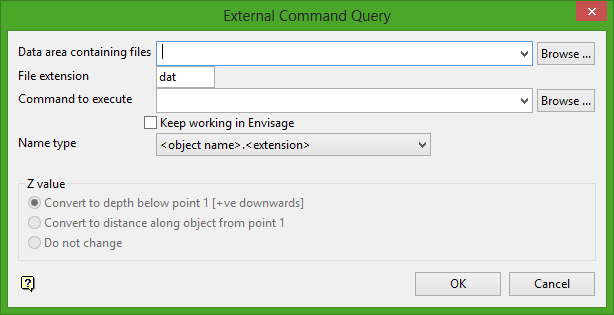
Data area containing files
Enter the name of the directory containing the external data files. You can use the working directory by leaving the field blank, or specify a sub-directory under the working directory.
Example: ./Images. You can also specify an environment variable, which must end with a : (colon), for example ENVIS_RESO:.
Note: Some external programs may not recognise the use of ./ as a way of specifying sub-directories. If this is the case, then we recommend entering the full file path.
To run external executables without accessing external files, for example notepad.exe, you may need to enter the location of the executable, that is, for notepad.exe, you would need to enter c:\WINNT\system32.
File extension
Enter the file extension of the external files, this will help the system narrow down which files are to be used from the specified directory. To run an executable without external files, exe would need to be entered.
File extensions shown through the External Command Query panel are not case-sensitive, that is .RGB will be treated the same as .rgb.
You can link to an entire folder of data. To do so, use the following format: <folder name>.DAT
where .DAT refers to the file extension. The file extension can be between 1 and 4 characters long.
Command to execute
Specify the command you want to run when the link is activated. The command can be any command-line executable or executable script file. If you are using external data, then you must place a $ in the command where the file name should be placed (only one $ is allowed). If you merely want to execute the command with no passed file name, then omit the $ (if this is the case you might like to use the Attribute Data > Create > Execute or Macro options instead).
Example: mspaint.exe $, displays the file in Microsoft Paint when the link is activated.
If you want the executable to run in the background, that is, you want to keep working in Vulcan, include an ampersand (&) in the command, for example notepad.exe & $.
If the desired executable is located in a directory that contains spaces in the directory name, for example c:\Program Files\UltraEdit\uedit32.exe, then you will need to perform the following steps in order to get the correct directory listing:
- Open a shell window.
- Navigate to the desired directory.
- Enter
dir /xto display a directory listing. - Highlight the directory path and executable name (
C:\PROGRA~1\UltraEdit\uedit32.exe) using the left mouse, and right-click to copy the contents to the clipboard. - Paste the contents (
C:\PROGRA~1\UltraEdit\uedit32.exe) into the Command to execute field and add the$symbol.
Example: C:\PROGRA~1\UltraEdit\uedit32.exe $.
Name type
Select, from the drop-down list, the method that will be used to construct the name for the selected object. The name will replace the $ in the command. When the link is activated, the specified data area will be searched for a file that has a name corresponding to the naming method. If a file is found, the command is executed.
|
Method |
Description |
|---|---|
|
<Object name>.<extension> |
The file name will be constructed from the name of the selected object and the extension specified in the File extension field (note that a '.' is placed between the object name and the extension). |
|
<Object name>_<point name>.<extension> |
The file name will be constructed from the name of the selected object, an '_', the name of the closest point to the position selected upon the object, a '.' and the extension. |
|
<Object name>_<point x value>.<extension> |
The file name will be constructed from the name of the selected object, an '_', the X value of the absolute position selected on the object, a '.' and the extension. |
|
<Object name>_<point y value>.<extension> |
As above but the Y value. |
|
<Object name>_<point z value>.<extension> |
As above but the Z value. |
|
<Object name>_<point w value>.<extension> |
As above but the W value. |
With the remaining options, the data area is searched for a file with a name corresponding to the object name, followed by an _, followed by a numeric range, which includes the X, Y, Z or W value (depending on the naming method selected) of the position selected on the object.
Analyse_
<Object name>_<x range>.<extension>
<Object name>_<y range>.<extension>
<Object name>_<z range>.<extension>
<Object name>_<w range>.<extension>
There can only be one decimal point in the name. Numeric values can contain decimal places. Numeric ranges must be specified as <numeric value>_<numeric value>, that is, values separated by an _.
If either <object name>_<point z value>.<extension> or <object name>_<z range>.<extension> are selected (that is, Z value or Z range), then the following options will be available:
- Convert Z value to depth below point 1 (positive values indicate depth)
- Convert Z value to distance along object from point 1
Do not change
These radio buttons allow the Z value to be converted either to an absolute depth below the first point on the object (first option) or to a distance along the object from the first point (second option); The default (third option) is to leave the value unchanged. This is useful for determining things like downhole depth or depth along hole for drillholes.
Click OK.
The link is then created. Use the Inquire option to activate the link. The external_query.spec specification file will be stored in your current working directory. The file names will have the following format in the data area when using <object name>_<z range>.<extension> and converting the value to a distance along the object (because the holes are not vertical):
DH001_0.000_25.400.RGB
DH001_25.400_75.200.RGB
DH001_75.200_104.400.RGB
DH002_0.000_34.567.RGB
etc.
