

Invisible By Feature 
Make a Feature Object Invisible
Use the Invisible By Feature option to make all objects, with a specific feature, invisible. A feature is a set of attributes (Z value, line type, line colour) that can be applied to any number of objects. This saves you from specifying these attributes each time you need them for similar objects. Objects are either created as a feature or can be allocated a feature at a later stage. Refer to the Design > Feature Edit and Design > Attribute Edit options for more information.
Making a feature object invisible may be useful when you don't want to take the risk of accidentally picking and editing the wrong object. You may, however, prefer to use the Shadow option as with that option the objects remain on the screen.
The Invisible option is not available for objects that belong to a layer loaded as an underlay.
This option can also be accessed by clicking the Invisible by Feature button on the Visibility toolbar.
Instructions
On the View menu, point to Visibility, and then click Invisible By Feature.
A list of all defined features displays.
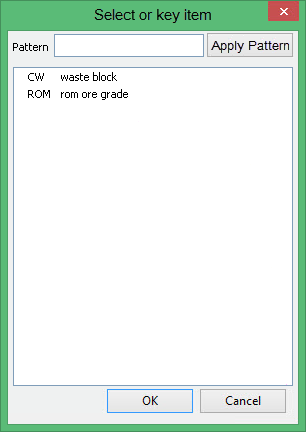
Click on the feature name and click OK. All objects that have this feature are made invisible. To select multiple features, use the left mouse button in combination with the Shift key to highlight the features (this is for features that are adjacent in the list, for non-adjacent features use the Ctrl key and the left mouse button) and click OK.
It is also possible to use the Pattern field, the Apply Pattern button and wildcards (* multi-character and ? single-character) to highlight the features that begin or end with certain characters.
For example, if you wanted to highlight all features that begin with DEMO, then type DEMO * into the pattern field and select the Apply Pattern button. Once selected, all matching features are highlighted.
