

Import Esri TIN Triangulations
Instructions
Click Esri (shape, grid. tin) in the File Format column on the left.
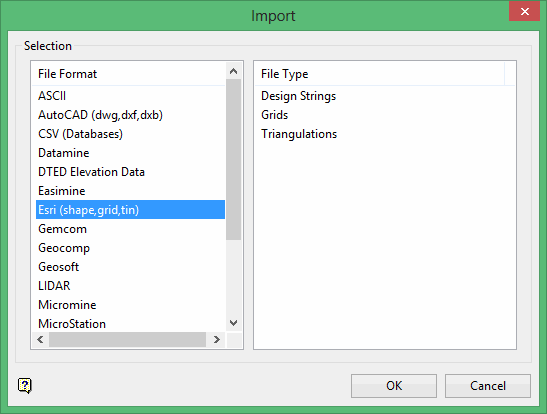
Select Triangulations from the File Type field on the right side of the panel.
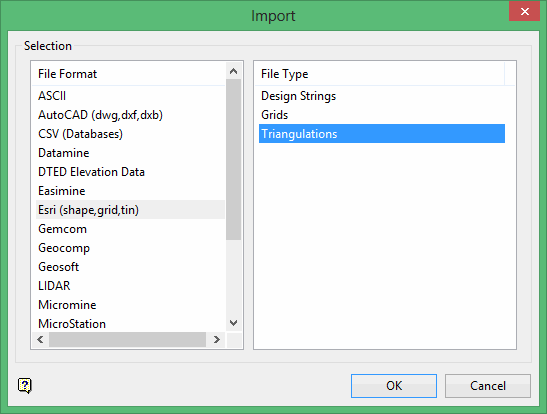
Click OK to display the Import TIN panel.
Esri AcrView (version 8 or later) must be installed on the current machine in order to import Esri triangulation data.
All import triangulations use the default triangulation folder set in preferences, unless you have defined an alternate path.
There are two types:
Importing a single triangulation
Select this option to import a single TIN triangulation. Unlike the Multiple option, this option will allow you to specify the name and storage location for the resulting Envisage triangulation.
Importing multiple triangulations
Select this option to import more than one TIN triangulation. The resulting Envisage triangulations will be stored in the same directory as the original TIN files. The triangulations will also inherit the names of the selected TIN files but with an extension of.00t added to end of the file name.
If your TIN triangulation file is named 'surface.tin', then the resulting file will be named 'surface.00t'.
Importing a single triangulation
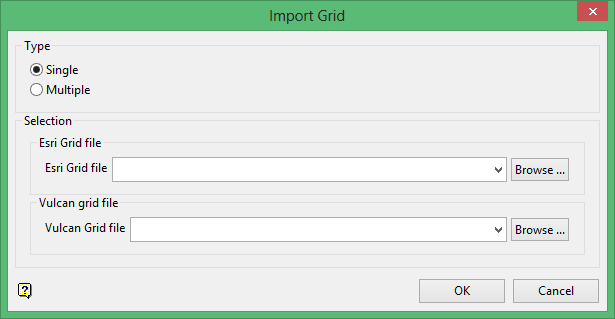
Esri TIN file
Select the TIN file that you want to import into Envisage. The drop-down list displays all .tin files found in the current working directory. Click Browse to select a file from another location.
Vulcan Triangulation
Select the triangulation that will be used store the imported data. The list contains all triangulations in the current working directory. Click Browse to select a file from another location. Nominating an existing file will require you to confirm whether or not you want to overwrite the original information.
To create a new file, enter the file name and file extension.
Importing multiple triangulations
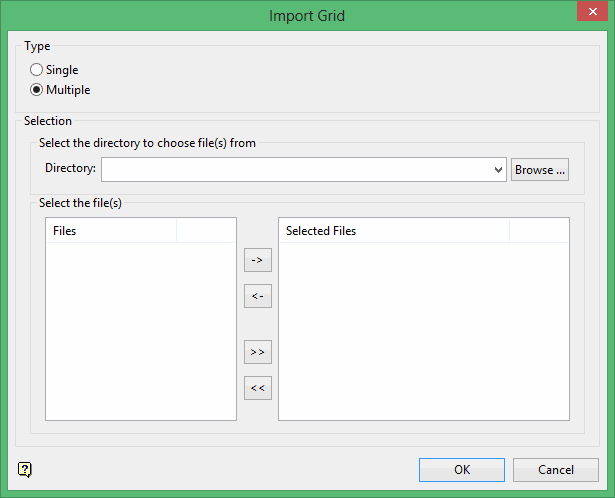
Select the TIN files (.tin) that you want to import.
Click the -> button to move the highlighted file(s) to the selection list on the right.
Click the >> button to move all files to the selection list.
To highlight multiple files that are adjacent in the list, hold down the [ Shift ] key while you click on the first and last file names in the list.
To highlight multiple non-adjacent files, hold down the Ctrl key while you click on the file names.
To remove files from the selection list, highlight the file name(s) and click the < button or click the << button to remove all files from the selection list.
