

Export Data
Design Objects tab
Use Export Data to export Grade Control data contained in the currently loaded blasts to create editable Vulcan objects.
Instructions
On the Grade Control menu, click Export Data to display the Export Data panel.
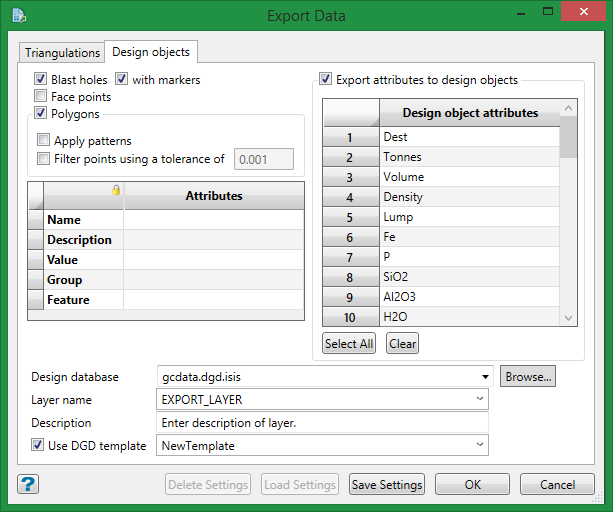
Line work
Use this section to export the blast hole trace, grade block polygons, and/or face points. If any of the available check boxes are selected, then you will need to specify the design database and layer that will be used to store the exported data.
When exporting grade block polygons, you have the ability to inherit grade control variable values. For example, the exported polygons could be named after the corresponding grade blocks and have the blast name as the assigned group code.
Apply patterns
Check the Apply patterns check box if you want the exported polygons to retain the polygon fill pattern (applied through the Blast Preferences option). Check the Filter points check box to remove unnecessary points from the exported object. The tolerance value refers to the minimum distance between a point and the line joining the points either side of the point in question. The point will be removed if it is closer to the line than this value.
Export attributes to design objects
Select this option if you want to attach attributes to the exported design objects. Use the drop-down list to select the attributes individually, or use the Select All button below the table to automatically populate the table.
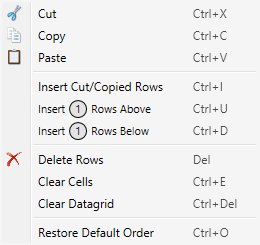
Rick-clicking in the number column will bring up a context menu with the following additional commands:
Design database
Select or verify the database that the information will be taken from. By default, this is already populated with the design database that is currently open.
Layer name
Select a layer from the drop-down list, or enter a name for a new layer. The data table will be saved to this layer.
Description (optional)
Click in the space provided to enter a description of the layer.
Use DGD template
Select a template from the drop-down list, or enter a name for a new template.
Saving the export parameter settings
| Delete Settings | This button is disabled until a parameter file has been saved using the Save Settings button. This deletes the saved settings parameter file. A dialog panel will confirm the choice to delete before deleting the file. This will not reset the panel to a blank state. |
| Load Settings | This button is disabled until a parameter file has been saved using the Save Settings button. Generates a dialog panel with a drop-down list where from which a parameter file can be selected. |
| Save Settings | Allows you to save the current settings of the Export Data panel to a parameter file. |
| OK | Export the data based on the settings in the Export Data panel, then closes the panel. |
| Cancel | Closes the panel without saving any edits. |
Related topics:
Export Data: Triangulations tab
