

Material Report
The Material Report gives a breakdown on why the Material variable has been classified the way it has according to its assignment rules. The report is comprised of four possible sections which are:
- Material-Classification Report
- Dilution-Breakdown Report
- Dilution Report
- Misclassification Report
Data Selection
To use the Material Report option, there must be at least one blast containing grade-blocks currently loaded. Selecting the option will display the following panel, which works in conjunction with the Material Report Setup specifications to configure the output that will be seen.
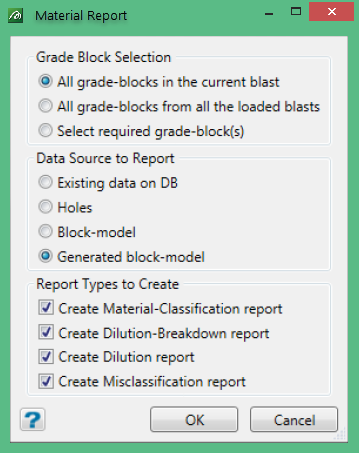
Grade Block Selection
The grade blocks to be reported must be loaded. The selection, by default, will be those from the current blast. If more than one blast is loaded, the option for all grade-blocks from all of the loaded blasts will be enabled. Should a random selection of grade-blocks be required, there is the option to select them (by picking from graphics).
Data Source to Report
The next section on this panel allows for the data source to report to be selected. Only those sources which are available will be enabled for selection. By default, the data source selected on the Preferences panel for grade-block display will be picked.
Report sections 2, 3 and 4 will only be available if Block-model or Generated block-model data source is selected.
Report Types to Create
The four possible sections of the report can be selected in the final section of this panel. By default, they will all be selected, but can be turned off if not required.
Items 2, 3 and 4 will only be enabled for selection when either Block-model or Generated block-model data source is selected.
Generating the Report
Having specified the grade-blocks on which to report, the data type to report and the report sections wanted, pressing the OK button will cause the report to be generated.
Depending upon the output settings in Material Report Setup (text-files and/or CSV files) each section of the report will appear in its own text-editor tab (and/or CSV editor tab) on the workbench, with the first one in focus:

These tabs will be named by default for text files as:
| 1. Material-Classification Report | ClassificationReport.txt |
| 2. Dilution-Breakdown Report | DilutionBreakdownReport.txt |
| 3. Dilution Report | DilutionReport.txt |
| 4. Misclassification Report | MisclassificationReport.txt |
(e.g. as shown in the example above). For CSV files the default tab names will be:
| 1. Material-Classification Report | ClassificationReport.csv |
| 2. Dilution-Breakdown Report | DilutionBreakdownReport.csv |
| 3. Dilution Report | DilutionReport.csv |
| 4. Misclassification Report | MisclassificationReport.csv |
At this stage these have NOT been saved to file, but using the File option on the individual text editor (CSV editor) windows they may be saved, if required (and/or renamed with Save-As). If a second or subsequent report run is made, the contents of these tabs will be replaced (overwritten) if they have not been saved to a different name. If they have been so renamed, then new tabs with these default names will appear.
These tabs are standard text editor (or CSV editor) tabs and allow for the report sections to be studied and examined at will. The text can be edited, reformatted, printed, saved, etc. as required to produce proper management reports.
There are plans for an option to shove all the reports into one file/window but this has low priority.
Material-Classification Report
The material classification report details how each grade block has been classified for material, by giving a breakdown of the assignment rule which classified the material category assigned. With the new grade control there are two types of Assignment Rule that can be used; the standard condition and the programmatical. If programmatical rules are used, the level of detail in the breakdown is much higher (particularly with defaulted categories; e.g. WASTE).
Given the example standard condition rules for material attribute “Destination”:
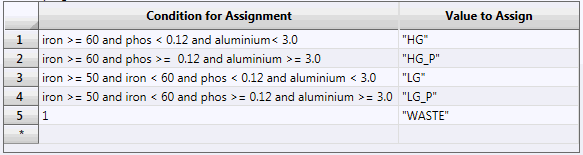
Below is an example Material-Classification report using these rules and Generated Block-Model data for a blast with two grade-blocks; one getting assigned as WASTE and the other as HG:
MATERIAL CLASSIFICATION REPORT (Generated block-model) Date : 22-Sep-2015
Blast (GC_P1_415_119) : Grade-Block (A):
    Material Classification <WASTE>:
        Classified as <WASTE> by default expression

    Details:
        Volume = 84804.536
        Tonnes = 228972
        SG     = 3

Report Variables:
    Destination = WASTE        Destination == any
    Iron        =    17.613    Iron == any
    Phos        =     0.065    Phos == any
    Silicon     =     0.000    Silicon == any
    Aluminium   =    -9.000    Aluminium == any

Blast (GC_P1_415_119) : Grade-Block (B):
    Material Classification <HG>:
        Iron        =    66.372    Iron >= 60
        Phos        =     0.030    Phos < 0.12
        Aluminium   =    -9.000    Aluminium < 3.0

    Details:
        Volume = 10999.262
        Tonnes = 29698
        SG     = 3

Report Variables:
    Destination =   HG         Destination == any
    Iron        =   66.372     Iron >= 60
    Phos        =    0.030     Phos < 0.12
    Silicon     =    0.000     Silicon == any
    Aluminium   =   -9.000     Aluminium < 3.0
This Material Classification report consists of a general header line, followed by a report section for each grade-block selected. The grade-block section for every block consists of a sub-header, indicating the blast and grade-block names, and three sub-sections; Material Classification, Details and Report Variables.
Material Classification
This sub-section shows its sub-header line, with the value of the Material variable assigned to the grade-block by the Assignment Rules. Beneath this, a breakdown is given for the values of the attributes used in the rule that made the assignment. When using standard rules, as in the example shown, this will be simply those attributes in the condition statement that was first met.
In our example, for grade-block A (the WASTE block) there can be no attribute breakdown of the categorisation for material. The condition met in this case is line 5, which is merely the default case (the fall through option) on the assignment rule list. However, for grade-block B the material classification attributes can be broken down for the condition statement met, which in this case is line 1. Here we see the value for each categorising attribute shown and the clause(s) of the assignment rule for that attribute.
Where only a default condition is met, this will be stated, as in the example here for A.
When Programmatical Assignment Rules are used, ALL of the attributes used in the decision for material classification, and all clauses using it, will be presented in the breakdown. This means that even the WASTE blocks will have useful information displayed as to why they are waste.
If the option to generate statistics for this report was selected in the Material Report Setup, then each numerical classification attribute will be presented with confidence intervals; e.g.:
Iron         =        66.372±4.643(p=0.05)
Phos         =         0.030±0.056(p=0.05)
Aluminium    =        -9.000±0.000(p=0.05)
and each line will be extended with the standard statistical values; minimum, maximum, variance, standard deviation and number of samples (sample points/holes/block-model blocks – depending upon the data source used); e.g.:
min  =  57.901    max  =  69.018    s² = 5.612   s  = 2.369   n = 296
min  =   0.010    max  =   0.220    s² = 0.001   s  = 0.029   n = 296
min  =  -9.000    max  =  -9.000    s² = 0.000   s  = 0.000   n = 296
These values will only be available for items with a rule type of Weighted Mean, Standard Deviation, and Variance.
Details
The Details sub-section, for all blocks, will contain the data for the special attributes that delineate Volume and Mass (if available) for the grade-block. It can also optionally include the average grade-block values for the special attribute Density and/or Ton Factor.
Details:
    Volume  = 10999.262
    Tonnes  = 29698
    SG      =     3
Report Variables
The Report Variables sub-section, for all blocks, will contain the values for the attributes specified in Report Variables data grid of the Material Report Parameters tab of the Material Report Setup panel.
Report Variables:
     Destination =   HG         Destination == any
     Iron        =   66.372     Iron >= 60
     Phos        =    0.030     Phos < 0.12
     Silicon     =    0.000     Silicon == any
     Aluminium   =   -9.000     Aluminium < 3.0
Values are shown with the assignment rule clause they met, if appropriate. If not, with the ‘Attribute Name == any’ clause specified. As with the Material Classification subsection, numerical values will be shown with statistics if that option was selected in the setup.
If no attributes are specified in Report Variables, this subsection will be omitted from the report.
Dilution-Breakdown Report
The dilution-breakdown report provides a slightly different presentation of the information already seen in the Material Classification Report with a few extra items.
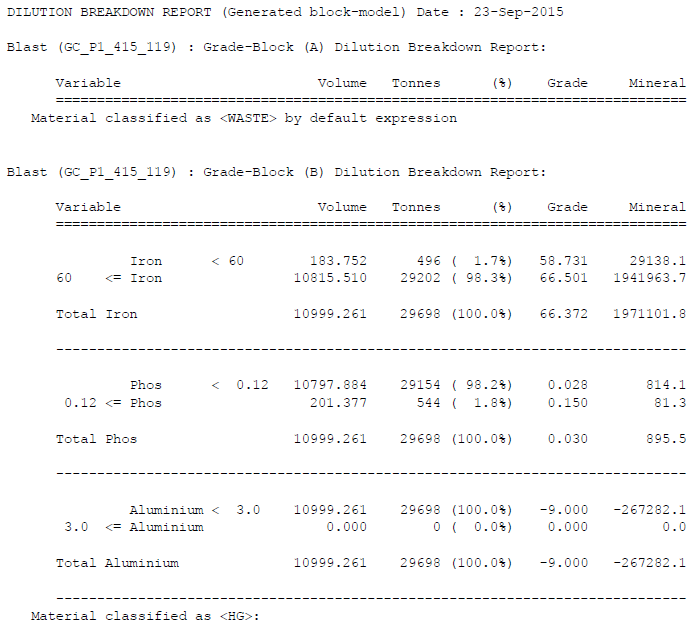
The example reproduced above is from the same Material Report run, with the same Assignment Rules, for the same grade blocks, as the Material Classification report shown in the previous section.
In this report, the attributes used for the classifying condition from the Assignment Rules for the grade block are separated and presented in a separate subsection. The condition clause(s) for each variable are presented, along with the remainder (usually represented by the inverse of a single clause). There may be more than one clause for the same attribute depending upon the complexity of the condition statement (in a programmatical rule all of the clauses referencing the attribute will be displayed, along with the remainder).
Beside each clause for an attribute is displayed the amount of the grade-block that is met by that clause; Volume, Mass and Percentage of the block (Note: the heading on the Mass column will be name given to the mass special attribute – in the example shown, this is ‘Tonnes’). Next to this are the two optional values for Grade and Material (these columns can be turned off in the Material Report Setup, if not required, by checking the appropriate column in the grid in Dilution Report Settings against the attribute name).
Grade
The Grade value is simply the assessed weighted value for the attribute in the proportion of the grade-block shown on the line.
Mineral
The mineral value for the same material; where:
Mineral = Mass * Grade
Dilution Report
The Dilution report provides the information missing from the reports produced by the Material Report in the Legacy Grade Control system.
The example reproduced below is from the same Material Report run, with the same Assignment Rules, for the same grade blocks, as the Material Classification and Dilution-Breakdown reports shown in the previous sections.
This is formatted simply as a classic dilution report to provide what is missing from the Dilution-Breakdown data – an easy to read assessment of the dilution from the classified material; i.e. how much other material is included in the grade-block along with the material type it is classified by.
This information is presented as a short section for each grade-block being reported. This section comprises a summary header line for the grade-block – with the material type and dilution percentage away from it. The rest of the section is simply the breakdown of the dilution as volume and mass for the classifying material and other (diluting) material.
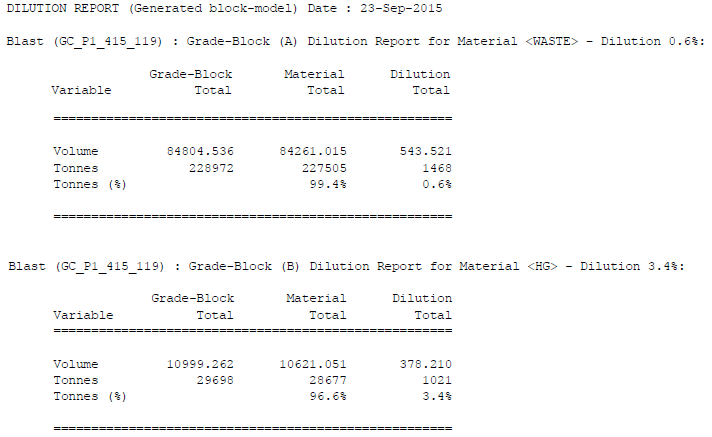
In this example, grade-block A is classified as WASTE, but 0.6% of the grade-block material is not WASTE (comprising 1468t). Whereas grade-block B is classified as HG, but 3.4% of the grade-block material is not HG (comprising 1021t). These results illustrating that the dilution material will be different for each block, depending upon its material classification. The dilution measure gives an indication of how good the division into grade-blocks was from the original blast.
Misclassification Report
This report is very similar to the Dilution report, showing in detail what comprises the diluting material for each block:
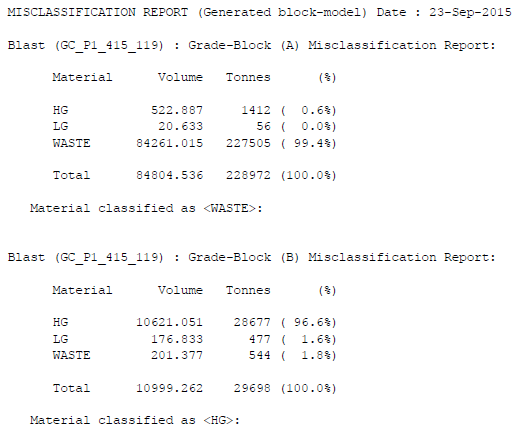
The example reproduced above is from the same Material Report run, with the same Assignment Rules, for the same grade blocks, as the Material Classification, Dilution-Breakdown and Dilution reports shown in the previous sections.
The report is comprised of a section for each grade-block being reported. These sections being composed of:
-
A header line identifying the grade-block
-
A table containing the amounts of all of the material types encountered in the grade-block (including a totals line)
-
A line indicating the material classification of the grade block
By default, the table will present only the material types found in the grade-block. These will be shown in alphabetical order. So, it is possible that the tables will appear slightly differently from block to block. In order to present all of the tables identically and/or to use a preferred order of the material types (rather than alphabetical) a list of material types and the order in which to present them can be made in the Material Report Setup third tab Misclassification Report Settings.
If this list of material types is present in the setup, the material types shown on that list will be presented first, in that order. Any material on the list that is not present in a grade-block it will be listed with zero amounts. Any material types found in the block, but not on the list, will be presented in alphabetical order after the list.
CSV Versions of the Reports
CSV versions of all of the reports described here can also be produced alongside or instead of the text versions (with the appropriate setup setting). These versions will also each be presented in their own tab, but using the Workbench CSV Editor as presenter:

The same data as seen in the text versions is shown in these reports, but with one grade block’s information per line. With the exception of the Dilution-Breakdown report, which has one condition clause per line.
Throughout all reports, text and CSV, all real number values will be shown with the precision specified in the Display Configuration panel and, in the tabular parts of the text output, will be aligned on the decimal point.
