Import Datamine Design Strings
Instructions
On the File menu, click Import to display the Import panel.
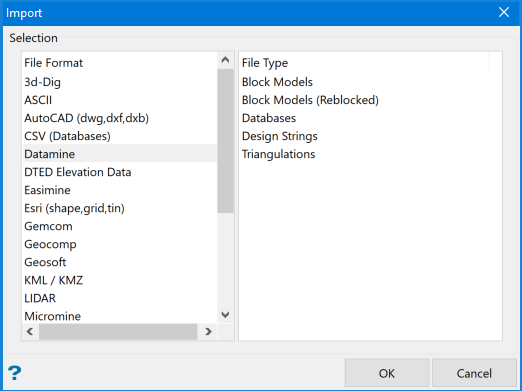
Click Datamine in the File Format column on the left.
Select Design Strings from the File Type field on the right side of the panel.
Click OK.
File Selection
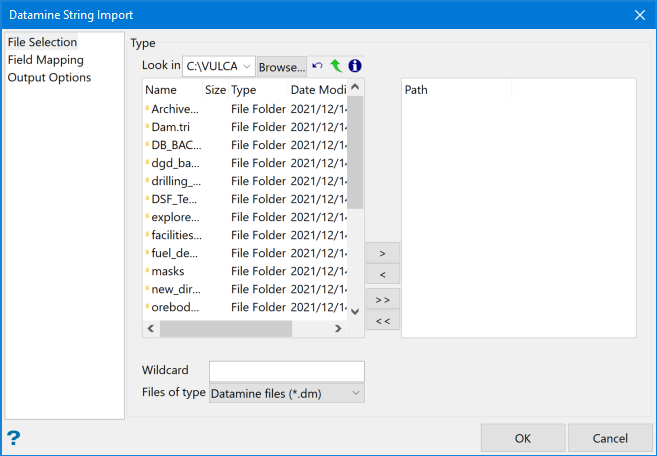
Enter the filename or select the file from the drop-down. Click Browse to select a file from a different location.
Browse for files using the Browse... button, or use the interface showing the available grid files in the current working directory.
Click on the name of the file(s) you want to select. Use the  icons to go to the last folder visited, go up one level, or change the way details are viewed in the window.
To highlight multiple files that are adjacent to each other in the list, hold down the Shift key and click the first and last file names in that section of the list.
To highlight multiple non-adjacent files, hold down the Ctrl key while you click the file names.
Move the items to the selection list on the right side of the panel.
- Click the
 button to move the highlighted items to the selection list on the right.
 - Click the
 button to remove the highlighted items from the selection list on the right.
 - Click the
 button to move all items to the selection list on the right.
 - Click the
 button to remove all items from the selection list on the right.
Wildcard
Enter the text to use as a filter, then press ENTER.
Use an * for multiple characters or a % to replace a single character.
Field Mapping
The only thing absolutely required to do is select the file(s) to import. If the Field Mapping tab is ignored, the import will attempt to use default field mappings which are only guaranteed to match for the required X (XP), Y (YP), and Z (ZP) fields.
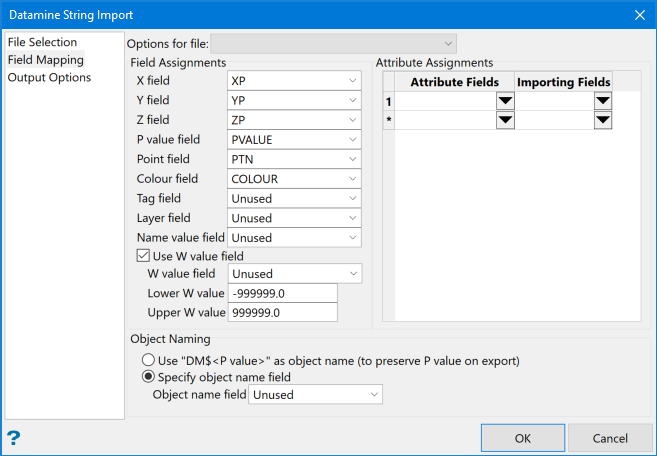
Use this pane to match any fields that are not automatically mapped. The available selections will be displayed in each drop-down list.
Options for file
This list will have a Global entry first, with entries for each file selected below show only the file name. Using this you can configure the import to work in 3 different ways:
-
Ignore the Field Mapping or only populate for
Options for file = "Global".This will use the same Field Mapping for all files selected on the File Selection tab.
-
Ignore
Options for file = "Global"and populate specific mappings for each selected file.This will use file specific mappings for each file selected
-
Populate the
Options for file = "Global"and one or moreOptions for file = file sets.
This will use file specific field mappings for any specific files for which you have chosen Options for file = file.
All remaining files will use the Global field mappings.
Use W value field
Use the W value field to set a fourth parameter (W value) for a specific point.
A W value may be useful in, for example, underground mine design for the service station number.
Attribute Assignments
You can assign attributes to an object by selecting them from the Attributes Field drop-down list, and then pairing them to the data that is being imported in with the object file.
Object Naming
Use this to name the imported object(s). Select either the "DMS<P Value>" as object name (to preserver P Value on export) option, or select another name from the drop-down list in Object name field.
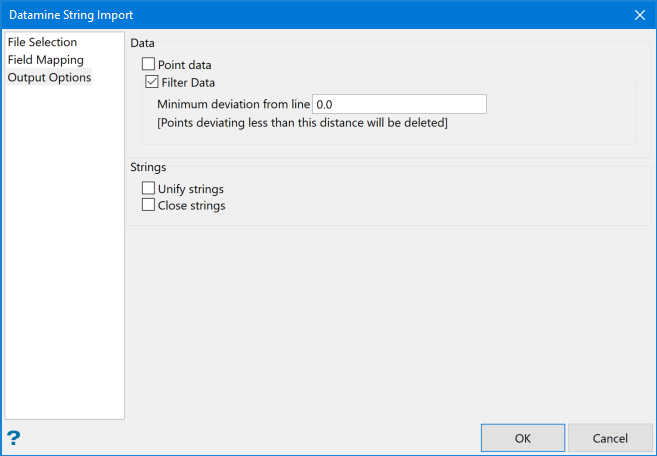
Data
Point data
Select this option to import the data as unconnected points. If this is not checked, all the points will be connected as a polyline.
Filter data
This will filter out all the points that deviate less than the set distance from the line.
Strings
Unify strings
Select this option to import multiple strings in as one string, making them one object.
Close strings
Select this option to close the polyline, making a closed polygon.
Click OK when finished.
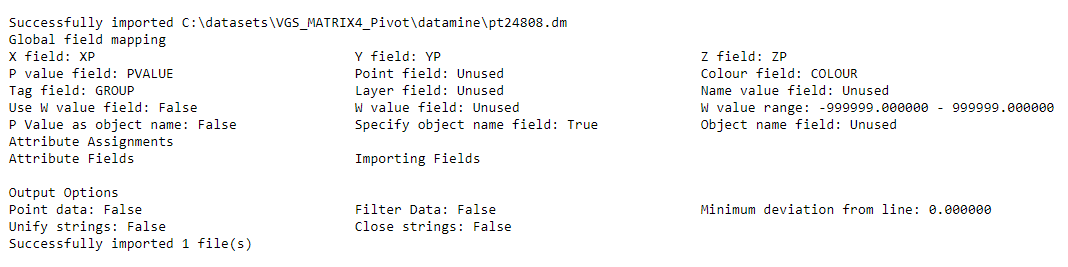
A report of import options per file will be displayed in the Vulcan Console. The report includes the values for each field, per file, and includes whether the Global or file specific Field Mapping were used.