

Parameters
This topic includes information about the Parameters branch of the Implicit Modelling Editor.
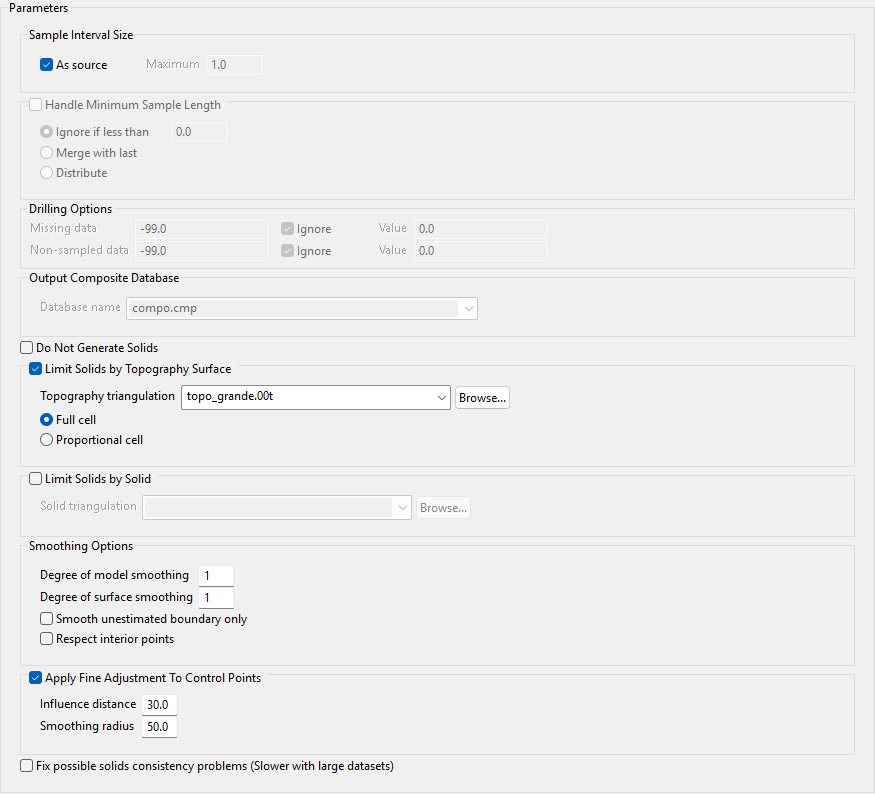
As source
Select this check box if you are using a drillhole database and want to utilise the straight compositing method. If this option is not selected, the run length compositing method will be used and a maximum sample size should be specified in the Maximum box.
Handle Minimum Sample Length
Select this check box to specify a minimum sample size to be considered and select a method. (This option is not available if you selected the As source check box.)
Ignore if less than
Select this option to ignore any values below a specified threshold and enter a value for the threshold.
Merge with last
Select this option to add the last composite to the previous interval in the same geology for samples below the minimum sample length. Anything less than the minimum sample length will be added to the previous interval in the same geology.
Distribute
Select this option to divide the length of the composite equally between intervals of the same geology.
Missing data
Enter a value to assign to missing data for assay values. Alternatively, you can choose to ignore these assay values by selecting the Ignore check box or substitute a value when compositing by entering a value in the Value box. If you choose to ignore data, then the missing data values will not be used when compositing and will not be represented in the map file.
A) Missing data 0.000 Ignore Y Value
B) Missing data 0.000 Ignore N Value 0.000
C) Missing data 0.000 Ignore N Value -99.000
In Example A, missing data values will not be used.
In Example B, the missing data values (0.000) will be used.
In Example C, the missing data values will be replaced by -99.000.
Non-sampled data
Enter a value to assign to non-sampled data in the database. This option operates in the same manner as the Missing data option specified above.
Database Name
Enter a name for the output composite database in the box or select an existing database name from the list.
Do Not Generate Solids
Select this option to stop the process after the block model has been created to allow for a quicker iteration or sensitivity review.
Limit Solids by Topography Surface
Select this check box to use a topographical triangulation to limit the solids. If you select this option, select the limiting triangulation from the Topography triangulation list.
-
Full cell - Select this option to consider a block as lying above topography if its centroid lies above topography.
-
Proportional cell - Select this option to consider a block as lying above topography only if the entire block lies above topography.
Limit Solids by Solid
Select the solid triangulation from the drop-down list. The list will display all solids stored in the top level of the current working directory. To select a solid that is stored in another location, such as a separate folder or another directory, click the Browse button.
Smoothing Options
Model smoothing and surface smoothing can be used together. One is performed by evening out irregularities in the values in the block model before creating the solids, and the other is performed by taking the solids after they've been created an smoothing them out in a different way.
Degree of model smoothing
Enter the number of passes to apply for model smoothing. Modelling data from kriging is smoothed before surface construction so the solid boundaries match exactly. The greater the number of passes, the smoother the resulting grade shells will be. A maximum value of 9 is accepted.
Note: Set model smoothing to at least 1.
Degree of surface smoothing
Enter the number of passes of a surface smoothing operation to apply to the constructed surface of the solid. The greater the number of passes, the smoother the resulting grade shells will be. A value of 5 will result in a moderate level of smoothing. Set the number higher to achieve higher levels of smoothing. Modelling data from kriging is smoothed before surface construction. A maximum value of 9 is accepted.
Smooth unestimated boundary only
Select this check box if you want smoothing to apply only to unestimated boundaries. This only applies to parts of the resulting triangulations which were neighbouring unestimated blocks. If this check box is not selected, all of the triangulation surface will be smoothed.
Respect interior points
Select this check box to enforce the category of points inside drillhole segments. If this check box is not selected, the kriged estimate of a sample category may be different from the sample category at a given point.
When a sample point of Category A is surrounded by points of Category B, the kriged estimate is often of Category B because B is predominate.
Note: Selecting this check box causes the neighbouring estimates to be adjusted to preserve the sample point classification.
Apply Fine Adjustment To Control Points
These adjustments measure the distance of the zone of influence. Enable this option can shorten processing times when executions take too long.
-
Influence Distance - Sets the search radius to look for composite samples to generate the triangulation.
-
Smoothing Radius - Increases the radius of influence that existing points within a triangulation will move. The greater the radius, the smoother the surface. The values can range from 0.01 - 1000.0. The default is set at 10.0.
Fix possible solids consistency problems (Slower with large datasets)
Use this option to repair consistency issues with the solids.
Note: With larger datasets this process can take some time.
