

Move By Point
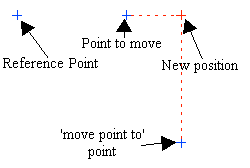
Use this option to move a point to the right angle intersection of an extrapolated line (the line joining the reference point and the point to be moved) and a line projected from a nominated point, as shown in the diagram below.
Note: While the screen does not have to be in Plan view when using this option, the geometry (i.e. the right angle intersection) is performed in Plan view.
Instructions
On the Design menu, point to Point Edit, and then click Move By Point.
Follow these steps:
-
Indicate, through using any of the design entry modes, the reference point.
-
Select the object that contains the point that you want to move. If the point is the object, then select the point twice (once to indicate the object and once to indicate the point).
-
Select the point. Once this point has been selected, a dashed line is connected to the reference point, defining the line to be extrapolated. The gradient of this line is used to determine the Z value of the new position.
-
Select, using any of the design entry modes, the 'move point to' point.
A line will also be projected from this point to the line in such a way as to form a perpendicular intersection.
The point is moved and you will be asked whether or not to keep the new point.
