

Filter 
Delete excess points in a string and/or copy a string to an existing or new layer.
Note: This option will not work with objects containing disconnected points. It will ignore any object that is not a continuous line or polygon.
Instructions
On the Design menu, point to Object Edit, and then click Filter to display the following panel.
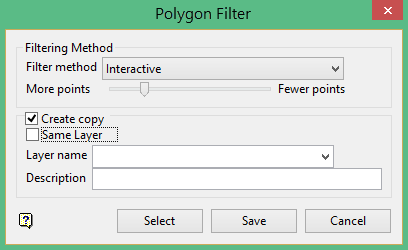
Filter Method
Interactive

Use the slider to manipulate the number of points.
-
Moving the slider to the left will result in more points being used. If the slider is moved all the way to the left then all points will be used and no points will be removed.
-
Moving the slider to the right will result in fewer points being used. If the slider is moved all the way to the right then the maximum number of points will be removed. If the object is a line, then only two points will remain. If the object is a polygon, then only three points will remain.
By Area

Each set of three points is ranked in terms of its relative area. Triads with less than the given area are removed.
By Distance (Recursive)

Initially only the endpoints are kept, but while there are still points which are farther away than the given distance are introduced recursively.
By Distance (Min. Sep.)

Points which are less than the distance entered are removed.
After the operation has finished, the number of points deleted or retained is then displayed in a statistics report that is sent to the Vulcan Report Tab.
To create a copy of a line of polygon, follow these steps:
-
Click Create copy.
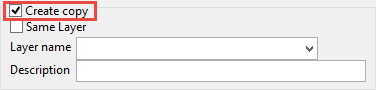
Tip: : Use Interactive filter method with the slider all the way to the left to make an exact copy. This will prevent any reduction of points.
- Choosing a destination. You have three choices: the same layer, another existing layer, or a new layer.
- Same layer: Select the option to save it to the same layer by clicking Same layer.
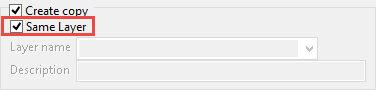
- An existing layer: Leave the option Same layer unchecked. Use the drop-down list to select another existing layer the object will be copied to.
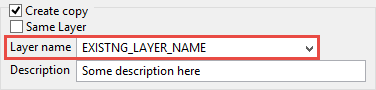
- A new layer: Leave the option Same layer unchecked. Type a new layer name into the Layer name textbox.
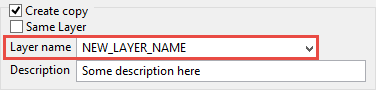
- Same layer: Select the option to save it to the same layer by clicking Same layer.
- Click the Select button, then select the object(s) you want to copy.

- Click Cancel on the context menu, or right-click anywhere in the Vulcan workspace to exit the Select mode and return to the Filter panel.
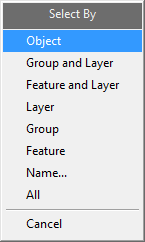
- Click the Save button.

Important: Be sure to save the changes to your Workbench session. If you do not save the changes any edits will be lost.
