

Export Datamine - Triangulations
Use the Export Datamine - Triangulations option to export triangulation data to a Datamine file. You can also export design string data to a Datamine File using the Export Datamine - Design Strings option.
Instructions
On the File menu, click Export to display the Export panel.
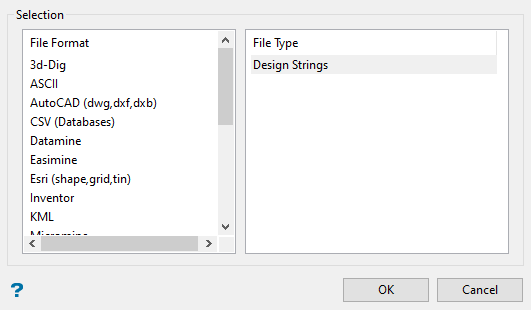
Click Datamine in the File Format column on the left.
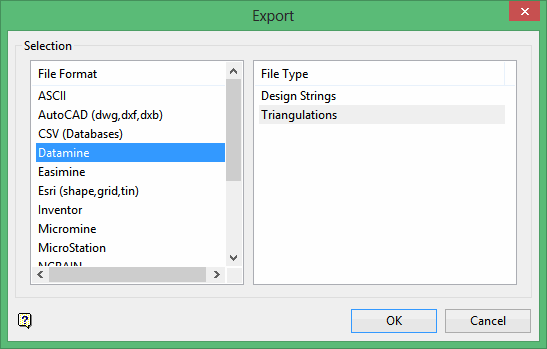
Select Triangulations from the File Type field on the right side of the panel.
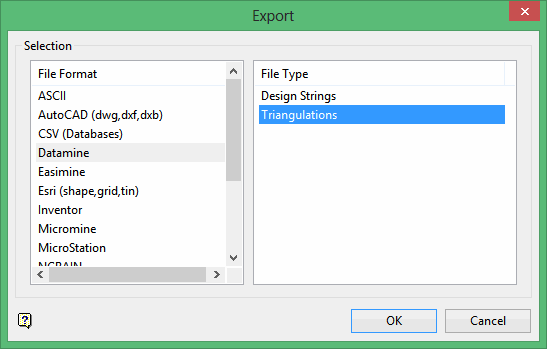
Click OK to display the Export Triangulations to Datamine panel.
Selection
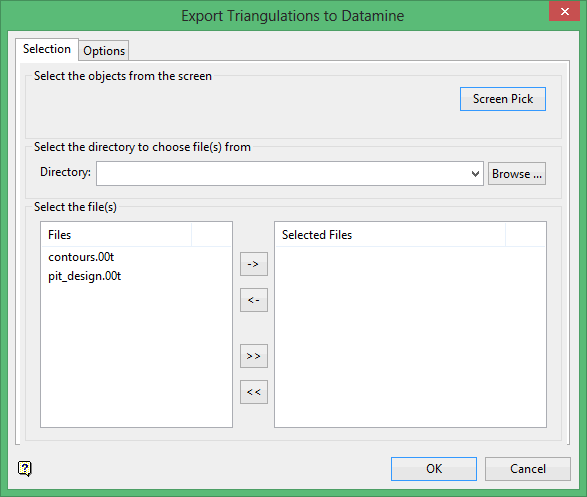
Select the triangulations you want to export by using any combination of the following options:
-
Screen Pick - Select triangulation(s) that are already displayed on the screen. Click on the triangulation(s) you want to export and then right-click to return to the panel. The triangulations you selected are listed in the Selected Files column in the Select the file(s) section.
-
Browse - Select the triangulation(s) to export by selecting them in the Select the file(s) section. All triangulation files in your working directory will be listed in the Files column. To select a different directory, click Browse in the Select the directory to choose file(s) from section.
-
From List - To select the triangulations to export using the Select the file(s) section of the panel, highlight the file name in the Files column and click the right arrow buttons to add them to the Selected Files column. If you click the single right arrow button ( -> ), only the files you have highlighted will be moved to the Selected Files column. If you click the double right-arrow button ( >> ), all files will be moved to the Selected Files column. To highlight multiple files that are adjacent in the list, hold down the Shift key while you click the file names. To highlight non-adjacent files in the list, hold down the Ctrl key while you click the file names.
Click the Options tab to display the Option tab of the Export Triangulations to Datamine panel.
Options
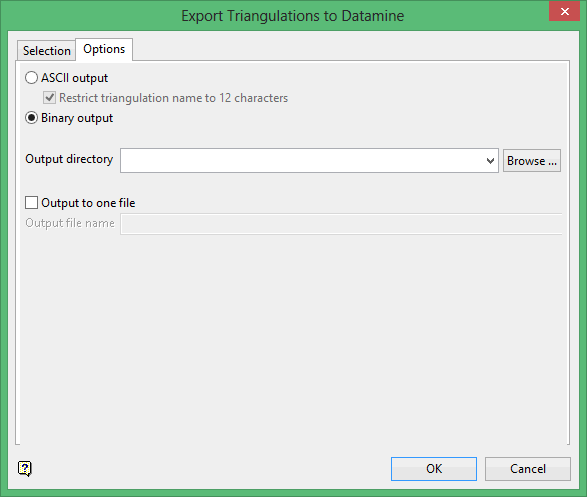
Select ASCII output or Binary output to specify the output format for the triangulation data. If you select ASCII output, you can select the Restrict triangulation name to 12 characters check box to ensure that the file name is 12 characters or less.
|
Output file name information: The output files have the same name as the original triangulation file name but with an extension of.asc (for ASCII files) or.dm (for binary files) added to end of the file name. The format of the ASCII file names is: The format of the binary file names is:
The |
Select the output directory in which to store the exported files from the Output directory drop-down list or click Browse to select a different directory. If you do not specify a directory, the files will be output to the current working directory.
Select the Output to one file Select this check box if you have multiple triangulations and want to place all point information in a single point information (.pt) file and all triangle data in a single triangle data (.tr) file. If you select this option, enter a name for the output file in the Output file name box. If this check box is not selected, a point information (.pt) file and triangle data (.tr) file will be created for each triangulation.
Attribute Options
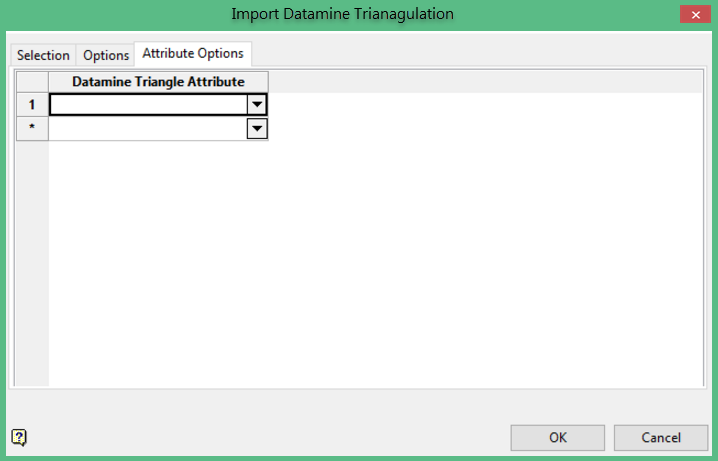
Datamine Triangle Attribute
Select the attribute from the drop-down list that you want to import with the triangulation. Select a new line for each attribute.
Click OK. The triangulations are exported and a confirmation message displays.
