

Import Datamine Block Models
Instructions
On the File menu, click Import to display the Import panel.
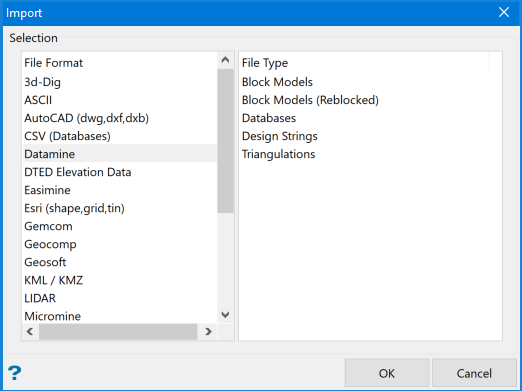
Click Datamine in the File Format column on the left.
Select Block Models from the File Type field on the right side of the panel.
Click OK to display the Import Datamine Block Model Selection panel.
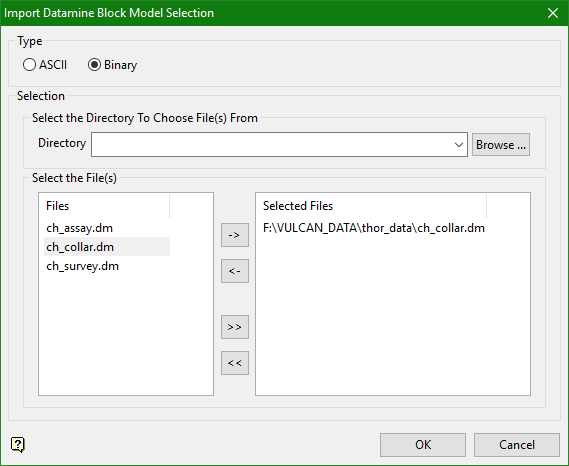
The Datamine block model may be in ASCII or binary format. The file extension does not need to be specified as Vulcan will assume that ASCII Datamine block model files have the extension (.asc) and binary Datamine block model files an extension of <*.dm>.
Selection
The file selection path points to the current working directory by default. Click Browse if you wish to select from another location.
To move a single file from one column to the other, click on the file name click the > or < button.
To move all files from one column to the other, click the >> or << button.
To move multiple files from one column to the other, hold the Ctrl key while clicking on the file names (or hold the Shift key to select a group of adjacent files). Once all the desired files are selected, click the > or < button.
Click OK.
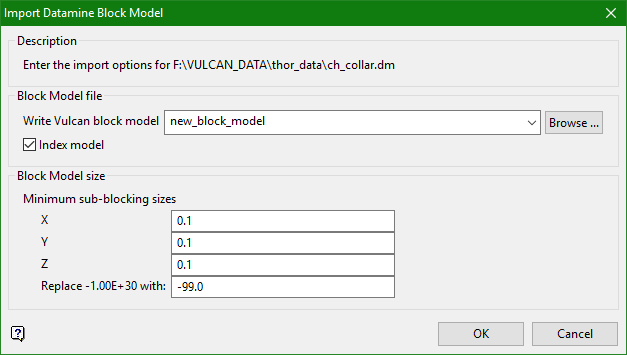
Write Vulcan block model
Select the block model file that will be used to store the imported data. The drop-down list contains all block models found in the current working directory. Click Browse to select a file from another location. Selecting an existing file will prompt you to confirm that you want to overwrite the file's original contents.
To create a new file, enter the file name and file extension.
Variables in Vulcan block models cannot contain spaces and are generally displayed using lowercase characters. As a result, any values in the Datamine model that contain spaces or uppercase characters will be reformatted. For example, 'FRESCA ESC' would be reformatted to 'frescaesc'.
Enter the resolution size to which Datamine blocks will be rounded. For example, if you specify '1.0' and a Datamine block is '0.7', then it will be imported as '1.0'. Smaller blocks may be ignored.
Vulcan block models store sub-blocks using a 3D matrix index based upon the minimum block size in each direction (X, Y, Z). For example, if blocks are 10x10x10 with minimum sizes 0.1, 0.1, 0.1, then the index is 100x100x100-1,000,000. The maximum size of this index is 4 billion.
Ensure that the minimum sub-blocking sizes are not set to 0 (zero).
Datamine block models often have totally variable sub-block sizes in one or more directions. When importing into Vulcan this may cause problems if suitable minimum sizes (resolutions) cannot be found to which to round the Datamine blocks. You should therefore try to make sure that most blocks in the Datamine model are multiples of the minimum block sizes in Vulcan. You can use a Datamine process that will round all block sizes to a resolution prior to importing into Vulcan.
Replace -1.0000E+30 with
Enter the value with which you want to replace any large numbers in the Datamine block model file.
File is Datamine Studio v2 or later
Select this check box if the block model file to be imported was created by Datamine Studio Version 2 or later.
Click OK.
The following panel is then displayed.
Specify fields panel
The top section of this panel displays the fields and field numbers obtained from the header section of the Datamine file. Use this section to enter the field numbers in the remainder of the panel. The default values are derived from the names of the Datamine fields.
The maximum number of fields in a Vulcan block model is 275. However, the import can only handle 70, of which 10 are reserved for variables such as X centre. This means that only 60 fields can be imported at a time, thus the panel does not allow more than 60 fields.
Do not select the check boxes that are already represented by the compulsory fields below, otherwise you will end up with two identical fields in the Vulcan block model.
X, Y, Z origin field
Enter the field number of the X, Y and Z coordinates of the block model's origin (numeric entries only).
Number of X, Y, Z blocks fields
Enter the field number that holds the number of blocks in each direction.
X, Y, Z centre fields
Enter the field number that holds the middle point (centroid) of each block.
X, Y, Z increment fields
Enter the field number that holds the increments of each block.
Click OK.
An information dialog box displays once that data has been imported. The dialog box will report the total number of blocks in the Datamine block model, the number of blocks imported into the Vulcan block model and the number of blocks that were realigned (adjusted in size) to fit the Vulcan scheme.
If no blocks were imported (Total ! = Imported), then it is because the blocks are outside the scope of the Vulcan block model, and the extent should be widened or the Datamine Model checked for invalid blocks. If you would like fewer blocks to be realigned, then the minimum block size should be decreased.
