

Frames
Switch On/Off the displaying of frames
Use the Frames option to specify which frames are displayed, as well as the frame speed for a chosen animation. You can use this option (in combination with the Create option) to organise your data into related groups.
In a noise animation the following data could be grouped into different frames:
- Locations of houses.
- 10 year plan for the mine.
- Noise data sources.
- Surrounding topography.
It will then be easy to analyse different combinations of data by switching the appropriate frames on and off, for example, by switching the 10 year plan for the mine on, the topography on and everything else off, the mine layout was visible.
Instructions
On the View menu, point to Animation, and then click Frames.
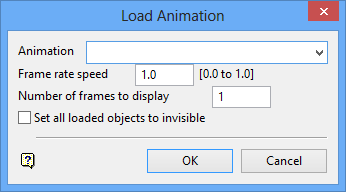
Animation
Select the name of the animation that you want to load. The drop-down list contains all of the animation files (.anim_seq) found within your current working directory.
Frame rate speed
Enter a value, between 0.0 (not changing) to 1.0 (change a full frame at a time), for the frame rate speed. The true speed depends on the speed of your machine and the amount of data in the animation file.
Number of frames to display
Enter the number of frames that you want to display.
Example: Entering '1' displays the actors that are contained within the current frame, while entering '2' displays the actors contained within the current frame as well as those contained within the following frame.
Set all loaded objects to invisible
Select this check box if you want to hide all objects so only the actors in the current frame can be seen.
Click OK.
When the Frames option is run again, a list of the selected frames will be displayed.
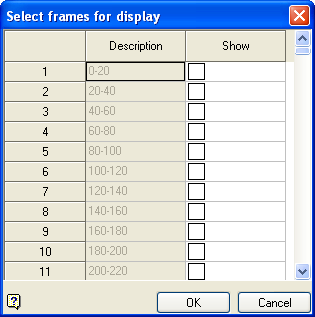
To display a frame, ensure that the corresponding Show check box is selected. Similarly to hide a frame, clear the Show check box.
The selected frames are then displayed.
