

Add models
Use the Add Model command to combine two existing block models.
Notes The two block models must have the same orientation (angle, plunge and dip). Combining a 'Classic' block model with an 'Extended' block model will always result in the creation of another 'Extended' block model. The only way to create a 'Classic' block model is to combine two existing 'Classic' block models. Use the Classic to extended convert command to convert the block model.
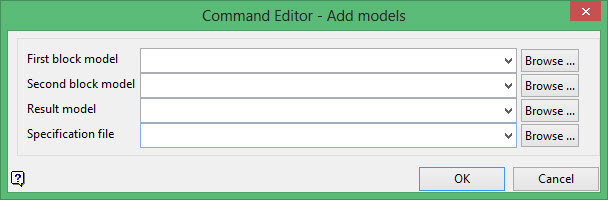
Select the two block models that you want to combine.
The drop-down list contains all block models found within the current working directory. Click Browse to select a file from another location.
Result model
Enter the name for the resulting block model file. Selecting an existing file will prompt you to confirm that you want to overwrite the file's original contents.
The drop-down list contains all block models found within the current working directory. Click Browse to select a file from another location.
To create a new file, enter the file name and file extension.
Specification file
Enter the name of the block definition file (.bdf) to be used. The block definition file name is derived from the New block definition name field (shown through the Addition Parameters option).
The drop-down list contains all .bdf files found within your current working directory. Click Browse to select a file from another location.
