

Import Data from Whittle Results File
Instructions
On the File menu, click Import to display the Import panel.
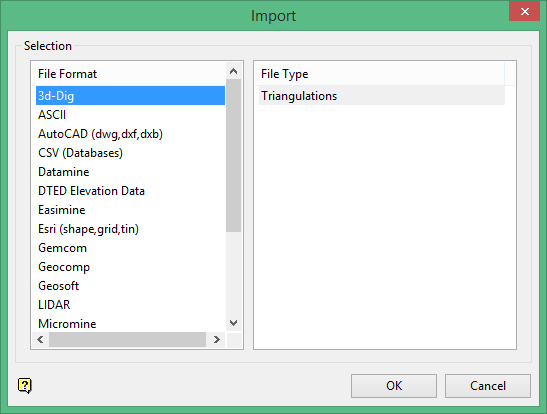
Click Whittle4X in the File Format column on the left.
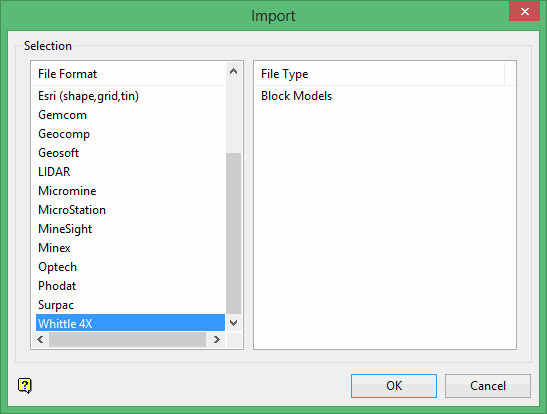
Select Block Models from the File Type field on the right side of the panel.
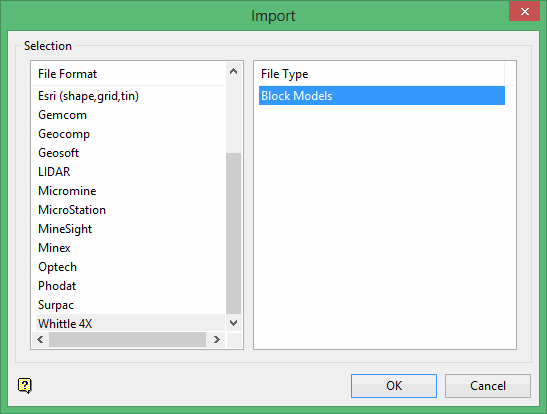
Click OK to display the Import 4x to Block Model panel.
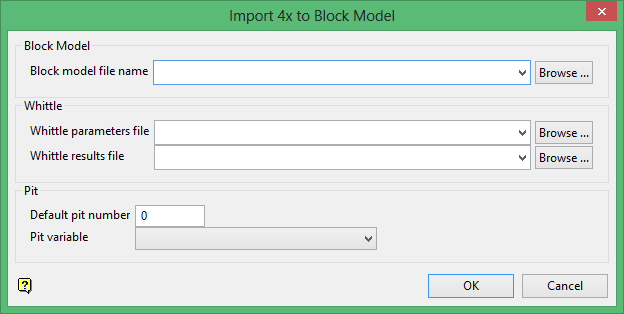
Block model file name
Select the block model that will be used to store the imported pit numbers. The drop-down list contains all block models found in the current working directory. Click Browse to select a file from another location.
Whittle parameter file
Select the Whittle parameters file containing the model dimensions. The drop-down list contains all .par files found in the current working directory. Click Browse to select a file from another location.
Whittle results file
Select the Whittle file that contains the result blocks. The drop-down list contains all .res files found in the current working directory. Click Browse to select a file from another location.
Default pit number
Enter the default pit number for the result blocks.
Pit variable
Enter, or select from the drop-down list, the variable in which the pit number will be stored. The pit variable may be contoured using the Block > Viewing > Contour option as the basis for an initial open pit design.
Click OK.
The resulting regularised block model will be created and stored in the nominated directory.
Note: The nominated block model extent must encompass the imported blocks. Result blocks located beyond the extents of the block model will be ignored.
