

Display Configuration
This option provides the system with the settings that are used to control the display characteristics of the attributes and system variables. It also controls which items are to be seen in the various object tool-tips, and which items will appear and which will be editable in the grade-block and blast-hole editing panels.
Note: This option will not be enabled unless all of the Calculation Rules setup has been completed and is valid.
Instructions
On the Grade Control menu, point to Settings, then click Display Configuration.
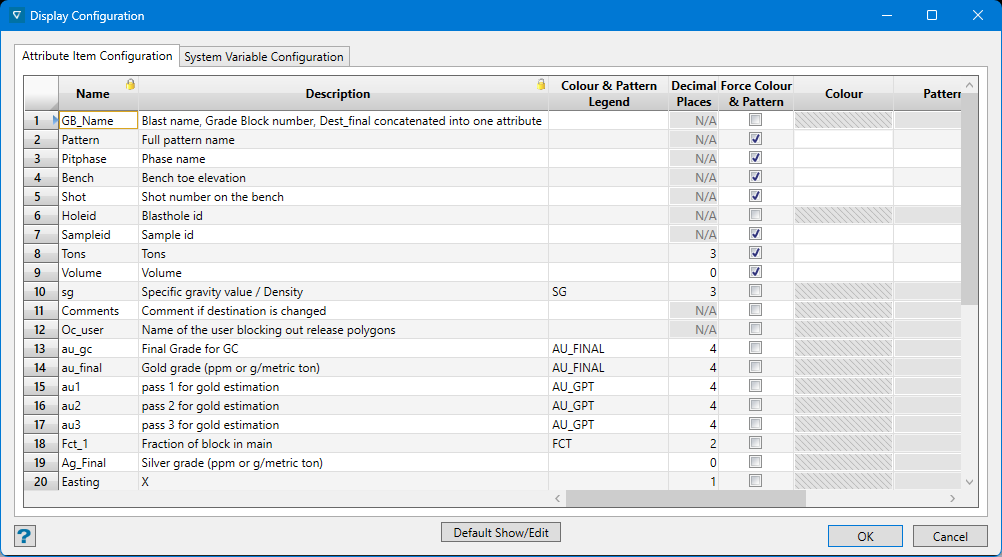
There are two sections on the panel, one for the user’s attributes and the other for system-variables.
Attribute Item Configuration
Name and Description
These columns are immutable and frozen (so that they remain as the panel contents are scrolled horizontally). This column is populated in Data Source Correlation setup.
Colour & Pattern Legend
Select the legend to be used for various values of each attribute. The available legends that can be selected here are those of the PATTERN category in the currently active legend file (.scd). The legend type (Alpha or numeric) must be applicable to the attribute’s data type for the specs to be valid.
Decimal Places
Enter the number of decimal places to display for real numbers. The cells on this column will only be enabled for data types FLOAT and DOUBLE and disabled for all other types showing N/A. By default, the setting will be 3 for real number types. This format will be used wherever the attributes value is displayed (e.g. labels, tooltips, reports, etc.).
Force Colour & Pattern
Enable this item for an attribute to set the colour and pattern according to the Colour and Pattern settings, irrespective of any selected Legend or value of the attribute.
Note: If no legend is specified and the colour and pattern is not forced from this panel, the current Envisage default colour and pattern (as set on the Status toolbar) will be used.
Colour
The colour selector becomes available when Force Colour & Pattern is enabled on the row.
Pattern
The pattern selector becomes available when Force Colour & Pattern is enabled on the row.
Show in Grade Block Panel & Edit in Grade Block Panel
These columns occur in pairs, for each item which has an edit function on the Grade Control menu. However, the pair will only appear on this panel if that data-item is in use.
The checkbox for an item in the edit column will only be enabled if it has been selected in the show column. Any or all items can be selected to show, but some items may not be edited because they are either Volume attributes (fixed by the data source item) or an attribute which is determined by Assignment Rule.
Tooltip
This allows you to select which data items are to be shown on the tooltip when the mouse is hovered over that item. The columns will be one each for all of the data items (e.g. grade-block, blast-hole, block-model, etc.) in use in the current setup which can have a tooltip.
Default Show/Edit
Use this button to restore the settings of all of the show/edit and tooltip checkbox columns to their default state.
The default show setting (panels and tooltips) will be to show only those items which are actually stored in the data item in question.
The default edit settings will be for everything shown (except those determined by Assignment Rule).
Note: Every attribute is represented on every data item, irrespective of whether it is stored in the DB/source or not. Attributes calculated by rule will be populated, the others will contain only their default value.
