Export Data To Esri Shape File
Instructions
On the File menu, click Export to display the Export panel.
Click Esri (shape, grid, tin) in the File Format column on the left.
Select Design Strings from the File Type field on the right side of the panel.
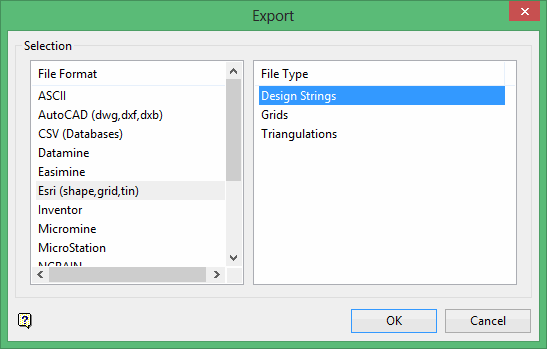
Click OK to display the Export Shape File panel.
Selection tab
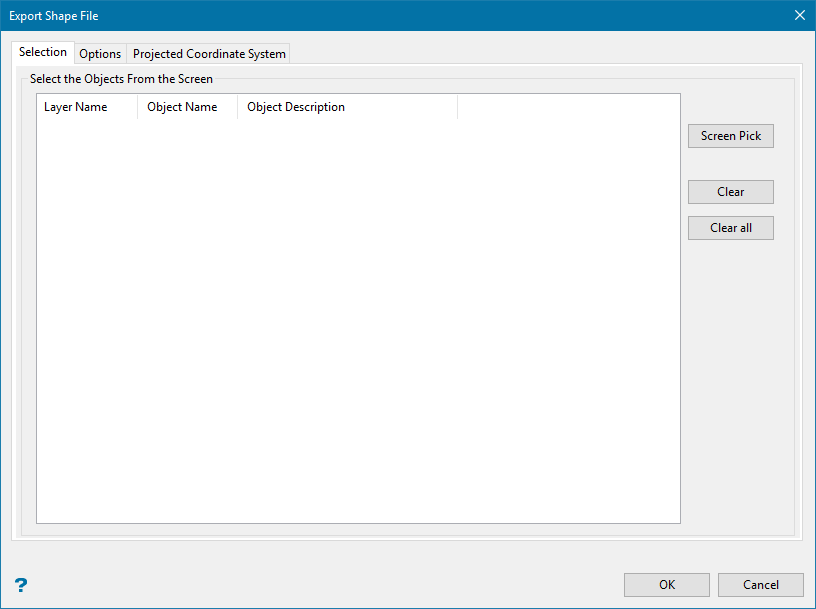
Click the Screen Pick button to select the design object to export. The Multiple Selection box displays. From the displayed dialog box, nominate the selection method, (for example by layer, object name, etc.), followed by the desired design objects. Cancel when you have finished selecting the design objects.
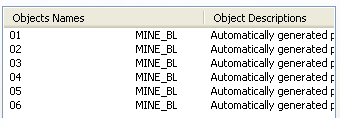
An entry, which consists of the object name and description, will be displayed for each of the selected design objects. Use the Clear and Clear all buttons to remove selected objects from the displayed list.
Options tab
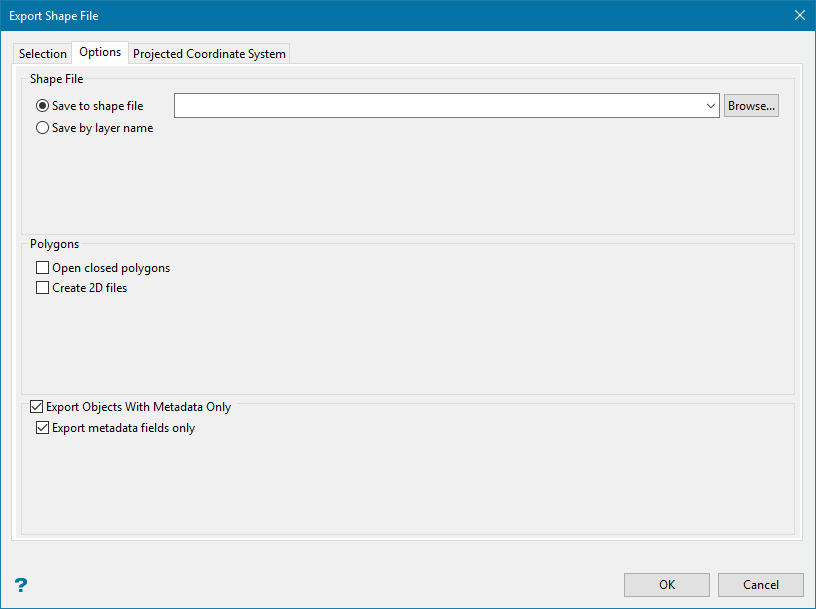
Shape file
Specify the name of the Esri Shape file (.shp) you want to use to store the exported data. The drop-down will list all (.shp) files in the current working directory. Click Browse to select a file from another location. To create a new file, enter the file name and file extension.
Polygons
Open closed polygons
Use this option to open closed polygons before exporting. This may be useful depending upon your version of Esri software.
If you are exporting closed polygons, three files with the same file name plus a '_pl' suffix will be created.
-
Vulcan_pl.shp (the main file)
-
Vulcan_pl.shx (the index file)
-
Vulcan_pl.dbf (the database table)
If you are exporting any other date, the three files created will have a 'a_ar' suffix added to the file name. If you export a mixture of data types, six files will be generated.
Create 2D files
This will create polygons based on the plan view of the shapes.
Export Objects With Metadata Only
Projected Coordinate System tab
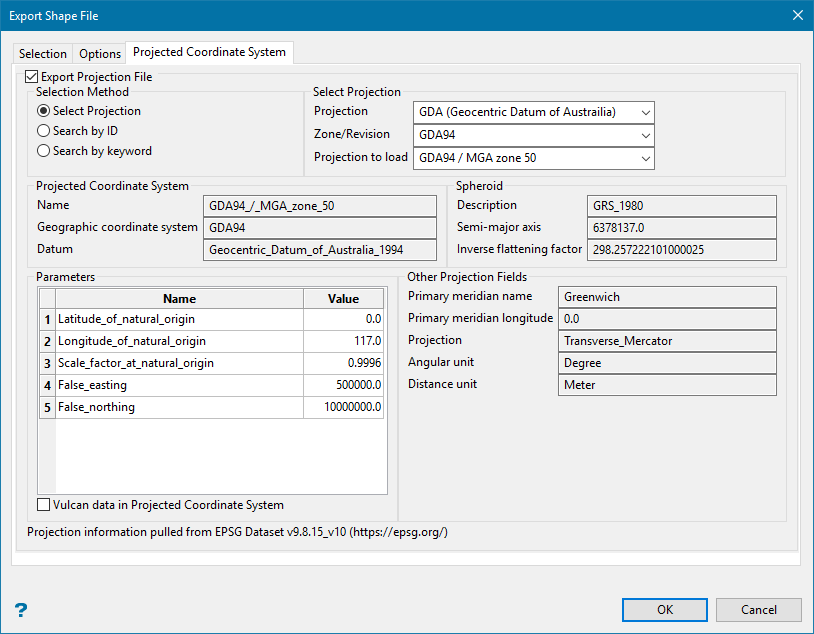
Export Projection File
This allows you to set up parameters for a file containing coordinate system information in the format of a (.shp) file.
The information on this pane is automatically filled in based on your inputs for the selection method.
Select Projection

Select your options by using the drop-down lists.
Search by ID

Enter the project ID, or search for it by clicking the Search button.
Search by keyword

Enter a keyword fro the search projection, or search for it by clicking the Search button. Then select the projection using the drop-down list.
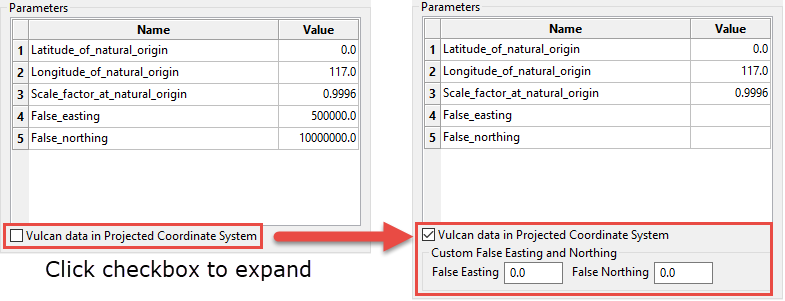
Vulcan data in Projected Coordinate System
Enable this option to allow custom false easting and false northing values to be used for projection file export when in selected coordinate system.