

Import ASCII Grid
Use the Import ASCII Grids option to import information from a ASCII grid file into an Isis or ODBC database.
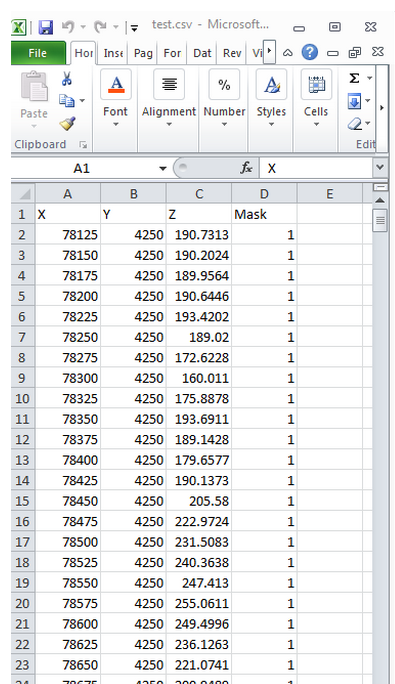
The file needs to have a 'Mask' column with either 1 or 0 for the grid to import correctly. (See example below.)
The mask column is a switch that indicates whether or not the cells are to be visible or invisible. If the switch is set as 1, then the grid cells will be visible. If the switch is set as 0, then the grid cells will be invisible.
Instructions
On the File menu, click Import to display the Import panel.
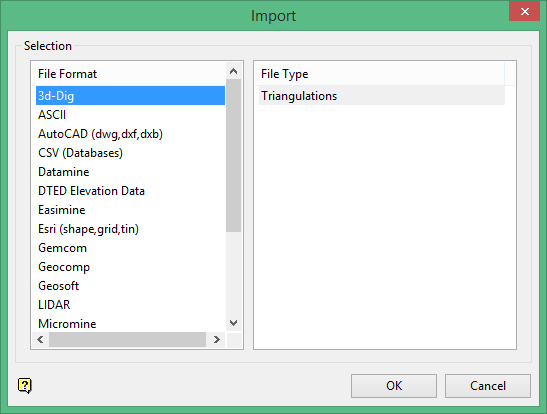
Click ASCII in the File Format column on the left.
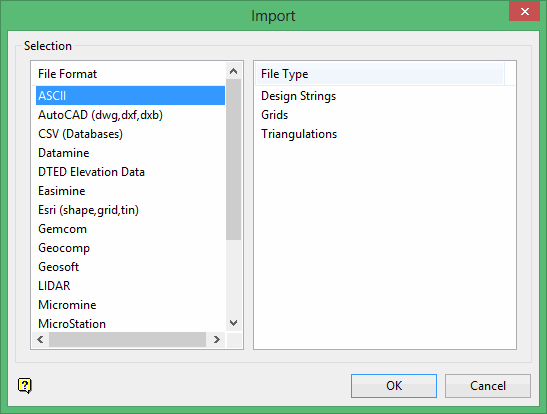
Select Grids from the File Type field on the right side of the panel.
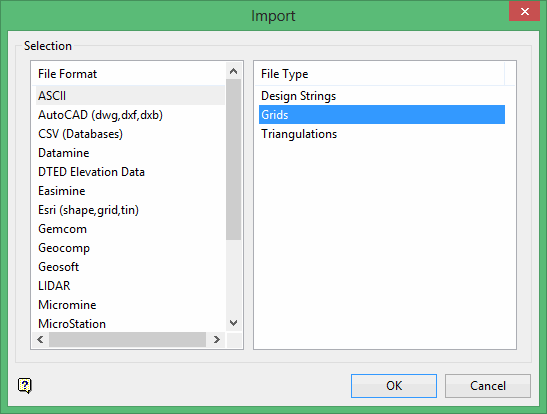
Click OK to display the Import ASCII Grid panel.
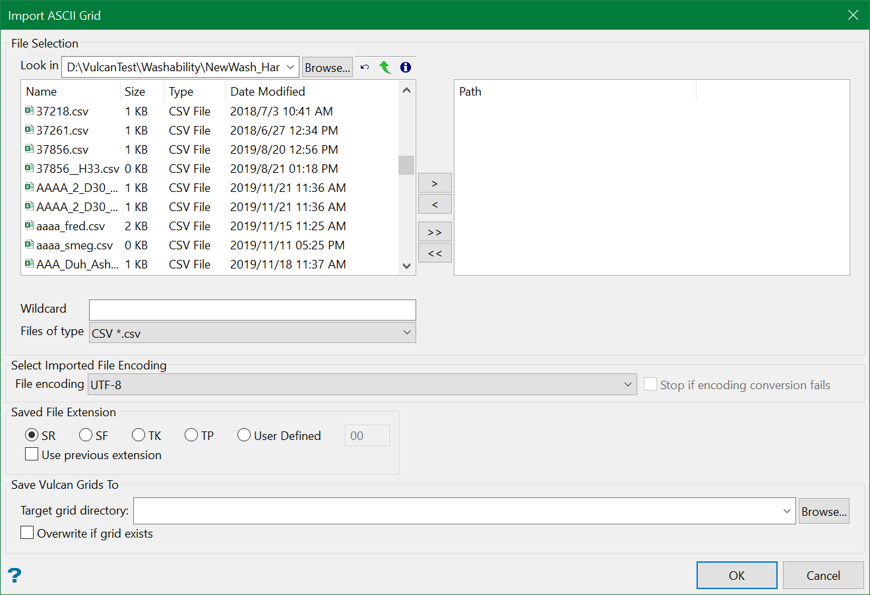
File Selection
Select the files that you want to import by clicking the arrow buttons between the columns to add the file names to the right column.
- To move a single file from one column to the other, click on the file name click the > or < button.
- To move all files from one column to the other, click the >> or << button.
- To move multiple files from one column to the other, hold the Ctrl key while clicking on the file names (or hold the Shift key to select a group of adjacent files). Once all the desired files are selected, click the > or < button.
Wildcard
Wildcards can be used in the search for files. Use the * for multiple characters and % single characters.
File of type
Select the file type you want to display in the list from the drop-down list. You can select ASCII grid files (.asc) or CSV files (.csv).
Look in 
The drop-down list displays the current directory. You can select another directory from the drop-down list or click  to select a different directory.

|
Move back to the previous browsing directory. |

|
Navigate through the window to the parent directory. |

|
Change how the files are displayed in the list: Details, Name, or List. |
Select imported file encoding
File Encoding
Select from the following:
-
UTF-8
-
Chinese Traditional
-
Chinese Simplified
-
Windows Encoding
If an encoding other than UTF-8 is selected, the ASCII or CSV file will be converted to UTF-8 before imported to Vulcan.
Stop if encoding conversion fails
Select this option is you want the importing process to stop if the conversion fails. If this option is not selected and the process fails, the importing process will continue with the original file.
Saved File Extension
Select the file extension to use for the imported files. You can select SR, SF, TK, TP, or you can specify a custom two-character alphanumeric file extension by selecting User Defined and entering a value.
Use previous extension
Select this check box to enable functionality that searches the file name for Vulcan grid extensions after importing and use them if found.
If this check box is not selected, the file extension specified in the Saved File Extension section above will be used, the selected extension will be appended to the file name after importing, and the original.asc or.csv file extension and any other valid grid extensions will be removed.
| Original File Name | Use Previous Extension | Saved File Extension | Resulting File Name |
| Test.srg.asc | Yes | TK | Test.srg |
| Test.srg.asc | No | TK | Test.tkg |
| Test.srg.asc | Yes | SF | Test.srg |
| Test.srg.asc | No | SF | Test.sfg |
| Test.srg.asc | Yes | User defined: 99 | Test.99g |
| Test.srg.asc | No | User defined: 99 | Test.srg |
Save Vulcan Grids To
Select a folder name from the Target grid directory drop-down list or click Browse to select a file from a location other than your working directory. To create a new folder, enter a folder name in the Target grid directory box. If no target directory is specified, the imported file is stored in the same location as the original file.
Overwrite if grid exists
Select this check box to overwrite any existing files with the same name as the resulting file. If this check box is not selected, any existing file names will be appended with an underscore and a number, such as Test_1.srg.
Click OK to import files.
