

Export Topcon Design Strings
Use this option to export point data to Topcon Points file (TP3), export polyline data to Topcon Linework file (LN3), and triangulation data to Topcon Tin files.
Instructions
On the File menu, click Export to display the Export panel.
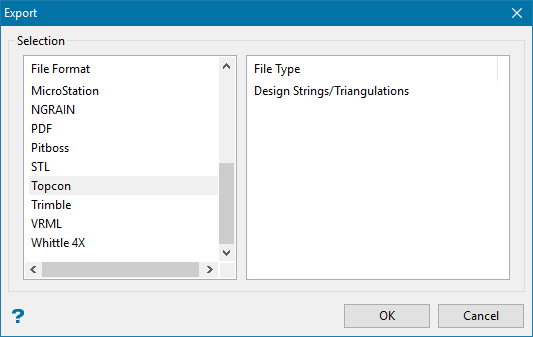
Click Topcon from File Format on the left, then select Design Strings/Triangulations from the File Type field on the right side of the panel. The following panel is displayed.
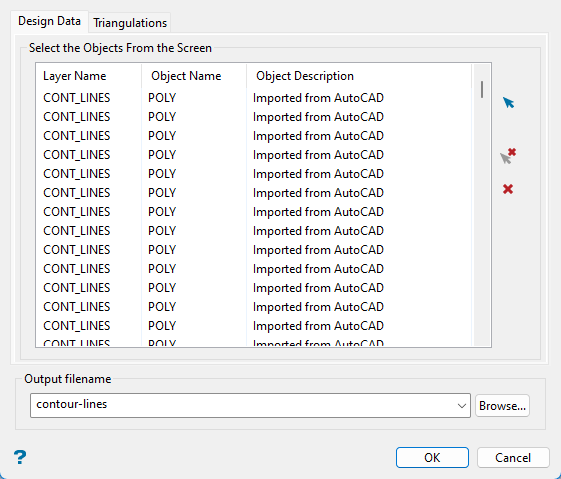
This panel has two tabs, one is for selecting the design data and the other is for selecting the triangulations.
From the Design Data pane, begin by clicking the Screen Pick button.
Note: You will need to select from preloaded objects already on your screen. Therefore, before starting the export process, load all design strings onto the screen that you want to export.
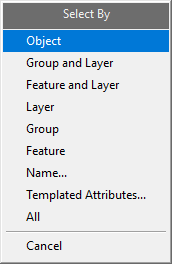
You can exit the Select By menu at any time by right-clicking or clicking Cancel on the Select By menu.
|
Object |
Click on the object(s) that you want to select. When you finish selecting objects, right-click to return to the Select By menu. |
|
Group and Layer |
Click on an object that is part of the group and layer combination that you want to use to select. When you are finished selecting combinations, right-click to return to the Select By menu. |
|
Feature and Layer |
Click on an object that is part of the feature and layer combination that you want to use to select. When you are finished selecting combinations, right-click to return to the Select By menu. |
|
Layer |
Click on an object in the layer that you want to use to select. When you are finished selecting layers, right-click to return to the Select By menu. |
|
Group |
Click on an object in the group that you want to use to select. When you are finished selecting groups, right-click to return to the Select By menu. |
|
Feature |
Click on an object that has the feature that you want to use to select. When you are finished selecting features, right-click to return to the Select By menu. |
|
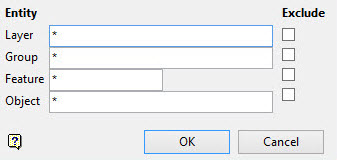
Name |
Enter any combination of Layer, Group, Feature, and Object names that you want to select. To include all names for a particular attribute, enter an asterisk ( * ) for that attribute. If you want to exclude a layer, group, feature, or object by name, click the Exclude check box next to the name. Click OK to save selections, and then click Cancel to return to the Select By menu.
|
| Templated Attributes | Use this option to display the Select by Attribute panel. |
|
All |
Click All to select all objects. |
Select all of the design data that you want to be exported. Each individual layer will be exported as an individual layer regardless of how many layers you select. There is no need to create multiple output scenarios to keep the data separated as unique layers.
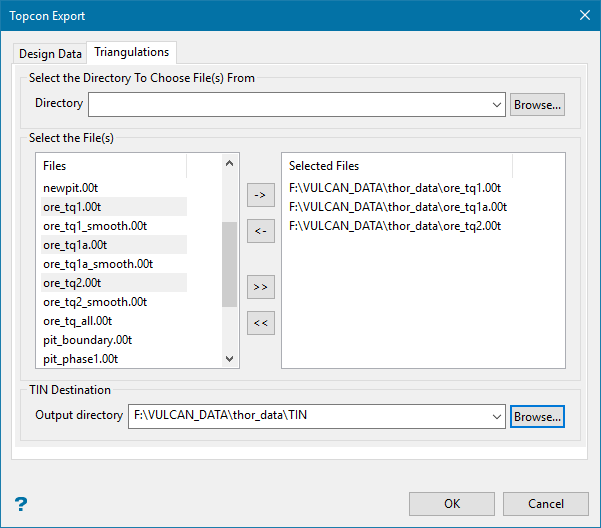
Directory
You can specify which folder (directory) to use by selecting from the drop-down list, or clicking Browse to select a folder that is not in the current working directory.
Note: This field is optional. By default, leaving it blank automatically populate the list of files on the left side of the pane with all the triangulation files in the current working directory.
To highlight multiple files that are adjacent to each other in the list, hold down the Shift key and click the first and last file names in that section of the list.
To highlight multiple non-adjacent files, hold down the Ctrl key while you click the file names.
Move the items to the selection list on the right side of the panel.
- Click the
 button to move the highlighted items to the selection list on the right.
 - Click the
 button to remove the highlighted items from the selection list on the right.
 - Click the
 button to move all items to the selection list on the right.
 - Click the
 button to remove all items from the selection list on the right.
Click OK to complete operation.
