

Set Invariance
Use the Set Invariance option to set line style objects to invariant, which means that the line will not be deconvoluted (When bits of lines that overlap in complex designs are removed.) when complex line patterns are created. This will mean that cross-overs will appear at the inside corners if part of the style does not lie on the centre line.
Instructions
On the File menu, point to Line Styles, and then click Set Invariance.
The Multiple Selection box displays. From this box, choose your method of selecting objects and select the sections of the line style that you want to make invariant. The selected objects are then shadowed, so that you cannot select them again (shadow is hardware dependent). Cancel when you have finished selecting objects.
You must then save the changes to the line style. Use the Save option to save any changes.
Note: Any existing lines that have had this line style applied will not be updated. You must remove the style and then reapply it for the changes to take effect. Refer to the Apply Style and Remove Style options (both located under the Design > Line Style submenu) for information on how to apply and remove line styles.
Example:
A line style that is offset from the centre line, as in Diagram 1,

1
appears as seen in Diagram 2.

2
When this style is applied to a line with lots of points and convolutions, for in Diagram 3,

3
parts of the line style (off the centre line) will be removed on the inside corners (that is the bits that will have to cross over each other). This is known as deconvolution, shown in Diagram 4.
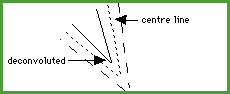
4
When you set an object to be Invariant, it stops the deconvolution process, shown in Diagram 5.
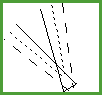
5
it also removes other internal checks thus increasing the speed of operation.
With very complex styles on a very convoluted original line, it is sometimes possible for the deconvolution process to do apparently strange things to the style. Using this option can show you why things happen as they do. Usually, if you have problems with the deconvolution of the style, then you will need to modify the line of the line style.
Tip: We recommend that line styles are created without using invariance unless it is really needed. This option can be selected in either the Line Style Editor or Primary Windows.
