

Create Spoil Fit Report
Instructions
On the Dragline menu, point to Strips, then click Create Spoil Fit Report to display the following interface.
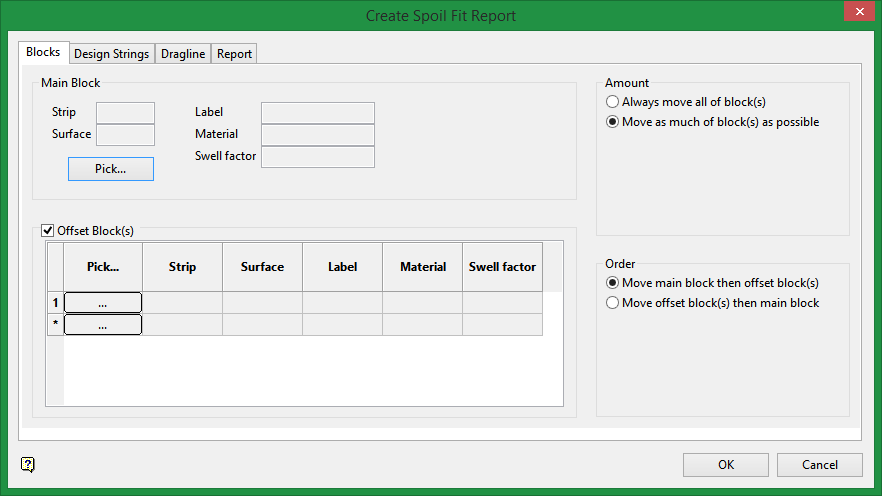
Main Block parameters
Click the Pick button to select the main block from the 3D workspace. When a selection has been made, the Strip, Surface, Label, Material, and Swell factor parameters will automatically be filled in.
Offset Block parameters
Click the Pick button to select any offset blocks from the 3D workspace. When a selection has been made, the Strip, Surface, Label, Material, and Swell factor parameters will automatically be filled in.
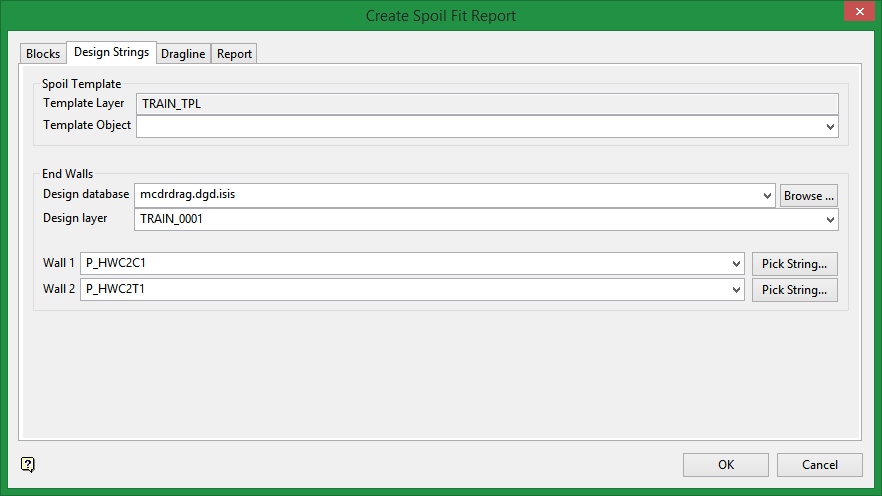
Spoils Template
Template Object
Select the template from the drop-down list.
End Walls
Design database
Select your DGD database from the drop-down list, or from the browser by clicking the Browse button.
Design layer
Select the layer that contains the design strings.
Wall 1 / Wall 2
Select the string that represents Wall 1 and Wall 2 from the drop-down list. If the design layer contains numerous objects, it may be easier to click the Pick String button and select the string from the screen in the 3D workspace.
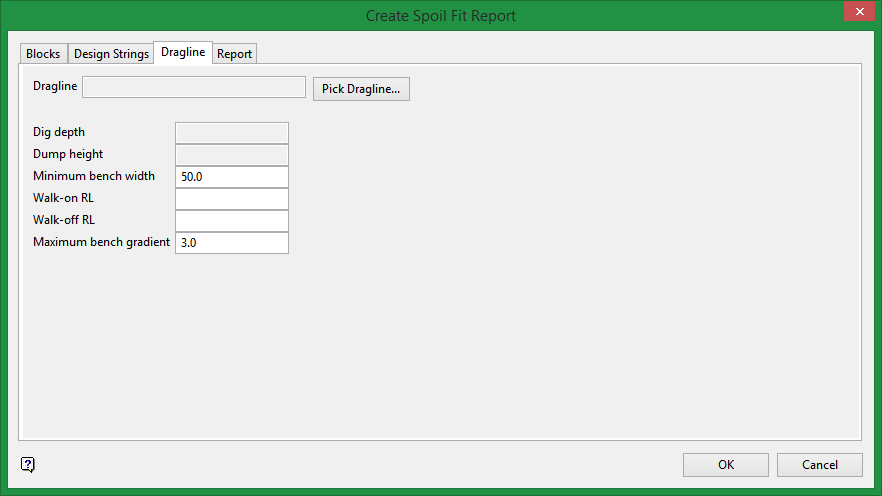
Minimum bench width
Enter the minimum bench width.
Walk-on RL / Walk-off RL
Generally the RL of the walk road before stepping onto the operating bench.
Maximum bench gradient
Enter the maximum bench gradient.
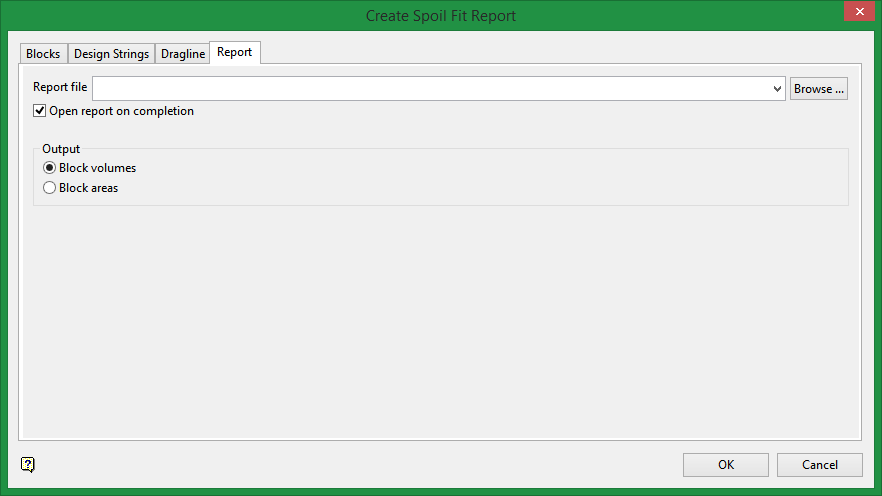
Report file
Enter a name for the report, select it from the drop-down list, or search for it from the browser by clicking the Browse button.
Open report on completion
Select this option if you want the report to automatically open for review.
Output
Select whether you want the calculations based on sectional volume or area.
