

Export Data to NGRAIN - Triangulations
Select the Triangulations option to export selected triangulations to a .3ko file.
If working with data to be selected from the screen, load the desired entries before accessing the Export submenu.
Note: You cannot export text objects saved as design data to the NGRAIN format using the File > Export option.
Instructions
On the File menu, click Export to display the Export panel.
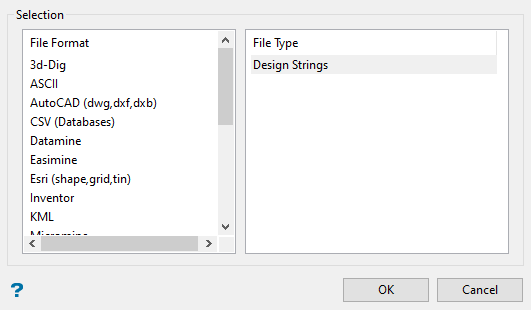
Click NGRAIN in the File Format column on the left.
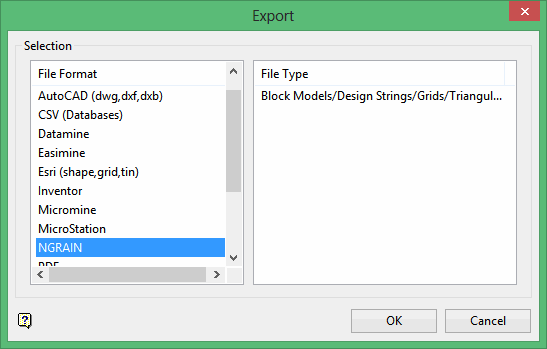
Select Block Models/Design Strings/Grids/Triangulations from the File Type field on the right side of the panel.

Click OK to display the Export to NGRAIN panel.
Click on Triangulations.
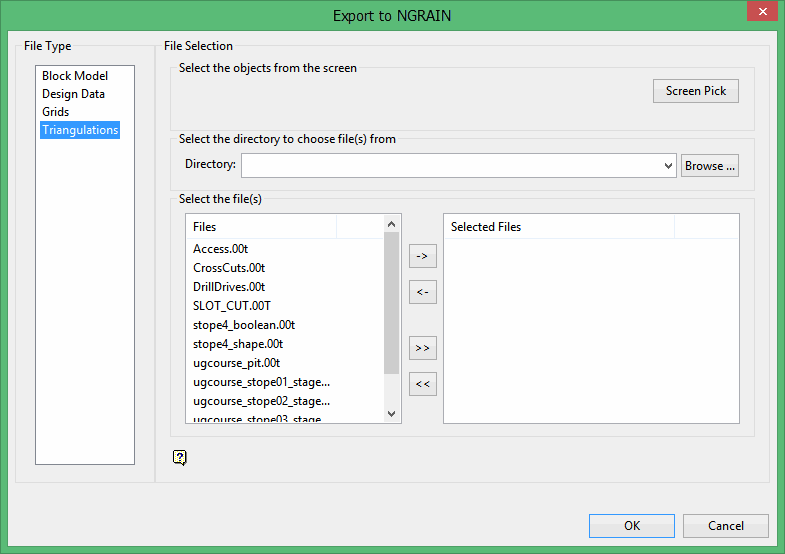
Select the triangulations you want to export by using any combination of the following options:
-
Screen Pick - Select triangulation(s) that are already displayed on the screen. Click on the triangulation(s) you want to export and then right-click to return to the panel. The triangulations you selected are listed in the Selected Files column in the Select the file(s) section.
-
Browse - Select the triangulation(s) to export by selecting them in the Select the file(s) section. All triangulation files in your working directory will be listed in the Files column. To select a different directory, click Browse in the Select the directory to choose file(s) from section.
-
From List - To select the triangulations to export using the Select the file(s) section of the panel, highlight the file name in the Files column and click the right arrow buttons to add them to the Selected Files column. If you click the single right arrow button ( -> ), only the files you have highlighted will be moved to the Selected Files column. If you click the double right-arrow button ( >> ), all files will be moved to the Selected Files column. To highlight multiple files that are adjacent in the list, hold down the Shift key while you click the file names. To highlight non-adjacent files in the list, hold down the Ctrl key while you click the file names.
The Convert to NGRAIN panel displays.
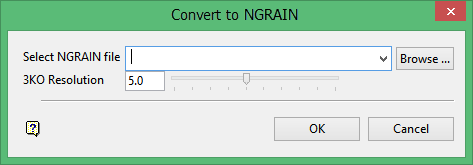
Select NGRAIN file
Enter or select the file name to be used to store the exported data. The drop-down list contains all VRML (.wrz or .wr;) files found within your current working directory. Click Browse to select a file from another location. To create a new file, enter the file name and file extension.
Click OK.
The export will continue and the resulting file will be stored in the current working directory.
Once the selected grid(s) have been successfully exported, the resulting file can then be viewed with any NGRAIN viewer, for example the Cortona3D Viewer. Additionally, using a NGRAIN plug-in you can insert the file into a variety of applications such as Microsoft Word or PowerPoint.
For design data exports that fall outside of the NGRAIN viewing range (coordinates above/below +/- 32 million) the data will be shifted and/or shrunk as necessary to fit within the available space.
