

Preferences - Vulcan Explorer
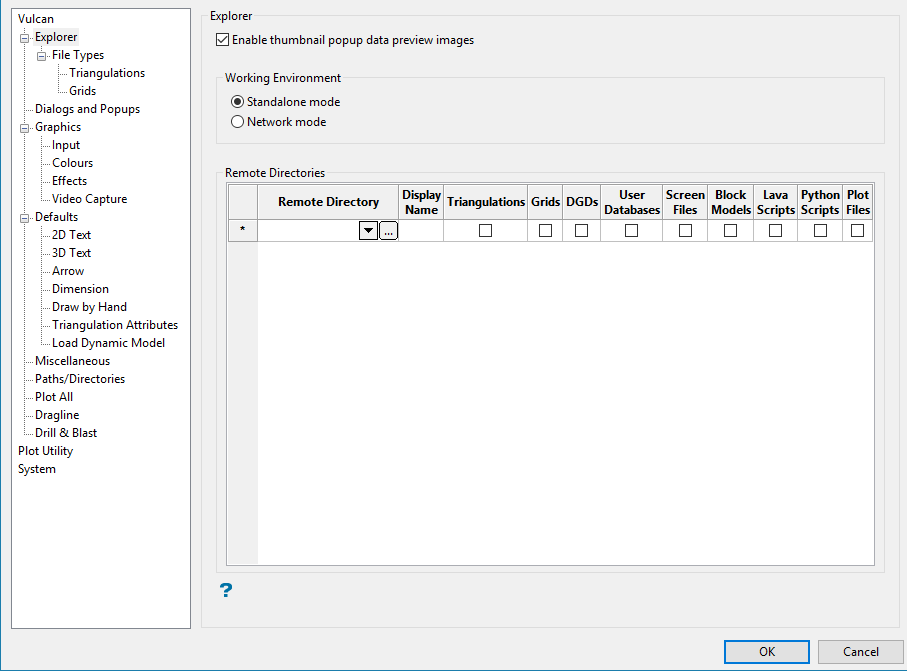
Use Vulcan Explorer preferences to choose to show layer descriptions in the Vulcan Explorer by default, and to specify directories other than your working directory to appear in the Vulcan Explorer. You specify the virtual folders, for example: Triangulations, Grids, etc., in which the remote directory should appear. In this way, you can take advantage of the Vulcan Explorer context menu and the "drag and drop" facilities with files not stored in your current working directory.
Enable thumbnail popup data preview images
Select this check box to display a thumbnail preview image whenever the mouse cursor is positioned over a highlighted layer, triangulation or grid file. Preview images are only available for layers that have been created or saved in a Vulcan session using the thumbnail preference. This preference will be enabled by default when Vulcan is initially installed.
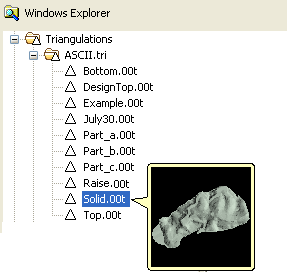
Figure 1: Thumbnail Preview Images
Note: Due to format changes, design databases that were created through earlier versions need to be compressed and rebuilt in order to use the thumbnail preview functionality. Once the compress and rebuild process has been completed, you will need to load, edit and save each layer in order to correctly display the preview image.
In the case of triangulation and grid files, preview images are only shown after the Compress option has been selected in a Vulcan session that uses the thumbnail preference. Once the compress process has been completed, you will need to load, edit and remove the file from the screen in order to correctly display the preview image. Refer to the Vulcan Explorer context menu section for more information on the Compress option.
Working Environment
Standalone mode
Select this mode to retain standard Vulcan Explorer functionality. With multiple users, directories being monitored by the Vulcan Explorer will automatically be updated when changes are made, keeping the data view in sync between the users. Note that large data changes may affect Explorer performance. This is the default mode.
Network mode (network safe mode - network mode has been removed)
Select this mode to change the Vulcan Explorer functionality to only refresh the view when the user refreshes the display using the F5 hotkey.
Remote Directories
Remote Directory
Specify the address of the remote directory.
Note: UNC paths (the use of double slashes '//') are not supported. Embedded directories, that is, a remote directory in the subdirectory of another remote directory, are not supported.
Display Name
Enter the name, which will appear in the Vulcan Explorer, for the directory. If this field is left blank, then the directory name will be used instead.
Triangulations, Grids, DGDs, etc.
Select the check boxes of the virtual folders in which you want to include the remote directory. The remote directories will appear before files in the virtual folders.
