

Delete Points
Use the Delete Points option to delete dragline point names created through the Create Points option.
Note: This option will automatically move you to section view on the current section.
Instructions
On the Dragline menu, point to Points, and then click Delete Points.
Select the named point that you want to delete.
If a Dragline specifications file (.rsp) was not opened prior to selecting this option, then the Open Dragline Specification panel displays first.
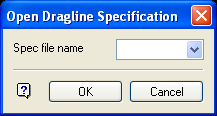
Open Dragline Specification panel
Spec file name
Enter, or select from the drop-down list, the <spec_file_id> part of the dragline specifications file name. The maximum size is 6 alphanumeric characters. Selecting a name from the drop-down list will open an existing specifications file. Entering a new name will create a new specifications file.
Click OK.
Once you have selected a point, you will need to specify whether you want to delete the named point from the current section or from all sections. You will then be prompted to select another named point. Cancel when you have finished deleting named points.
