

Edit Polygons
Use this option to edit the input polygons for trim and production that come from the setup stage.
On the Open Pit menu, point to Mining Blocks Generation, then click Edit Polygons. The following panel is displayed.
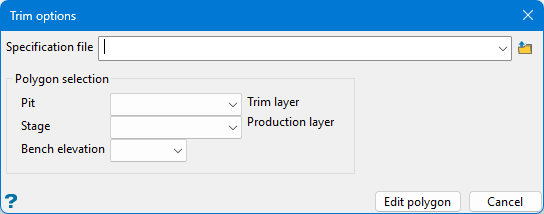
Specification file
Use the drop-down list to select your specification file. The files listed will be those that have already been created using the Mining Block Generation > Set up panel.
Polygon selection
These menus are populated using the information entered in the set up panel.
Pit
Select the preferred pit name.
Stage
Select the stage.
Bench elevation
Select a bench elevation.
Edit Polygon
Click this button  to display the editing controls.

Bench elevation
The bench elevation is carried over from the first panel, however, you may change the selection here to avoid returning to the first panel each time you wish to edit a polygon on at a different elevation.
Editing options
Click this button to display the Trim options. Depending on which option you select, the panel will change configuration to provide various options:
- edit trim
- replace string
- free replace string
Using the edit string option
Value
This controls the width between the polygons.
- Select a point on one of the strings, then select a point on the opposite string. These will be guide lines and will be stored in the design database under the name MBG_TEMP_GUIDE_LINES. Do this at two locations.
- A preview polygon will be displayed showing the results of the edit. The new polygon will be stored in the design database under the name MBG_TEMP_PREVIEW.
Using the replace string option

- Click the
 icon.
icon. - Select the string to be modified.
- Select a starting point and ending point.
Trim
Set string type for trim polygon.
Production
Set string type for production polygon.
Revert arrow 
Click this to revert all your changes.
Using the free replace string option

Use the Cancel button to Return to Edit Polygons panel.
