

Preferences - Input
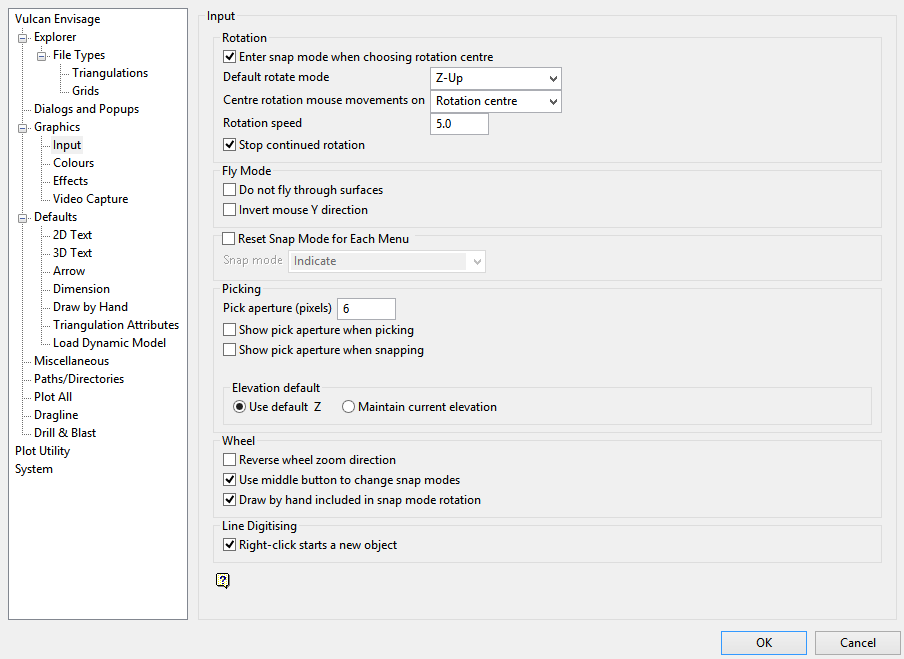
Rotation
Enter snap mode when choosing rotation centre
Select this check box to enter the Snap to Objects  mode when choosing the rotation centre. The Snap mode that was being used prior to choosing a rotation centre will be reinstated once the necessary rotation centre has been indicated.
Default rotate mode
Select the default rotate mode ( Ortho Rotate, Ortho Sphere Rotation, Z Up Rotation or Virtual Sphere Rotation ). This feature only takes effect after the centre point has been selected.
Centre rotation mouse movements on
Select Rotation centre or Screen centre to specify the location on which to centre the mouse movements.
The R key can be used to enter your default rotation mode. If you are already in another rotation mode, (for example Virtual Sphere, Rotate Ortho, or Ortho Sphere) then pressing the R key will allow you to toggle between the centre of screen and the centre of rotation.
Left-clicking with the mouse while holding down the Ctrl key will also allow you to enter your default rotation mode. Use the Alt key instead of the Ctrl key to use the most recently defined rotation centre. Release the Ctrl and Alt keys when you are ready to exit the rotation mode.
Rotation speed
Enter the speed with which the view will rotate when you click the Space Bar key in Ortho Rotate mode. The value represents the number of degrees rotated with each refresh (or view change). Click the O key if you want to display the refresh rate.
Stop continued rotation
Select this check box if you do not want objects to continually rotate after pressing the Space Bar key in Ortho Rotate mode. If this check box is not selected, then you will need to right-click with the mouse, while the object is rotating onscreen, to stop object rotation.
Fly Mode
Do not fly through surfaces
Select this check box to prevent penetration of solids when flying in Fly mode. If you run into a surface while in Fly mode, then the velocity will be set to '0'.
Invert mouse in Y direction
Select this check box to invert the mouse when in Fly mode, For example: flies downwards when the cursor is moved upwards.
Snapping
Reset snap mode for each menu
Select this check box to reset the snap mode to your chosen default when you digitise for the first time in a new menu option. If selected, then you will need to select one of the following as the default mode, Indicate  , Object snap , Point snap
  , Indicate in Plan and Object snap in 3D , or Indicate in Plan , and Point snap in 3D .
Picking
Pick aperture
Enter the pick aperture (in pixels). The pick aperture refers to the number of pixels away from an object the cursor needs to be before snapping takes effect. This defined boundary is known as the "selection zone".
Show pick aperture when picking
Select this check box to display a graphical representation of the aperture when picking.
Show pick aperture when snapping
Select this check box to display a graphical representation of the aperture when snapping.
Elevation defaults
Specify how elevation values are to be treated when points are moved in a Vulcan session, that is, maintain the current Z-value or use the default elevation value. The default elevation value is specified through the Status toolbar.
This preference only affects the following options:
-
Design > Point Edit > Move
-
Design > Point Insert > Insert
-
Design > Point Insert > Replace String
Tip: Even if you choose to use the default elevation, holding down the Shift key while moving the point will allow you to retain the point's original Z-value.
Wheel
Reverse wheel zoom
If your mouse is equipped with a mouse wheel, then you can use this to zoom in and out at any time. The screen will be centred on the position of the cursor.
By default, moving the mouse wheel forwards will zoom out; and moving it backwards will zoom in. Select this check box to reverse the default Vulcan zooming direction.
Note: This setting also affects the default zooming direction in the Plot Utility application.
Hold middle button to pan
Select this option to be able to hold down the middle mouse button or wheel and drag to pan the view.
Use middle button to change snap modes
Select this check box to cycle through the various snap modes when the mouse wheel is clicked.
Draw by hand included in snap mode rotation
Select this option if you want the Draw by hand feature to be included in the selection as you cycle through the modes using the mouse wheel.
Line digitising
Right-click starts a new object
Select this check box to create a new line object whenever the right mouse is clicked. If this check box is not selected, then cancelling with the right mouse will result in a line break rather than a new object.
This preference only affects the following options:
-
Design > Create > Line
-
Design > Create > Line draw by hand
