

Annotate
Annotate Sections or Profiles
The Annotate option to annotate sections or profiles in the current Section view.
The annotations displayed through this option use the settings specified under the Defaults : 2D Text section of the Tools > Preferences option. Text can be also edited using the Text Edit options (under the Design > Text Edit submenu).
Instructions
- Select Geotech menu
- Select Section submenu
- Select Annotate option
The Annotate dialog box displays.
Area
Select this option to annotate a profile with the polygon area. The polygon is formed by joining the first point of the profile to the last point.
Coordinate
Select this option to annotate any point in the cross section with its section co-ordinates (Z and W).
The following prompts and panels displayed depend on which label type ( Area or Coordinate ) is selected.
Area
Select the object to label, i.e. the profile to annotate. You will then need to indicate the text origin for the label.  Snap to Points mode can be used to 'snap' the annotation onto an existing point. Refer to the Digitise toolbar documentation for details on snapping modes.
As the position is indicated, the area is posted as text in the format AREA=<area>, for example AREA=4141.49.
You are then prompted to select another object to label. Cancel when finished selecting areas.
Coordinate
The following panel displays.
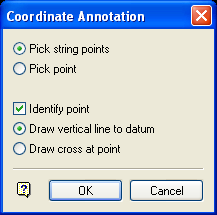
Coordinate Annotation panel
You can either label existing points in a string by selecting Pick string points, or you can indicate random points by selecting Pick point.
