

Export ASCII Grids
Use the Export ASCII Grids option to export information from grid data files to an ASCII or CSV file.
Note: When exporting a grid to a file from the plan view, the grid is processed from the bottom left of the grid to the top right of the grid. Each individual row is processed for each node before the next row is exported.
Instructions
On the File menu, click Export to display the Export panel.
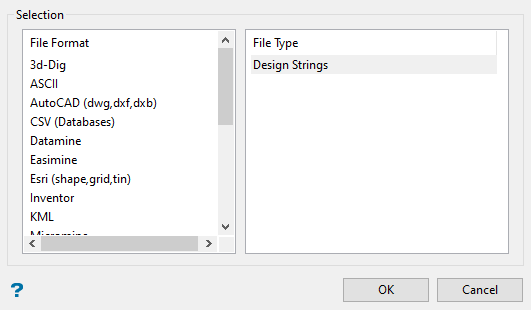
Click ASCII in the File Format column on the left.
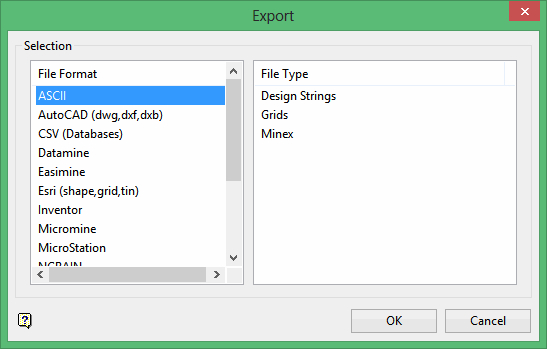
Select Grids from the File Type field on the right side of the panel.
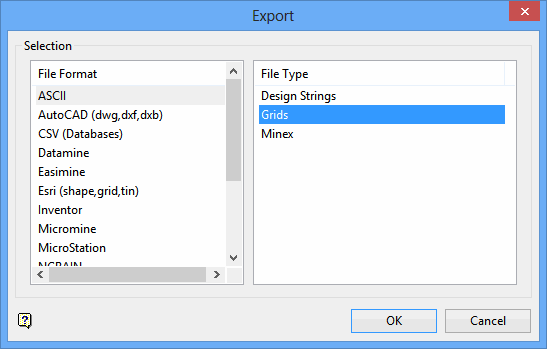
Click OK to display the Export to ASCII Grid panel.
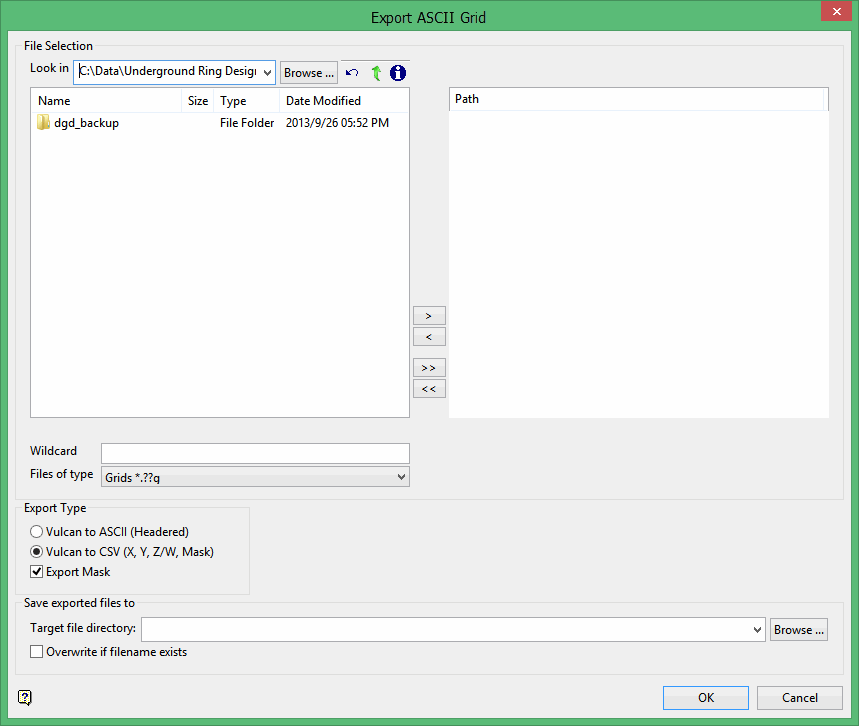
File Selection
Look in
Select the directory n which you want to look for files from the Look in drop-down list. The default directory is your working directory. If you want to select files from a different location, click Browse.
Select the file(s) that you want to import from the list on the left and click the right arrow button ( > ) to move them to the column on the right that displays the selected files, or click the double right arrow button ( >> ) to move all files to the selected column. To remove a file from the selected list, click the left arrow button ( < ), or click the double left arrow button ( << ) to remove all files from the selected list.
Note: The window beneath the Look-in bar lists the files that are available for export. The files that are shown can be changed by selecting a different value in the Files of type box. The available values are ASCII files (*.asc) and CSV files (*.csv). Different files may be shown by entering values into the wildcard text control.
Export Type
Select Vulcan to ASCII (Headered) or Vulcan to CSV (X, Y, Z/W, Mask) to specify the file type into which you want to export the grid information.
Vulcan to ASCII (Headered)
Select this option to export the grid information to an ASCII (*.asc) file that contains information about the grid limits and the corresponding Z and mask values. The ASCII file contains header information that contains the minimum and maximum X and Y values, as well as the amount of grids in each direction.
Vulcan to CSV (X, Y, Z/W, Mask)
Select this option to export the grid information to a CSV (*.csv) file that contains the X, Y, Z/W, and mask values. The CSV file contains the headers for the X, Y, Z and Mask headers before all of the grid contents are exported to the file.
Export Mask
Select this check box to output the value for the mask.
If the Export Mask check box is selected, the value for the mask is exported as one (1) if the node is visible or zero (0) if the mask is in place.
If the Export Mask check box is not selected, the value for the mask is output as all ones and everything is visible.
Save exported files to
Select the directory where you want to store the output files from the Target file directory drop-down list, or click Browse to select a different directory. To create a new directory in your current working directory, enter a name in the box to create the folder during export. If no target directory is specified, the exported files are stored in the same location as the original files.
Overwrite if filename exists
Select this check box to overwrite any existing files with the same name in the target directory. If this check box is not selected and a file with the same name as the output file exists, the output file name will be appended to include an underscore and a number ( _* ).
Click OK.
