

Save Defaults
Save Default Specification File
Use the Save Defaults option to save defaults, such as horizon parameters, variable parameters, period definitions, report defaults and general defaults.
The format of the file name in which the details are stored is:
<spec.id>_spec.rsu_cmnd
where spec.id is the specification identifier (or name). The file is stored in your working directory. More than one specification file may exist. The required one can be loaded in the Load Defaults option.
To run this option from the command line, type:
SAVE_DEFAULTS /variable_parameters /specification_identifier='file name' /report_defaults /horizon_parameters /general_defaults /period_definitions
SAVE_DEFAULTS /specification_identifier='demo_spec.rsu_cmnd' /horizon_parameters /general_defaultsThe variable_parameters, /report_defaults, /horizon_parameters, /general_defaults and /period_definitions commands are optional.
Instructions
On the Rsvute menu, point to Files, and then click Save Defaults to display the Save Defaults panel.
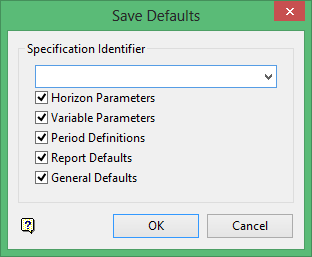
Specification Identifier
Enter, or select from the drop-down list, the name of the .rsu_cmnd file for the defaults. If you specify the name of an existing file, then you will be asked whether or not you want to overwrite this file. The specification identifier is optional.
If you don't specify the identifier, then the resulting file will be named defaults.rsu_cmnd and the defaults will automatically load and become active when starting Rsvute.
Horizon Parameters
Select this check box to save the current horizon parameters, in particular the crop lines, as the default.
Variable Parameters
Select this check box to save the current variable parameters, including the variable cut-offs and limits, as the default. The current coal thickness variable is also saved.
Period Definitions
Select this check box to save the current period definitions as the default.
Report Defaults
Select this check box to save the current report settings as the defaults.
General Defaults
Select this check box to save the current general settings such as units, precision, density and class radii as the defaults.
Click OK.
