

Export CSV (Databases)
Use the Export CSV (Databases) option to export information from an Isis database to a CSV file.
Instructions
On the File menu, click Export to display the Export panel.
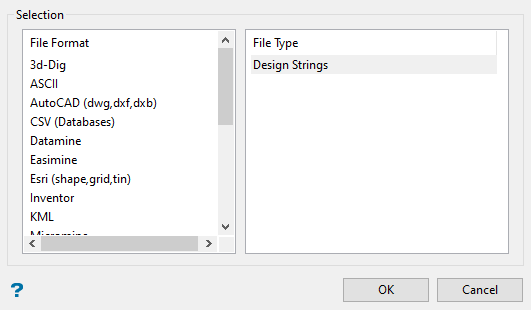
Click CSV (Databases) in the File Format column on the left.
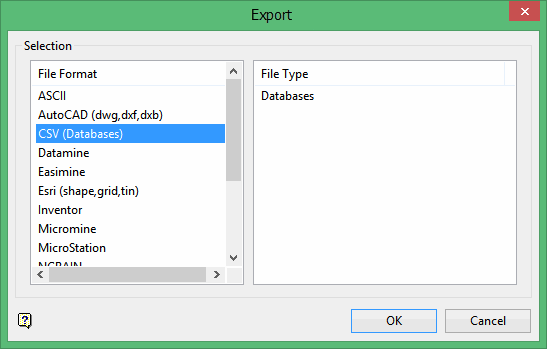
Select Block Models (Pit List) from the File Type field on the right side of the panel.
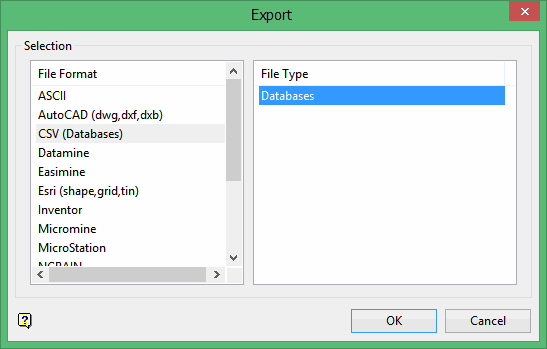
Click OK to display the Export to CSV panel.
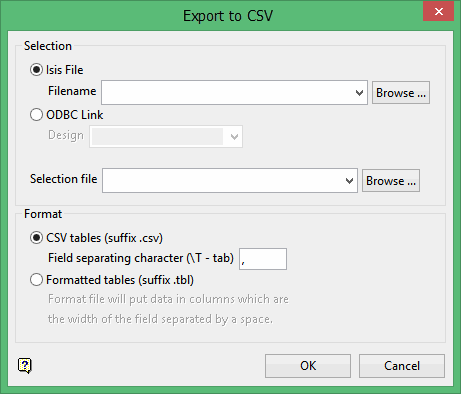
Selection
To use an Isis database, select Isis File and select the file name from the Filename drop-down list, or click Browse to select a file from a location other than your working directory.
To use an ODBC link database, select ODBC Link and select the design name from the Design drop-down list.
Selection file
Select the name of the selection file (.sel) that lists the objects that you want to export from the Selection file drop-down list, or click Browse to select a file from a location other than your current working directory. Leave this field blank to export all the objects or if you do not have a selection file.
You can create a drillhole selection file by selecting drillholes of interest, then right-click and select Drillhole > Selection File from the context menu to enter a file name and save the .sel file for future use. This essentially creates a text file that contains a list of hole identifiers with the format shown below. You can also create a selection file manually using a text editor and saving the file with the .sel extension. Note that drillhole names in the selection file are case sensitive.
Drillhole selection file format:
DD00026
DD00035
DD00044
DD00053
DD00116
DD00143
Format
Select the format of the tables to be exported.
CSV tables
Select CSV tables (suffix.csv) to export the data to a CSV file. If you select this option, you must specify the character that will be used to separate the fields in the resulting file in the Field separating character (\T - tab) box. The default separator is a comma, but any character can be used. To use the Tab character as the separating character, enter '\T' in the box.
Following is an example of the output of a CSV table.
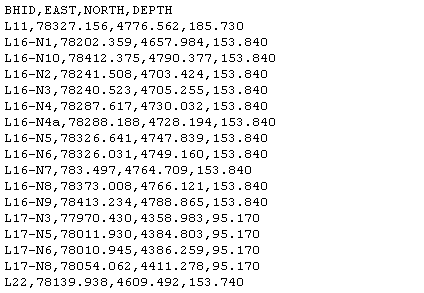
Figure 1: CSV Character Separated File
Formatted tables
Select Formatted tables (suffix.tbl) to export the data to a formatted ASCII file. Each record in the table will be written to a column. The column will be the width of the field, and the columns are separated by spaces.
Following is an example of the output of a formatted ASCII file.
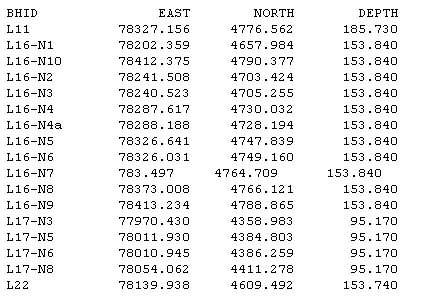
Figure 2: ASCII Formatted File
Click OK to export the file.
The file will be exported, and a confirmation dialog box displays.
The resulting CSV or ASCII file will be placed in your current working directory.
