

Load Drive Layer
Loads and sets visibility of design data filtered on a particular level of interest. The tool will load only the layer for that particular level and filter the survey stations (coordinate reference points) from two other survey stations layers. This panel will remember the settings from the last time the tool was run.
Instructions
On the Face Mapper menu, point to Mapping, then click Load Drive Layer.
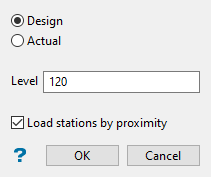
Design
If ‘Design’ is selected the tool will load the ‘Design’ files (as defined in the Design parameter in the Load Drive Layer settings). ‘Design’ should be used for Face mapping.
Actual
If ‘Actual’ is selected the tool will load the ‘Actual’ files (as defined in the Actual parameter in the Load Drive Layer settings). ‘Actual’ should be used for Backs/Walls mapping.
Level
The Level (or design file number) the user wishes to load and perform mapping operations on.
Load stations by proximity
By default survey stations will be loaded and filtered based on the assumption that the object names of the survey stations begin with the value input into the ‘Level’ box. As an alternative (if survey stations aren’t named with a reference to the level) the ‘Load stations by proximity’ option will build a buffer (based on the Buffer parameter in the Load Drive Layer settings) around the loaded level and load survey stations within the buffer region.
Note: Since the buffer gets built around all data in the selected layer, it is important when using the ‘Load stations by proximity’ option that the layer only contains the minimal data required for mapping, such as the floor strings and centre line. The more data in the layer, the larger the buffer built, the more survey stations are tested and the longer the process takes to run.
