Define Bins
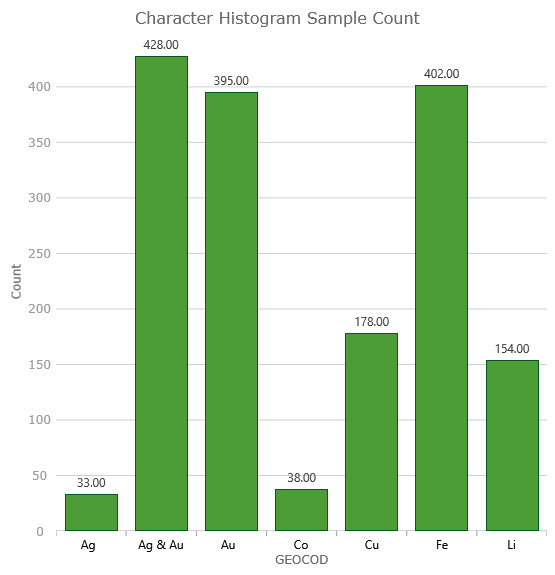
It is possible to customize a Character Histogram by renaming, adding, deleting, or combining bins.
On the Properties pane, expand the Bin Customization bar, then click Define Bins to display the following panel.
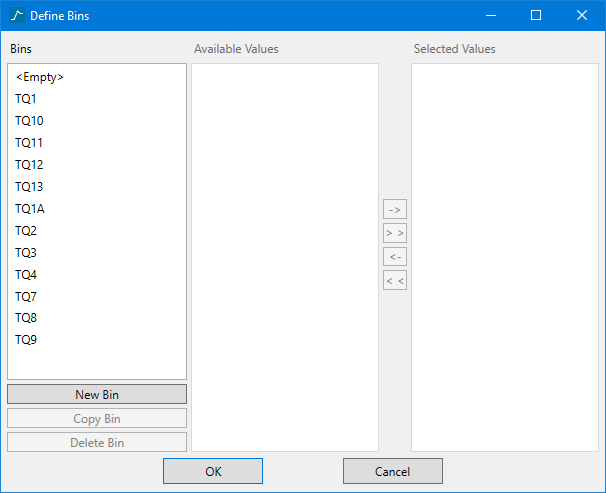
Bins column
This column shows the bins that will be displayed in the character histogram. The bins will be labelled as they are seen here.
Right-click menu
You can Rename, Delete, or Combine bins by using the right-click context menu.
Rename
Select a bin, then right-click and select Rename.
Highlight <NewBin> and enter a new name.
Press Enter on the keyboard.
Delete
Select a bin, then right-click and select Delete.
Note: Deleting a bin by this method does not delete the data from the database, nor does it remove the histogram's access to that data. It only removes the current bin from the chart window. The data can be added back onto the chart.
Combine
Select two or more bins by holding down the Ctrl key and making your selection.
Right-click and select Combine.
Separating binsTo separate bins that have been combined follow these steps:
|
Available Values column
This column shows a list of all available bins. It is activated by selecting one or more bins from the Bins column.
Selected Values column
This column shows a list of bins that are currently being manipulated in some way.
Resulting Character Histogram Chart