

Load Specification
Use Open Specification to load a RSVUTE specification file (.rsv.spec).
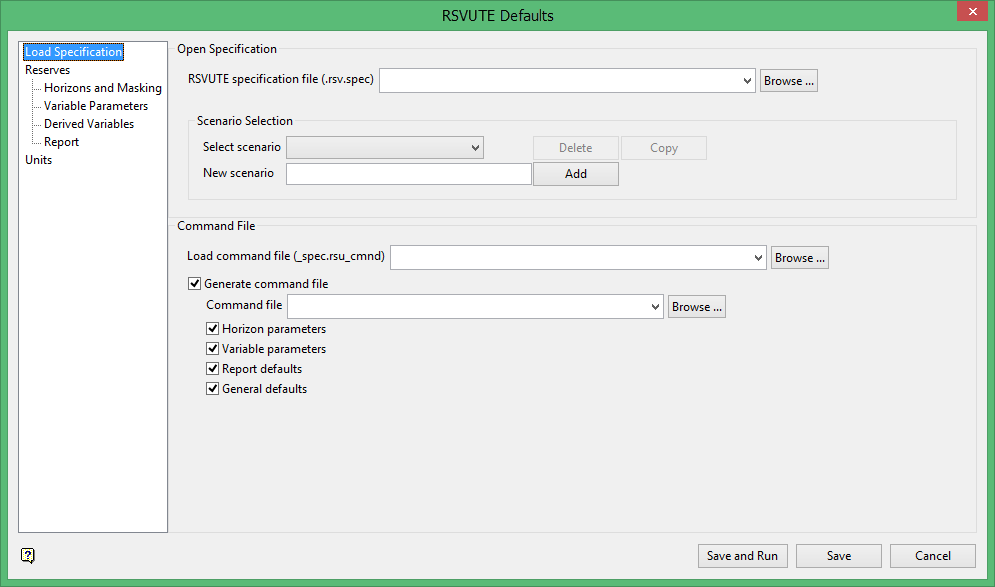
Open Specification
RSVUTE specification file (.rsv.spec)
Select the specification file to load. Create a new specification by typing in a new name. The drop-down list displays all available.rsv.spec files found in the current working directory. Click Browse to select a file from another location. The settings and information contained in the .rsv.spec file will populate various fields in the RSVUTE Defaults panels.
Scenario Selection
A scenario is a combination of parameters within the .rsv.spec file that can be used to build a traditional command file. In the Scenario Selection area, you can choose to select an existing scenario, copy an existing scenario and save it to a different name, or create a new scenario.
Select Scenario
Select the desired scenario from the drop-down list. This listing displays all available scenarios contained in the selected.rsv.spec file. Once an existing scenario is selected, all of its settings will populate the fields throughout the panels.
Delete
Select the scenario to remove from the drop-down list and click Delete. The following pop-up displays:
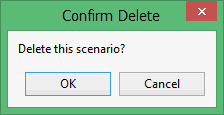
Click OK to complete the deletion.
Note: After the selected scenario is deleted, the first listed scenario displays in the Select Scenario field and the settings will automatically be loaded throughout the panels.
Copy
Select the scenario to duplicate and click Copy. The following pop-up is displayed:
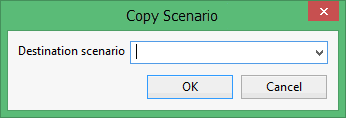
Enter the name for the scenario using up to 80 alphanumeric and/or special characters.
New Scenario
Enter a name for the new scenario using up to 80 alphanumeric characters. Click Add to save the scenario to the current.rsv.spec spec file. Populate the fields in the various option panels with the desired settings and click Save when finished. When this scenario is selected next, all of its settings will populate the fields throughout the panels.
Command File
Load command file
Use this option if you want to select an existing command file.
Generate command file
Enter, or select from the drop-down list, the name of the .rsu_cmnd file you would like to create. If you specify the name of an existing file, the existing command file will be overwritten. This option to create a command file is optional.
Note: If an existing rsvute command file is to be used for the reserving process, use RSVUTE > Files > Load Defaults.
If you don't specify the identifier, then the resulting file will be named defaults.rsu_cmnd and the defaults will automatically load and become active when starting the Rsvute process.
Horizon Parameters
Select this check box to save the current horizon and masking parameters to the generated command file.
Variable Parameters
Select this check box to save the current variable parameters, including the variable cut-offs and limits, to the generated command file. The current coal thickness variable and material name is also saved with these parameters.
Report Defaults
Select this check box to save the current report settings to the generated command file.
General Defaults
Select this check box to save the current general settings such as units, precision, density and class radius to the generated command file.
Save
Saves the specification file and scenarios created in the panel.
Save and Run
Saves the specification file and scenarios created in the panel as well as generates the command file.
